PD0511 Pen Input Area Mapping: Difference between revisions
From ViewSonic Documentation
Created page with "<noinclude> {{Sticky_Menu_Pen_Display |1=PD0511_Introduction |2=PD0511_Making_Connections |3=PD0511_Adjusting_the_Viewing_Angle |4=PD0511_Using_the_Display |5=PD0511_Setting_..." |
|||
| Line 15: | Line 15: | ||
<ol> | <ol> | ||
<li>Open Pen Display Manager either by going to: '''Start''' > '''Pen Display Manager''' or selecting the Pen Display Manager icon from the System Tray. | <li>Open Pen Display Manager either by going to: '''Start''' > '''Pen Display Manager''' or selecting the Pen Display Manager icon from the System Tray. | ||
Additionally, the driver can also be accessed from ViewSign Console - either the widget or by right-clicking the ViewSign Console icon in the system tray and selecting Pen Display Driver.</li> | <br />Additionally, the driver can also be accessed from ViewSign Console - either the widget or by right-clicking the ViewSign Console icon in the system tray and selecting Pen Display Driver.</li> | ||
:<div class="res-img">[[File:Pen_Display_Manager.png|300px]]</div> | :<div class="res-img">[[File:Pen_Display_Manager.png|300px]]</div> | ||
<li>Select the '''Mapping''' tab.</li> | <li>Select the '''Mapping''' tab.</li> | ||
Revision as of 07:45, 13 September 2021
Pen Input Area
To set the proper pen input area,
- Open Pen Display Manager either by going to: Start > Pen Display Manager or selecting the Pen Display Manager icon from the System Tray.
Additionally, the driver can also be accessed from ViewSign Console - either the widget or by right-clicking the ViewSign Console icon in the system tray and selecting Pen Display Driver. 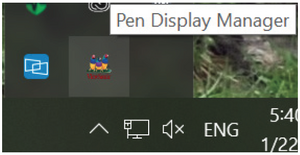
- Select the Mapping tab.
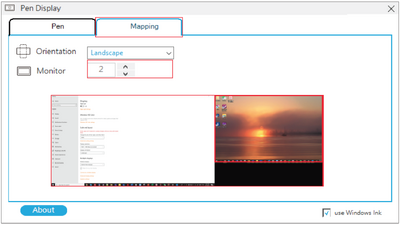
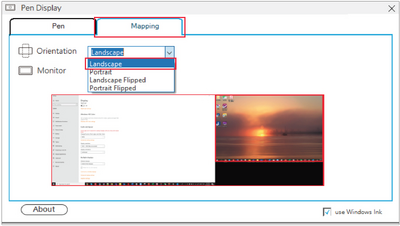
- Select the correct Orientation, and the correct display.
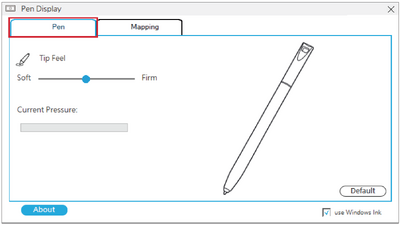
- Further adjustments can be made by selecting the Pen tab.