
VG2440V Connecting Power and Devices: Difference between revisions
From ViewSonic Documentation
Created page with "<noinclude> {{Sticky_Menu_Monitor__3.0_No_Adv |1=VG2440V_Introduction |2=VG2440V_Initial_Setup |3=VG2440V_Connecting_Power_and_Devices |4=VG2440V_Adjusting_the_Viewing_Angle |..." |
|||
| Line 39: | Line 39: | ||
:'''NOTE:''' To connect the monitor to the Thunderbolt port (v. 1&2) on your Mac, connect the mini DP end of the “mini DP to DisplayPort cable” to the Thunderbolt output of your Mac. Then connect the other end of the cable to the DisplayPort port of the monitor. | :'''NOTE:''' To connect the monitor to the Thunderbolt port (v. 1&2) on your Mac, connect the mini DP end of the “mini DP to DisplayPort cable” to the Thunderbolt output of your Mac. Then connect the other end of the cable to the DisplayPort port of the monitor. | ||
</small> | </small> | ||
===VGA=== | |||
Connect one end of a VGA cable to the VGA port of your monitor. Then connect the other end of the cable to the VGA port of your computer. | |||
===USB=== | ===USB=== | ||
| Line 49: | Line 52: | ||
|- | |- | ||
|Type A | |Type A | ||
| | |Three (3) | ||
|Connection for your Type A peripheral device(s). ( | |Connection for your Type A peripheral device(s). (e.g. storage device). | ||
|- | |- | ||
|Type B | |Type B | ||
|One (1) | |One (1) | ||
|Connect the USB Type B male cable (square with 2 cut corners) to this port, and then connect the other end of the cable to the USB downstream port of your computer. | |Connect the USB Type B male cable (square with 2 cut corners) to this port, and then connect the other end of the cable to the USB downstream port of your computer. | ||
|} | |} | ||
=== | ===Audio=== | ||
[[Category:VG2440V]] | [[Category:VG2440V]] | ||
Revision as of 09:05, 9 November 2020
Connecting to Power

- Connect the power cord to the AC IN jack at the rear of the device.
- Connect the power cord plug to a power outlet.
Connecting External Devices
-
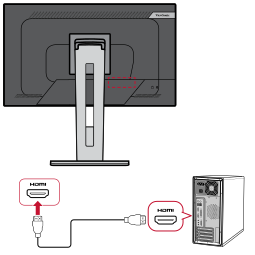 HDMI Connection
 -
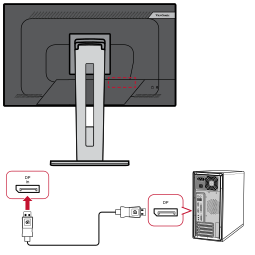 DisplayPort Connection
 -
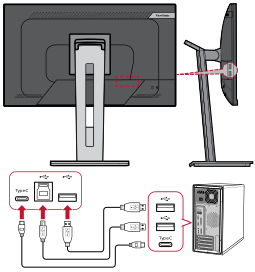 USB Connection
 -
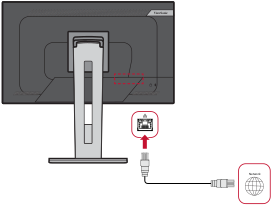 Ethernet Connection


HDMI
Connect one end of an HDMI cable to the HDMI port of your monitor. Then connect the other end of the cable to the HDMI port of your computer.
- NOTE: The monitor is equipped with one HDMI 1.4 port.
DisplayPort
Connect one end of a DisplayPort cable to the DisplayPort port. Then connect the other end of the cable to the DisplayPort or mini DP port of your computer.
- NOTE: To connect the monitor to the Thunderbolt port (v. 1&2) on your Mac, connect the mini DP end of the “mini DP to DisplayPort cable” to the Thunderbolt output of your Mac. Then connect the other end of the cable to the DisplayPort port of the monitor.
VGA
Connect one end of a VGA cable to the VGA port of your monitor. Then connect the other end of the cable to the VGA port of your computer.
USB
Connect one end of a USB cable to a USB port of the monitor. Then connect the other end of the cable to a USB port of your computer.
USB Number Description Type A Three (3) Connection for your Type A peripheral device(s). (e.g. storage device). Type B One (1) Connect the USB Type B male cable (square with 2 cut corners) to this port, and then connect the other end of the cable to the USB downstream port of your computer.