
IFP55G1 Using Your ViewBoard: Difference between revisions
From ViewSonic Documentation
Tag: visualeditor |
|||
| Line 510: | Line 510: | ||
{| class="wikitable" style="text-align:center; background-color:#ffffff; width:60%;" | {| class="wikitable" style="text-align:center; background-color:#ffffff; width:60%;" | ||
! style="background-color:#db0025; color:#ffffff; width: | ! style="background-color:#db0025; color:#ffffff; width:30%;" |Item | ||
! style="background-color:#db0025; color:#ffffff; width: | ! style="background-color:#db0025; color:#ffffff; width:80%;" |Description | ||
|- | |- | ||
|'''Picture Mode''' | |'''Picture Mode''' | ||
Revision as of 06:59, 24 June 2024
Powering ON/OFF your ViewBoard
-
Ensure the power cord is connected, plugged into a power outlet, and the Power Switch is in the “ON” position.
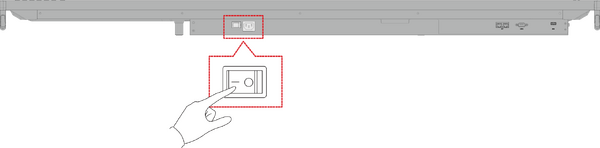 Note: The AC Power input and Power Switch are located at the bottom of the display.
 -
Press the Power button to turn ON the ViewBoard.
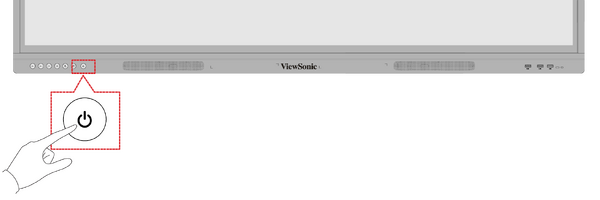
- To turn the ViewBoard OFF, press and hold the Power button.


On-Screen Display (OSD) Menu Tree
| Main Menu | Sub-menu | Menu Option | ||
|---|---|---|---|---|
| VGA | H Position | (-/+, 0~100) | ||
| V Position | (-/+, 0~100) | |||
| Clock | (-/+, 0~100) | |||
| Clock Phase | (-/+, 0~100) | |||
| Zoom Mode | Full | |||
| Normal (4:3) | ||||
| Real (1:1) | ||||
| Dynamic (16:9) | ||||
| 21:9 | ||||
| Auto Adjust | OK | |||
| Screen Reset | Cancel | |||
| Reset | ||||
| Input Source | VGA | |||
| HDMI 1 | ||||
| HDMI 2 | ||||
| HDMI 3 | ||||
| PC | ||||
| Type-C | ||||
| WriteAway | Off | |||
| Except PC (OPS) | ||||
| No Signal Input Only | ||||
| Black Board Mode
(Auto Signal Detection: Off) | ||||
| Picture | Picture Mode | Normal | ||
| Dynamic | ||||
| Soft | ||||
| User | ||||
| Contrast | (-/+, 0~100) | |||
| Brightness | (-/+, 0~100) | |||
| Color | (-/+, 0~100) | |||
| Tint | (-/+, 0~100) | |||
| Sharpness | (-/+, 0~100) | |||
| Color Temperature | Warm (7500K) | |||
| Normal (9300K) | ||||
| Cool (10000K) | ||||
| User | ||||
| Noise Reduction | Off | |||
| Low | ||||
| Medium | ||||
| High | ||||
| Overscan | off | |||
| On | ||||
| RGB Range | Full Range | |||
| Limited Range | ||||
| Auto | ||||
| Flicker Free | Off | |||
| On | ||||
| Blue Light Filter | (-/+, 0~100) | |||
| Gamma Set | Native | |||
| 2.2 | ||||
| 2.4 | ||||
| Backlight | (-/+, 0~100) | |||
| Picture Reset | Cancel | |||
| Reset | ||||
| Audio | Volume Control | Speaker | ||
| Audio Out | ||||
| Sync | ||||
| Treble | (-/+, 0~100) | |||
| Bass | (-/+, 0~100) | |||
| Balance | (-/+, 0~100) | |||
| Volume | (-/+, 0~100) | |||
| Maximum Volume | (-/+, 0~100) | |||
| Minimum Volume | (-/+, 0~100) | |||
| Mute | Off | |||
| On | ||||
| Audio Out Sync | Enable | |||
| Disable | ||||
| Audio Out Volume
(Line Out) |
(-/+, 0~100) | |||
| Audio Reset | Cancel | |||
| Reset | ||||
| Time | Off Time | Off | ||
| 1 hour~24 hours | ||||
| Date and Time | Set Date | |||
| Set Time | ||||
| Choose Time Zone | ||||
| Use 24-hour Format | ||||
| Schedule | Schedule List | |||
| Enable | ||||
| Start Time | ||||
| End Time | ||||
| Input | HDMI 1 | |||
| HDMI 2 | ||||
| HDMI 3 | ||||
| PC | ||||
| Type-C | ||||
| VGA | ||||
| Dat of the Week | ||||
| Every Week | ||||
| OSD Turn Off | Off | |||
| 5/15/30/60 seconds | ||||
| Input Information | Off | |||
| 5/10/20/30/60 seconds | ||||
| Automatic Date & Time | Off | |||
| On | ||||
| Time Reset | Cancel | |||
| Reset | ||||
| About | Display Information | Model Name | ||
| Serial No. | ||||
| Operation Hours | ||||
| SW Version | ||||
| Advanced Options | Saving | Panel Saving | Brightness | Off |
| On | ||||
| Power Save | Mode 1 | |||
| Mode 2 | ||||
| Mode 3 | ||||
| Mode 4 | ||||
| Power LED Light | Off | |||
| On | ||||
| Boot | Boot On Source | HDMI 1 | ||
| HDMI 2 | ||||
| HDMI 3 | ||||
| PC | ||||
| Type-C | ||||
| VGA | ||||
| Boot On Logo | Off | |||
| On | ||||
| Signal | Auto Signal Detection | Off | ||
| On | ||||
| No Signal Standby | off | |||
| 0 mins | ||||
| 5 mins | ||||
| 15 mins | ||||
| 30 mins | ||||
| Port | HDMI with One Wire | Off
(default) | ||
| On | ||||
| USB Cloning | Import | |||
| Export | ||||
| USB Auto Play | Off | |||
| On | ||||
| Others | Switch On State | Power Off | ||
| Forced On | ||||
| Last Status | ||||
| WOL | Off | |||
| On | ||||
| Monitor ID 1~98 | ||||
| OSD Language | ||||
| Factory Reset | Cancel | |||
| Reset | ||||
| Advanced Option Reset | Cancel | |||
| Reset | ||||
| Other Settings | Energy Start | Off | ||
| On | ||||
| Light Sensor | Off | |||
| On | ||||
| IP | ||||
| Port | ||||
| Leave OSD Menu | Leave OSD Menu | |||
On-Screen Display (OSD) Menu Operation
Access VGA, Input Source, WriteAway, Picture, Audio, Time, About, Advanced Options, and Other Settings settings through the OSD Menu.

Open the OSD Menu by pressing MENU on the remote control or the  Menu button on the front Control Panel.
VGA
Note: For VGA input source only.
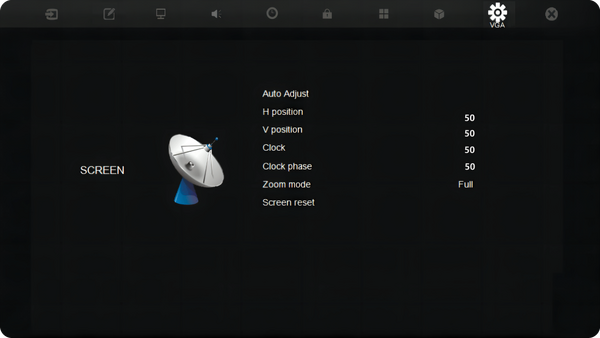
| Item | Description |
|---|---|
| H Position | Adjust the screen image position horizontally. |
| V Position | Adjust the screen image position vertically. |
| Clock | Adjust the frequency of the pixel clock signal. This will affect the resolution and refresh rate. |
| Clock Phase | Adjust the clock phase to improve the display’s clarity and avoid flickering. |
| Zoom Mode | Select the aspect ratio of the display. |
| Auto Adjust | Automatically adjust the position of the screen image. |
| Screen Reset | Reset the Screen settings to their default settings. |
Input Source
Select one of the available input sources.

WriteAway

| Item | Description |
|---|---|
| Off | Turn off the WriteAway function. |
| Except PC (OPS) | Can be used for all channels, except OPS. |
| No Signal Input Only | Can be used when there is no signal input. |
| Black Board Mode
(Auto Signal Detection: Off) |
Can be used when there is no signal input; auto-detection will be disabled. |
Picture

| Item | Description | ||||||||||
|---|---|---|---|---|---|---|---|---|---|---|---|
| Picture Mode | Select a predefined picture setting.
| ||||||||||
| Contrast | Adjusts the difference between the image background (black level) and the foreground (white level). Use this to set the peak white level after you have previously adjusted the Brightness setting to suit your selected input and viewing environment. | ||||||||||
| Brightness | Adjusts background black levels of the screen image. The higher the value, the brighter the image. Lower values will result in a darker image. | ||||||||||
| Color | Adjust an image from black and white to fully saturated color. | ||||||||||
| Tint | The higher the value, the more greenish the picture becomes. The lower the value, the more reddish the picture becomes. | ||||||||||
| Sharpness | A high value results in a sharper picture; a low value softens the picture. | ||||||||||
| Color Temperature | Adjust the color temperature value. | ||||||||||
| Noise Reduction | Reduce image noise and distortion. | ||||||||||
| Overscan | Automatically enlarge the original picture horizontally and vertically to an equal aspect ratio that fills the screen. | ||||||||||
| RGB Range | Manually change the color format options to fit the correct color format range if the colors are not displayed correctly. | ||||||||||
| Flicker Free | Reduce or eliminate screen flicker. | ||||||||||
| Blue Light Filter | Adjust the filter that blocks high-energy blue light for a more comfortable viewing experience. | ||||||||||
| Gamma Set | Reflect the relationship between input source and picture brightness. | ||||||||||
| Backlight | Adjust the backlight value. | ||||||||||
| Picture Reset | Reset the Picture settings to their default settings. |
Audio

Time

About

Advanced Options

Other Settings

Leave OSD Menu
Exit the OSD Menu.
