
IFP55G1 Remote Control: Difference between revisions
From ViewSonic Documentation
// via Wikitext Extension for VSCode |
// via Wikitext Extension for VSCode |
||
| Line 142: | Line 142: | ||
=Inserting Remote Control Batteries= | =Inserting Remote Control Batteries= | ||
<div> | |||
To Insert batteries into the remote control: | To Insert batteries into the remote control: | ||
<ol> | <ol> | ||
| Line 160: | Line 161: | ||
max-width:70%; | max-width:70%; | ||
"><i class='fas fa-exclamation-circle' style='font-size:24px'></i> '''WARNING:''' There is a risk of explosion if batteries are installed with incorrect polarity. | "><i class='fas fa-exclamation-circle' style='font-size:24px'></i> '''WARNING:''' There is a risk of explosion if batteries are installed with incorrect polarity. | ||
</div> | |||
</div> | </div> | ||
Revision as of 07:31, 21 June 2024
Remote Control Overview

| Number | Item | Description |
|---|---|---|
| 1 | Power ON/OFF | |
| 2 | 
|
Mute/Unmute |
| 3 | SLEEP | Sleep Mode |
| 4 | DISPLAY | For Non-Android sources; display current input source information |
| 5 | P.MODE | Blank screen |
| 6 | FREEZE | Freeze screen |
| 7 | Numeric input buttons | |
| 8 | ALT+TAB
-/-- |
Slot-in computer, space bar Alt+Tab |
| 9 | ALT+F4
|
Slot-in computer, close program window |
| 10 | INPUT | Input source selection |
| 11 | ASPECT | Back to slot-in system main interface |
| 12 | MENU | For Android, access Settings; for other sources, access Touch Menu settings |
| 13 | ALT |
Screen capture |
| 14 | TAB |
PC[1] [Tab] button |
| 15 | DESKTOP |
Switch to slot-in PC desktop |
| 1 |  |
PC[1] [Backspace] button |
| 17 | START / D.MENU | PC[1] [Windows] button |
| 18 |  / D.TITLE / D.TITLE
|
PC[1] [Menu] button |
| 19 |  / D.USB / D.USB
|
Writing software setup |
| 20 | EPG / BACK | Return button |
| 21 | ▼/▲/◄/► | Scroll up, down, left, and right |
| 22 | ENTER | Confirm selection/state |
| 23 | ESC / EXIT /
D.SETUP |
Shortcut button to exit dialogue boxes |
| 24 | CH.+ / PGUP / CH.+ / PGDN | CH+: PC previous page
CH-: PC next page |
| 25 | VOL+ / VOL- | Increase/Decrease volume |
| 26 | FAV / SPACE | PC[1] [Space] button |
| 27 | F1-F12 | Built-in computer F1~F12 function button |
Inserting Remote Control Batteries
To Insert batteries into the remote control:
- Remove the cover on the rear of the remote control.
- Insert two “AAA” batteries, ensuring the “+” symbol on the battery matches the “+” on the battery post.
- Replace the cover by aligning it with the slot on the remote control and snapping the latch shut.
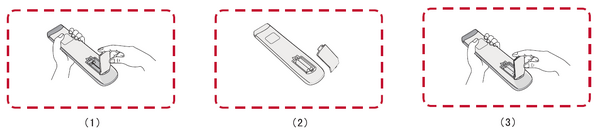

- WARNING: There is a risk of explosion if batteries are installed with incorrect polarity.
Note:
- It is recommended that you do not mix battery types.
- Always dispose of old batteries in an environmentally friendly way. Contact your local government for more information on how to dispose of batteries safely.