
IFP55G1 Introduction: Difference between revisions
From ViewSonic Documentation
Tag: visualeditor |
Tag: visualeditor |
||
| Line 83: | Line 83: | ||
! style="font-weight:bold; background-color:#DB0025; color:#ffffff;"| Description | ! style="font-weight:bold; background-color:#DB0025; color:#ffffff;"| Description | ||
|- | |- | ||
| style="font-weight:bold;" | 1 | | style="font-weight:bold;" | '''1''' | ||
|[[File:Icon_Screen_Brightness_Down.png|50px|Screen Brightness - Icon]] | |[[File:Icon_Screen_Brightness_Down.png|50px|Screen Brightness - Icon]] | ||
| style="text-align:left;" |Decrease screen brightness. | | style="text-align:left;" |Decrease screen brightness. | ||
|- | |- | ||
| style="font-weight:bold;" | 2 | | style="font-weight:bold;" | '''2''' | ||
|[[File:Icon_Screen_Brightness_Up.png|50px|Screen Brightness + Icon]] | |[[File:Icon_Screen_Brightness_Up.png|50px|Screen Brightness + Icon]] | ||
| style="text-align:left;" | Increase screen brightness. | | style="text-align:left;" | Increase screen brightness. | ||
|- | |- | ||
| style="font-weight:bold;" | 3 | | style="font-weight:bold;" | '''3''' | ||
|[[File:M1_mini_Plus_Icon_VolumeDown.png|50px|Volumne - Icon]] | |[[File:M1_mini_Plus_Icon_VolumeDown.png|50px|Volumne - Icon]] | ||
| style="text-align:left;" | Decrease the volume. | | style="text-align:left;" | Decrease the volume. | ||
|- | |- | ||
| style="font-weight:bold;" | 4 | | style="font-weight:bold;" | '''4''' | ||
|[[File:M1_mini_Plus_Icon_VolumeUp.png|50px|Volume + Icon]] | |[[File:M1_mini_Plus_Icon_VolumeUp.png|50px|Volume + Icon]] | ||
|style="text-align:left;" | Increase the volume. | |style="text-align:left;" | Increase the volume. | ||
|- | |- | ||
| style="font-weight:bold;" | 5 | | style="font-weight:bold;" | '''5''' | ||
|[[File:Icon_Touch_Screen.png|50px|Touch Screen Icon]] | |[[File:Icon_Touch_Screen.png|50px|Touch Screen Icon]] | ||
|style="text-align:left;" | Disable/Enable the touch screen. | |style="text-align:left;" | Disable/Enable the touch screen. | ||
|- | |- | ||
| style="font-weight:bold;" | 6 | | style="font-weight:bold;" | '''6''' | ||
|[[File:Icon_Control_Panel_Menu.png|50px|IFP55G1 Menu Icon]] | |[[File:Icon_Control_Panel_Menu.png|50px|IFP55G1 Menu Icon]] | ||
| style="text-align:left;" | Launch the Menu system. | | style="text-align:left;" | Launch the Menu system. | ||
|- | |- | ||
|7 | |'''7''' | ||
|[[File:Icon_Power_BK.png|50px|IFP55G1 Menu Icon]] | |[[File:Icon_Power_BK.png|50px|IFP55G1 Menu Icon]] | ||
|style="text-align:left;" | | |style="text-align:left;" | | ||
| Line 173: | Line 173: | ||
* USB 2.0 standard | * USB 2.0 standard | ||
|- | |- | ||
| style="font-weight:bold;" | | | style="font-weight:bold;" | 2 | ||
| '''RS-232''' | | '''RS-232''' | ||
| style="text-align:left;" |Serial interface; used for mutual transfer of data between devices | | style="text-align:left;" |Serial interface; used for mutual transfer of data between devices | ||
|- | |- | ||
| style="font-weight:bold;" | | | style="font-weight:bold;" | 3 | ||
| '''LAN''' | | '''LAN''' | ||
|Standard RJ45 (10M/100M/1000M) Internet connection interface. Features hub support for network sharing. | |Standard RJ45 (10M/100M/1000M) Internet connection interface. Features hub support for network sharing. | ||
| Line 193: | Line 193: | ||
! style="font-weight:bold; background-color:#DB0025; color:#ffffff;"| Description | ! style="font-weight:bold; background-color:#DB0025; color:#ffffff;"| Description | ||
|- | |- | ||
| style="font-weight:bold;" | 1 | | style="font-weight:bold;" | '''1''' | ||
| VGA | | '''VGA''' | ||
| style="text-align:left;" | External computer video input | | style="text-align:left;" | External computer video input | ||
|- | |- | ||
| style="font-weight:bold;" | | | style="font-weight:bold;" | '''2''' | ||
| AUDIO OUT | | '''AUDIO OUT''' | ||
| style="text-align:left;" | Audio output to an external speaker/headset | | style="text-align:left;" | Audio output to an external speaker/headset | ||
|- | |- | ||
| style="font-weight:bold;" | | | style="font-weight:bold;" | '''3''' | ||
| AUDIO IN | | '''AUDIO IN''' | ||
| style="text-align:left;" | External computer audio input | | style="text-align:left;" | External computer audio input | ||
|- | |- | ||
| | |'''4''' | ||
|USB | |'''USB''' | ||
| | | | ||
* USB Type A input | * USB Type A input | ||
| Line 212: | Line 212: | ||
* Connect USB devices such as hard disks, keyboard, mouse, etc. | * Connect USB devices such as hard disks, keyboard, mouse, etc. | ||
|- | |- | ||
| style="font-weight:bold;" | | | style="font-weight:bold;" | '''5''' | ||
| TOUCH 1 | | '''TOUCH 1''' | ||
| style="text-align:left;" | | | style="text-align:left;" | | ||
* USB Type B | * USB Type B | ||
| Line 220: | Line 220: | ||
:'''NOTE:''' Pairs with '''HDMI 1 port.''' | :'''NOTE:''' Pairs with '''HDMI 1 port.''' | ||
|- | |- | ||
| style="font-weight:bold;" | | | style="font-weight:bold;" | '''6''' | ||
| HDMI 1 | | '''HDMI 1''' | ||
| style="text-align:left;" | | | style="text-align:left;" | | ||
*HDMI input | *HDMI input | ||
| Line 227: | Line 227: | ||
*Supports 4K display; HDMI v. 2.0; CEC; ARC | *Supports 4K display; HDMI v. 2.0; CEC; ARC | ||
|- | |- | ||
| style="font-weight:bold;" | | | style="font-weight:bold;" | '''7''' | ||
| HDMI 2 | | '''HDMI 2''' | ||
| style="text-align:left;" | | | style="text-align:left;" | | ||
* HDMI input | * HDMI input | ||
| Line 234: | Line 234: | ||
* Supports 4K display; HDMI v. 2.0; CEC; ARC | * Supports 4K display; HDMI v. 2.0; CEC; ARC | ||
|- | |- | ||
| style="font-weight:bold;" | | | style="font-weight:bold;" | '''8''' | ||
| HDMI 3 | | '''HDMI 3''' | ||
| style="text-align:left;" | | | style="text-align:left;" | | ||
* HDMI input | * HDMI input | ||
| Line 241: | Line 241: | ||
* Supports 4K display; HDMI v. 2.0; CEC; ARC | * Supports 4K display; HDMI v. 2.0; CEC; ARC | ||
|- | |- | ||
| style="font-weight:bold;" | | | style="font-weight:bold;" | '''9''' | ||
| TOUCH 2 | | '''TOUCH 2''' | ||
| style="text-align:left;" | | | style="text-align:left;" | | ||
* USB Type B | * USB Type B | ||
| Line 249: | Line 249: | ||
:'''NOTE:''' Pairs with '''HDMI 2 and HDMI 3 ports.''' | :'''NOTE:''' Pairs with '''HDMI 2 and HDMI 3 ports.''' | ||
|- | |- | ||
| style="font-weight:bold;" | 10 | | style="font-weight:bold;" | '''10''' | ||
| | | | ||
| style="text-align:left;" | | | style="text-align:left;" | | ||
Revision as of 06:26, 21 June 2024
Package Contents
Note: The power cord and video cables included in your package may vary depending on your country. Please contact your local reseller for more information.
-
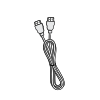 HDMI Cable
(3 m) -
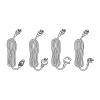 Power Cord
(ship by region) -
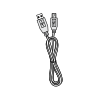 USB Touch Cable (3 m)
 -
 Remote Control
 -
 AAA Battery x 2
 -
 Compliance Statement
 -
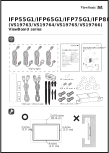 Quick Start Guide
 -
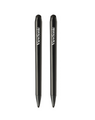 Touch Pen x 2
 -
 Replacement Pen Nib x 4
 -
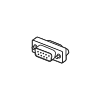 RS-232 Adapter
 -
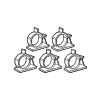 Clamp x 5
 -
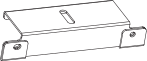 Camera Plate
 -
 Wall Mount Screws
 -
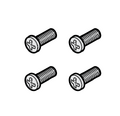 Wall Mount Screws (M8 x 25mm x 4)


Wall Mount Kit Specifications (VESA)

| Model | VESA Spec. (A x B) |
Standard Screw (C x D) |
Quantity |
|---|---|---|---|
| IFP6533 - 65” | 600 x 400 mm | M8 x 25 mm | 4 |
NOTE:
- Please follow the instructions in the wall mount installation guide to install your wall mount (check here) or mobile mount bracket (check the video here). If attaching to other building materials, please contact your nearest dealer.
- Do not use screws that are longer than the standard dimension, as they may cause damage to the inside of the display.
Product Overview
Front Panel

Rear Panel

Control Panel and Front I/O

| Number | Item | Description |
|---|---|---|
| 1 | 
|
Decrease screen brightness. |
| 2 | 
|
Increase screen brightness. |
| 3 | 
|
Decrease the volume. |
| 4 | 
|
Increase the volume. |
| 5 | 
|
Disable/Enable the touch screen. |
| 6 | 
|
Launch the Menu system. |
| 7 | 
|
|
I/O Panels
Front I/O


| Number | Port | Description |
|---|---|---|
| 1 | USB |
|
| 2 | USB |
|
| 3 | Remote control receiver | |
| 4 | Ambient Light Sensor |
Rear and Side I/O


| Number | Port | Description |
|---|---|---|
| 1 | USB |
|
| 2 | RS-232 | Serial interface; used for mutual transfer of data between devices |
| 3 | LAN | Standard RJ45 (10M/100M/1000M) Internet connection interface. Features hub support for network sharing. |

| Number | Port | Description |
|---|---|---|
| 1 | VGA | External computer video input |
| 2 | AUDIO OUT | Audio output to an external speaker/headset |
| 3 | AUDIO IN | External computer audio input |
| 4 | USB |
|
| 5 | TOUCH 1 |
|
| 6 | HDMI 1 |
|
| 7 | HDMI 2 |
|
| 8 | HDMI 3 |
|
| 9 | TOUCH 2 |
|
| 10 |
|
Further Reading
 |