
TD2223-2 Quick Menu: Difference between revisions
From ViewSonic Documentation
| Line 30: | Line 30: | ||
:'''NOTE:''' Follow the key guide that appears on the bottom of the screen to select the option, then make adjustments with the [▼] and [▲] keys. | :'''NOTE:''' Follow the key guide that appears on the bottom of the screen to select the option, then make adjustments with the [▼] and [▲] keys. | ||
{| class="wikitable" width="60%" style="background-color:#ffffff;" | {| class="wikitable" width="60%;" style="background-color:#ffffff;" | ||
! style="text-align: center; font-weight:bold; background-color:#DB0025; color:#ffffff; width:15%;" | Icon | ! style="text-align: center; font-weight:bold; background-color:#DB0025; color:#ffffff; width:15%;" | Icon | ||
! style="text-align: center; font-weight:bold; background-color:#DB0025; color:#ffffff; witdh:20%;" | Name | ! style="text-align: center; font-weight:bold; background-color:#DB0025; color:#ffffff; witdh:20%;" | Name | ||
| Line 37: | Line 37: | ||
| style="text-align: center;" | [[File:Icon_Auto_Image_Adjust.svg|50px|link=| Auto Image Adjust]] | | style="text-align: center;" | [[File:Icon_Auto_Image_Adjust.svg|50px|link=| Auto Image Adjust]] | ||
| style="text-align: center; font-weight:bold;" | Auto Image Adjust | | style="text-align: center; font-weight:bold;" | Auto Image Adjust | ||
| Automatically adjust the screen position. | |||
|- | |- | ||
| style="text-align: center;" | [[File:Icon_Contrast_and_Brightness.svg|50px|link=| Contrast/Brightness]] | | style="text-align: center;" | [[File:Icon_Contrast_and_Brightness.svg|50px|link=| Contrast/Brightness]] | ||
| style="text-align: center; font-weight:bold;" | Contrast/Brightness | | style="text-align: center; font-weight:bold;" | Contrast/Brightness | ||
| Adjust the contrast or brightness level. | |||
|- | |- | ||
| style="text-align: center;" | [[File:Icon_Input_Select.svg|50px|link=| Input Select]] | | style="text-align: center;" | [[File:Icon_Input_Select.svg|50px|link=| Input Select]] | ||
| style="text-align: center; font-weight:bold;" | Input Select | | style="text-align: center; font-weight:bold;" | Input Select | ||
| Select the input source. | |||
|- | |- | ||
| style="text-align: center;" | [[File:Icon_Audio_Adjust.svg|50px|link=| Audio Adjust]] | | style="text-align: center;" | [[File:Icon_Audio_Adjust.svg|50px|link=| Audio Adjust]] | ||
| style="text-align: center; font-weight:bold;" | Audio Adjust | | style="text-align: center; font-weight:bold;" | Audio Adjust | ||
| Adjust the level, or mute the volume. | |||
|- | |- | ||
| style="text-align: center;" | [[File:Icon_Color_Adjust.svg|50px|link=| Color Adjust]] | | style="text-align: center;" | [[File:Icon_Color_Adjust.svg|50px|link=| Color Adjust]] | ||
| style="text-align: center; font-weight:bold;" | Color Adjust | | style="text-align: center; font-weight:bold;" | Color Adjust | ||
| Select one of the preset color settings. | |||
|- | |- | ||
| style="text-align: center;" | [[File:Icon_Information.svg|50px|link=| Information]] | | style="text-align: center;" | [[File:Icon_Information.svg|50px|link=| Information]] | ||
| style="text-align: center; font-weight:bold;" | Information | | style="text-align: center; font-weight:bold;" | Information | ||
| Displays the timing mode coming from the graphics card in the computer, the LCD model number, the serial number, and the ViewSonic® website URL. | |||
|- | |- | ||
| style="text-align: center;" | [[File:Icon_Manual_Image_Adjust.svg|50px|link=| Manual Image Adjust]] | | style="text-align: center;" | [[File:Icon_Manual_Image_Adjust.svg|50px|link=| Manual Image Adjust]] | ||
| style="text-align: center; font-weight:bold;" | Manual Image Adjust | | style="text-align: center; font-weight:bold;" | Manual Image Adjust | ||
| Manually set a variety of image quality adjustments. | |||
|- | |- | ||
| style="text-align: center;" | [[File:Icon_Setup_Menu.svg|50px|link=| Setup Menu]] | | style="text-align: center;" | [[File:Icon_Setup_Menu.svg|50px|link=| Setup Menu]] | ||
| style="text-align: center; font-weight:bold;" | Setup Menu | | style="text-align: center; font-weight:bold;" | Setup Menu | ||
| Adjust On-Screen Display (OSD) settings. | |||
|- | |- | ||
| style="text-align: center;" | [[File:Icon_Memory_Recall.svg|50px|link=| Memory Recall]] | | style="text-align: center;" | [[File:Icon_Memory_Recall.svg|50px|link=| Memory Recall]] | ||
| style="text-align: center; font-weight:bold;" | Memory Recall | | style="text-align: center; font-weight:bold;" | Memory Recall | ||
| Returns the adjustments back to factory settings. | |||
|- | |- | ||
|} | |} | ||
Revision as of 05:47, 25 October 2023
Turning the Device ON/OFF
- Plug the power cord into a power outlet.
- Press the Power key to turn on the monitor.
- To turn the monitor off, press the Power key again.
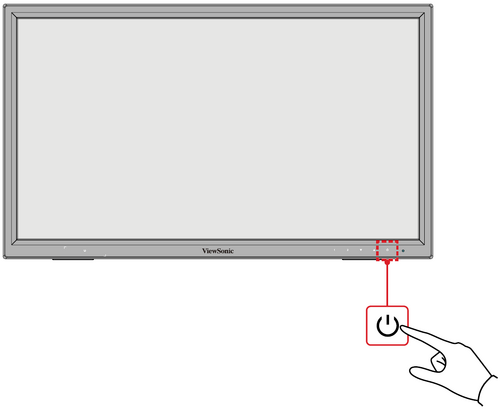
- NOTE: The monitor will still consume some power as long as the power cord is connected to the power outlet. If the monitor is not being used for a long period of time, please disconnect the power plug from the power outlet.

Using the Control Panel Keys
Use the control panel keys to activate Hot Keys, navigate the On-Screen Display (OSD) Menu, and change the settings.

On-Screen Display (OSD) Menu
Press the 1 key to activate the On-Screen Display (OSD) Menu. Follow the key guide that appears on the screen to select options or make adjustments.

- NOTE: Follow the key guide that appears on the bottom of the screen to select the option, then make adjustments with the [▼] and [▲] keys.
| Icon | Name | Description |
|---|---|---|

|
Auto Image Adjust | Automatically adjust the screen position. |

|
Contrast/Brightness | Adjust the contrast or brightness level. |

|
Input Select | Select the input source. |

|
Audio Adjust | Adjust the level, or mute the volume. |

|
Color Adjust | Select one of the preset color settings. |

|
Information | Displays the timing mode coming from the graphics card in the computer, the LCD model number, the serial number, and the ViewSonic® website URL. |

|
Manual Image Adjust | Manually set a variety of image quality adjustments. |

|
Setup Menu | Adjust On-Screen Display (OSD) settings. |

|
Memory Recall | Returns the adjustments back to factory settings. |