
VG2440V Adjusting the Viewing Angle: Difference between revisions
From ViewSonic Documentation
Created page with "<noinclude> {{Sticky_Menu_Monitor__3.0_No_Adv |1=VG2440V_Introduction |2=VG2440V_Initial_Setup |3=VG2440V_Connecting_Power_and_Devices |4=VG2440V_Adjusting_the_Viewing_Angle |..." |
No edit summary |
||
| Line 51: | Line 51: | ||
::* To rotate the screen image, manually change the system’s display orientation settings. | ::* To rotate the screen image, manually change the system’s display orientation settings. | ||
::* When adjusting, make sure to hold both sides of your monitor firmly with both hands. | ::* When adjusting, make sure to hold both sides of your monitor firmly with both hands. | ||
{{#seo: | |||
|title=ViewSonic Monitor | |||
|title_mode=append | |||
|keywords=VG2440V, Tilt, ergonomics, adjustment, swivel, pivot | |||
|description=Adjusting the VG2440V. | |||
}} | |||
[[Category:VG2440V]] | [[Category:VG2440V]] | ||
Latest revision as of 09:25, 27 April 2021
-
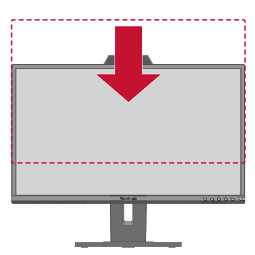 Height Adjustment
 -
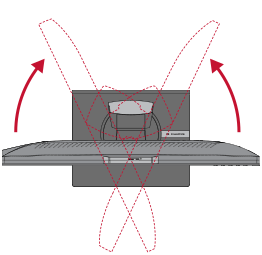 Swivel Adjustment
 -
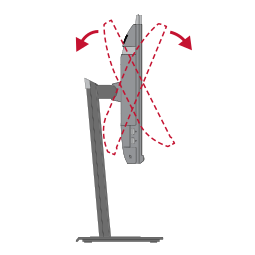 Tilt Angle Adjustment


Height Adjustment
Lower or raise the monitor to the desired height (0 to 130 mm).
- NOTE: When adjusting, press down firmly along the adjustment track holding the monitor with both hands on the side.
Swivel Adjustment
Swivel the monitor to the left or right for the desired viewing angle (60˚).
Tilt Angle Adjustment
Tilt the monitor forwards or backwards to the desired viewing angle (-5˚ to 40˚).
- NOTE:
- When adjusting, support the stand firmly with one hand while tilting the monitor forwards or backwards with the other hand.
- The monitor must be lifted to the highest position, then it can support 40˚ tilt.
Screen Orientation Adjustment (Monitor Pivot)
-
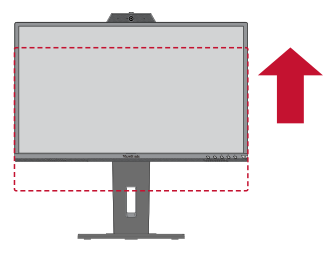 Screen Orientation Adjustment
 -
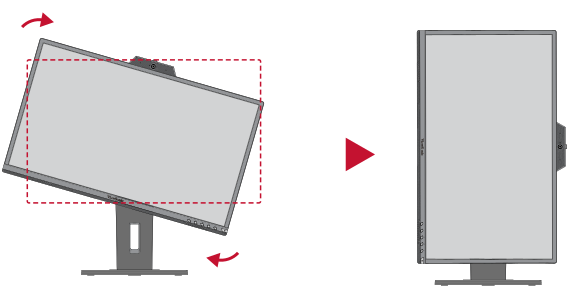 Screen Orientation Adjustment
 -
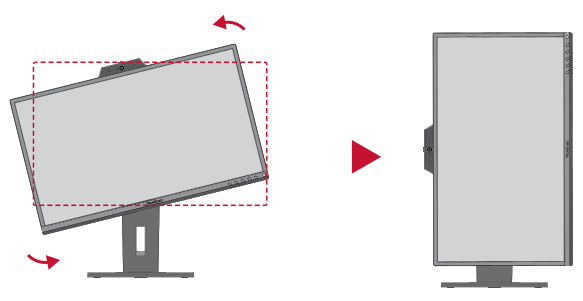 Screen Orientation Adjustment


- Adjust the monitor height to the highest position. Then tilt the monitor backwards to the full tilt position.
- Rotate the monitor 90° clockwise or counter clockwise from landscape to portrait orientation.
- NOTE:
- To rotate the screen image, manually change the system’s display orientation settings.
- When adjusting, make sure to hold both sides of your monitor firmly with both hands.