
VP2468a H2 Quick Menu: Difference between revisions
From ViewSonic Documentation
Created page with "<noinclude> {{Sticky_Menu |1=VP2468a_H2_Introduction |2=VP2468a_H2_Initial_Setup |3=VP2468a_H2_Connecting_Power_and_Devices |4=VP2468a_H2_Adjusting_the_Viewing_Angle |5=VP246..." |
|||
| Line 18: | Line 18: | ||
Use the control panel keys to access the Quick Access Menu, navigate the On-Screen Display (OSD) Menu, and change the settings. | Use the control panel keys to access the Quick Access Menu, navigate the On-Screen Display (OSD) Menu, and change the settings. | ||
<div class="res-img">[[File: | <div class="res-img">[[File:VP2468a_H2_Control_Keys.png|400px| Control Keys]]</div> | ||
=Quick Menu= | =Quick Menu= | ||
Latest revision as of 09:21, 8 August 2022
Using the Control Panel Keys
Use the control panel keys to access the Quick Access Menu, navigate the On-Screen Display (OSD) Menu, and change the settings.

Quick Menu
Touch the 1/2/3/4 key to activate the Quick menu. Follow the key guide that appears on the screen to select options or make adjustments.

-
 Standard Color
 -
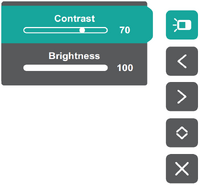 Contrast / Brightness
 -
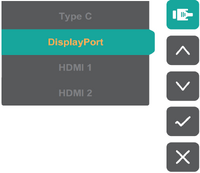 Input Select
 -
 Main Menu


| Icon | Name | Description |
|---|---|---|

|
Standard Color | Select one of the preset standard color settings. |

|
Contrast / Brightness | Adjust the contrast or brightness. |

|
Input Select | Select the input source. |

|
Main Menu | Enter the On-Screen Display (OSD) Menu. |

|
Exit | Exit the Quick Menu. |