
LDM108-121 Embedded Applications: Difference between revisions
From ViewSonic Documentation
Created page with "<noinclude> {{Sticky_Menu_DirectView |1=LDM108-121_Introduction |2=LDM108-121_Remote_Control |3=LDM108-121_Wall_Installation |4=LDM108-121_Floor_Stand_Installation |5=LDM108-1..." |
No edit summary |
||
| (2 intermediate revisions by the same user not shown) | |||
| Line 13: | Line 13: | ||
|11=LDM108-121_Regulatory_and_Service_Information | |11=LDM108-121_Regulatory_and_Service_Information | ||
}} | }} | ||
</noinclude> | |||
= | =vCast= | ||
Working with ViewBoard® Cast software, the | Working with ViewBoard® Cast software (vCast, vCast Pro, and vCastSender), the vCast application will allow the ViewBoard to receive laptop screens (Windows/Mac/Chrome) and mobile (iOS/Android) users’ screens, photos, videos, annotations, and camera(s) that are using the vCastSender application. | ||
<div class="res-img">[[File: | <div class="res-img">[[File:IFP52_vCast_Sender_1.png|ViewBoard Cast (vCast)|500px]]</div> | ||
:'''NOTE:''' | |||
:* ViewBoard® Cast software, laptops, and mobile devices can connect to both the same subnet and cross subnet by entering the on-screen PIN code. | |||
:* Connected devices will show up under '''Device List''' on the same subnet connection. | |||
:* If the device does not show up under '''Device List''', users will need to key-in the on-screen PIN code. | |||
==Network Information== | |||
* | *'''Ports:''' | ||
::<i class="fas fa-chevron-right fa-xs"></i> TCP 56789, 25123, 8121 & 8000 (Controlling message port & client device audio transfer) | |||
::<i class="fas fa-chevron-right fa-xs"></i> TCP 8600 (BYOM) | |||
::<i class="fas fa-chevron-right fa-xs"></i> TCP 53000 (Request share screen) | |||
::<i class="fas fa-chevron-right fa-xs"></i> TCP 52020 (Reverse control) | |||
::<i class="fas fa-chevron-right fa-xs"></i> TCP 52025 (Reverse control for ViewBoard Cast Button) | |||
::<i class="fas fa-chevron-right fa-xs"></i> TCP 52030 (Status sync) | |||
::<i class="fas fa-chevron-right fa-xs"></i> UDP 48689, 25123 (Device searching and broadcast & client device audio transfer) | |||
::<i class="fas fa-chevron-right fa-xs"></i> UDP 5353 (Multicast search device protocol) | |||
*'''Port and DNS Activation:''' | |||
= | ::<i class="fas fa-chevron-right fa-xs"></i> Port: 443 | ||
::<i class="fas fa-chevron-right fa-xs"></i> DNS: <nowiki>https://vcastactivate.viewsonic.com</nowiki> | |||
= | *'''OTA Service:''' | ||
::<i class="fas fa-chevron-right fa-xs"></i> Server Port: TCP443 | |||
::<i class="fas fa-chevron-right fa-xs"></i> Server FQDN Name: <nowiki>https://vcastupdate.viewsonic.com</nowiki> | |||
== | ==Casting from Windows, MacBook, and Chrome Devices== | ||
<div class="res-img">[[File: | <div class="res-img">[[File:IFP52_vCast_Sender_1-1.png|500px]]</div> | ||
<ol><li>Ensure the client device (e.g., laptop) is connected to the same network as the ViewBoard.</li> | |||
:'''NOTE:''' The network name can be found under '''Room Network'''. | |||
:<div class="res-img">[[File:vCast_Computer_1.png|400px]]</div> | |||
<li>On the client device, visit the address that is shown on the ViewBoard to download and install the vCastSender application.</li> | |||
<li>After installing, launch the vCastSender application.</li> | |||
: | <li>To connect to the ViewBoard, input the PIN code and click OK.</li> | ||
:'''NOTE:''' The '''PIN code''' can be found as highlighted below: | |||
:<div class="res-img">[[File:vCast_Computer_2.png|400px]]</div> | |||
<li>Additionally, you can connect to the ViewBoard or display by clicking '''Device List''' then the '''Device Name''' listed.</li> | |||
<div class="res-img">[[File:vCast_Computer_3.png|400px]]</div> | |||
:'''NOTE:''' The '''Device Name''' can be found as highlighted below: | |||
:<div class="res-img">[[File:vCast_Computer_4.png|400px]]</div></ol> | |||
== | ==Casting from Android Devices== | ||
<div class="res-img">[[File: | <div class="res-img">[[File:vCast_Mobile_Update_1.png|border|500px]]</div> | ||
<ol><li>Ensure the client device (e.g., Android phone or tablet) is connected to the same network as the ViewBoard.</li> | |||
:'''NOTE:''' The network name can be found under '''Room Network'''. | |||
:<div class="res-img">[[File:vCast_Computer_1.png|400px]]</div> | |||
<li>On the Android client device, scan the QR code shown on the ViewBoard to directly download the vCastSender application, or download the application from the Google Play Store.</li> | |||
:<div class="res-img">[[File:vCast_Sender_3.png|border|400px]]</div> | |||
<li>After installing, launch the vCastSender application.</li> | |||
<li>To connect to the display, input the '''PIN code''' and select OK.</li> | |||
:'''NOTE:''' The '''PIN code''' can be found as highlighted below: | |||
:<div class="res-img">[[File:vCast_Computer_2.png|400px]]</div> | |||
<li>You can also connect to the ViewBoard by clicking '''Device List''' then the '''Device Name''' listed.</li> | |||
<div class="res-img">[[File:vCast_Sender_Device_List_Scan.png|border|300px]]</div> | |||
:'''NOTE:''' The '''Device Name''' can be found as highlighted below: | |||
:<div class="res-img">[[File:vCast_Computer_4.png|400px]]</div> | |||
<li>Additionally, you can connect to the ViewBoard by selecting '''Scan''' then placing the on-screen QR code into the box to automatically connect.</li> | |||
:<div class="res-img">[[File:vCast_Computer_5.png|600px]]</div> | |||
</ol> | |||
== | ==Casting from Apple iOS Devices== | ||
Apple AirPlay® is compatible with vCast for screen mirroring and content streaming under the same subnet environment only. An “AirPlay Password” will be generated on-screen for connection when using AirPlay to cast to a ViewBoard. | |||
<div class="res-img">[[File:vCast_Apple_Main.png|border|500px]]</div> | |||
<ol><li>Ensure the client device (e.g., iPhone or iPad) is connected to the same network as the ViewBoard.</li> | |||
:<div class="res-img">[[File: | :'''NOTE:''' The network name can be found under '''Room Network'''. | ||
:<div class="res-img">[[File:vCast_Computer_1.png|400px]]</div> | |||
<li>On the iOS client device, directly open AirPlay and select the '''Device Name''' of the ViewBoard to connect.</li> | |||
<div class="res-img">[[File: | :'''NOTE:''' The '''Device Name''' can be found as highlighted below: | ||
< | :<div class="res-img">[[File:vCast_Computer_4.png|400px]]</div> | ||
<div class="res-img">[[File: | <li>Input the generated on-screen '''AirPlay Password''' on the client device to connect.</li> | ||
:<div class="res-img">[[File:vCast_Sender_4.png|border|400px]]</div> | |||
:'''NOTE:''' In a cross subnet environment, please download and connect with the vCastSender iOS application from the Apple App Store. | |||
<li>You can also connect to the ViewBoard by selecting '''Scan''' then placing the on-screen QR code into the box to automatically connect.</li> | |||
:<div class="res-img">[[File:vCast_Computer_5.png|600px]]</div></ol> | |||
=vSweeper= | =vSweeper= | ||
Latest revision as of 10:24, 5 December 2025
vCast
Working with ViewBoard® Cast software (vCast, vCast Pro, and vCastSender), the vCast application will allow the ViewBoard to receive laptop screens (Windows/Mac/Chrome) and mobile (iOS/Android) users’ screens, photos, videos, annotations, and camera(s) that are using the vCastSender application.

- NOTE:
- ViewBoard® Cast software, laptops, and mobile devices can connect to both the same subnet and cross subnet by entering the on-screen PIN code.
- Connected devices will show up under Device List on the same subnet connection.
- If the device does not show up under Device List, users will need to key-in the on-screen PIN code.
Network Information
- Ports:
- TCP 56789, 25123, 8121 & 8000 (Controlling message port & client device audio transfer)
- TCP 8600 (BYOM)
- TCP 53000 (Request share screen)
- TCP 52020 (Reverse control)
- TCP 52025 (Reverse control for ViewBoard Cast Button)
- TCP 52030 (Status sync)
- UDP 48689, 25123 (Device searching and broadcast & client device audio transfer)
- UDP 5353 (Multicast search device protocol)
- Port and DNS Activation:
- Port: 443
- DNS: https://vcastactivate.viewsonic.com
- OTA Service:
- Server Port: TCP443
- Server FQDN Name: https://vcastupdate.viewsonic.com
Casting from Windows, MacBook, and Chrome Devices

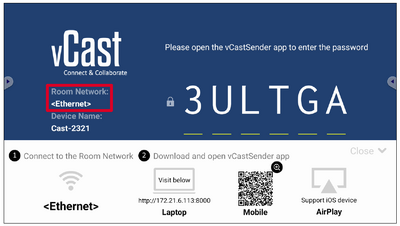
- Ensure the client device (e.g., laptop) is connected to the same network as the ViewBoard.
- NOTE: The network name can be found under Room Network.
- On the client device, visit the address that is shown on the ViewBoard to download and install the vCastSender application.
- After installing, launch the vCastSender application.
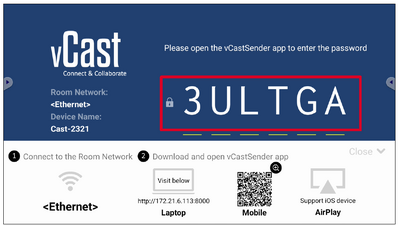
- To connect to the ViewBoard, input the PIN code and click OK.
- NOTE: The PIN code can be found as highlighted below:
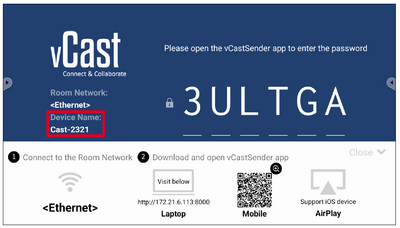
- Additionally, you can connect to the ViewBoard or display by clicking Device List then the Device Name listed.
- NOTE: The Device Name can be found as highlighted below:


Casting from Android Devices

- Ensure the client device (e.g., Android phone or tablet) is connected to the same network as the ViewBoard.
- NOTE: The network name can be found under Room Network.
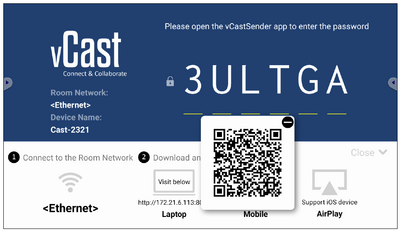
- On the Android client device, scan the QR code shown on the ViewBoard to directly download the vCastSender application, or download the application from the Google Play Store.
- After installing, launch the vCastSender application.
- To connect to the display, input the PIN code and select OK.
- NOTE: The PIN code can be found as highlighted below:
- You can also connect to the ViewBoard by clicking Device List then the Device Name listed.
- NOTE: The Device Name can be found as highlighted below:
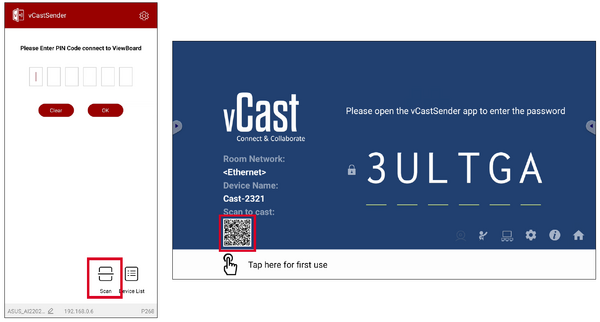
- Additionally, you can connect to the ViewBoard by selecting Scan then placing the on-screen QR code into the box to automatically connect.


Casting from Apple iOS Devices
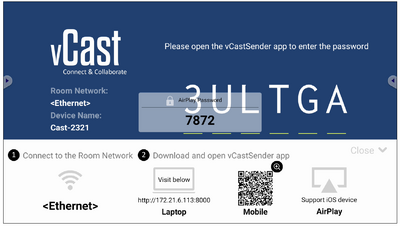
Apple AirPlay® is compatible with vCast for screen mirroring and content streaming under the same subnet environment only. An “AirPlay Password” will be generated on-screen for connection when using AirPlay to cast to a ViewBoard.

- Ensure the client device (e.g., iPhone or iPad) is connected to the same network as the ViewBoard.
- NOTE: The network name can be found under Room Network.
- On the iOS client device, directly open AirPlay and select the Device Name of the ViewBoard to connect.
- NOTE: The Device Name can be found as highlighted below:
- Input the generated on-screen AirPlay Password on the client device to connect.
- NOTE: In a cross subnet environment, please download and connect with the vCastSender iOS application from the Apple App Store.
- You can also connect to the ViewBoard by selecting Scan then placing the on-screen QR code into the box to automatically connect.

vSweeper
Clear unnecessary data and unwanted files.

Advanced Settings can also be customized to the user's needs.

Browser
Web browser for surfing the internet.

WPS Office
Create, edit, and view Documents, Memos, Presentations, and Spreadsheets.
