
XG341C-2K Initial Setup: Difference between revisions
From ViewSonic Documentation
No edit summary |
|||
| (4 intermediate revisions by the same user not shown) | |||
| Line 30: | Line 30: | ||
=Using the Mouse Anchor= | =Using the Mouse Anchor= | ||
Included at the rear of the display, under the I/O ports, is a mouse anchor. Use this to prevent mouse cable dragging and personalize your mouse use setup. | Included at the rear of the display, under the I/O ports, is a mouse anchor. Use this to prevent mouse cable dragging and personalize your mouse use setup. | ||
<gallery widths= | <gallery widths=400px heights=400px mode="nolines"> | ||
XG341C-2K_Mouse_1.png | |||
XG341C-2K_Mouse_2.png | |||
</gallery> | </gallery> | ||
| Line 40: | Line 40: | ||
{{Note-yellow|For use only with a UL certified wall mount kit/bracket. To obtain a wall-mounting kit or height adjustment base, contact ViewSonic® or your local dealer.}} | {{Note-yellow|For use only with a UL certified wall mount kit/bracket. To obtain a wall-mounting kit or height adjustment base, contact ViewSonic® or your local dealer.}} | ||
{| class="wikitable" style="text-align: center;" | {| class="wikitable" style="text-align: center; width:auto; background-color:#ffffff;" | ||
! style="background-color:# | ! style="background-color:#DB0025; color:#ffffff;" | Maximum Loading | ||
! style="background-color:# | ! style="background-color:#DB0025; color:#ffffff;" | Hole Pattern (W x H) | ||
! style="background-color:# | ! style="background-color:#DB0025; color:#ffffff;" | Interface Pad (W x H x D) | ||
! style="background-color:# | ! style="background-color:#DB0025; color:#ffffff;" | Pad Hole | ||
! style="background-color:# | ! style="background-color:#DB0025; color:#ffffff;" | Screw Specification | ||
! style="background-color:#DB0025; color:#ffffff;" | Quantity | |||
|- | |- | ||
|14 kg | |14 kg | ||
| Line 51: | Line 52: | ||
|115 x 115 x 2.6 mm | |115 x 115 x 2.6 mm | ||
|Ø 5 mm | |Ø 5 mm | ||
|M4 x 10 mm | |M4 x 10 mm | ||
|4 screws | |||
|} | |} | ||
| Line 62: | Line 64: | ||
<gallery widths=300px heights=300px mode="nolines"> | <gallery widths=300px heights=300px mode="nolines"> | ||
XG341C-2K_Wall_Mount_1.png| Disengage the hooks | |||
XG341C-2K_Wall_Mount_2.png| VESA mounting points | |||
</gallery> | </gallery> | ||
<noinclude>=[[Monitor_Security_Slot| Using the Security Slot]]=</noinclude> | <noinclude>=[[Monitor_Security_Slot| Using the Security Slot]]=</noinclude> | ||
Latest revision as of 03:43, 31 March 2023
Installing the Stand
- Place the monitor on a flat, stable surface with the screen facing down.
- Align and connect the two (2) points on the monitor stand’s base with the monitor stand’s neck.
- Use the captured screw in the monitor stand’s base and secure it to the monitor stand’s neck.
- Align and slide the upper hooks of the monitor stand into the stand mounting slots as shown in the illustration.
- Lift the device into its upright position on a flat, stable surface.


Always place the device on a flat, stable surface. Failure to do so may cause the device to fall and damage the device and/or result in personal injury.
Using the Mouse Anchor
Included at the rear of the display, under the I/O ports, is a mouse anchor. Use this to prevent mouse cable dragging and personalize your mouse use setup.


Wall Mounting
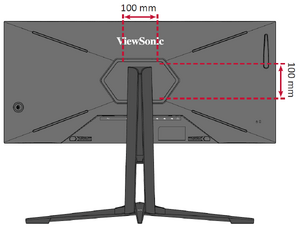
Refer to the table below for the standard dimensions for wall mount kits.
For use only with a UL certified wall mount kit/bracket. To obtain a wall-mounting kit or height adjustment base, contact ViewSonic® or your local dealer.
| Maximum Loading | Hole Pattern (W x H) | Interface Pad (W x H x D) | Pad Hole | Screw Specification | Quantity |
|---|---|---|---|---|---|
| 14 kg | 100 x 100 mm | 115 x 115 x 2.6 mm | Ø 5 mm | M4 x 10 mm | 4 screws |
- Turn off the device and disconnect all cables.
- Place the device on a flat, stable surface with the screen facing down.
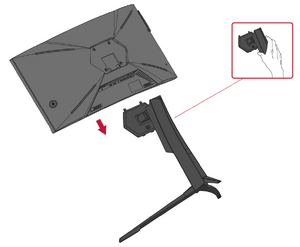
- Press and hold the quick release tab and carefully lift the stand.
- Pull down slightly to disengage the hooks and remove the stand.
- Attach the mounting bracket to the VESA mounting holes at the rear of the monitor. Then secure it with four (4) screws (M4 x 10 mm).
- Follow the instructions that come with the wall mounting kit to mount the monitor onto the wall.
-
 Disengage the hooks
 -
 VESA mounting points

