
VG1655 Connecting Power and Devices: Difference between revisions
No edit summary |
|||
| (9 intermediate revisions by the same user not shown) | |||
| Line 1: | Line 1: | ||
<noinclude> | <noinclude> | ||
{{ | {{Sticky_Menu_Monitor_2.1 | ||
|1=VG1655_Introduction | |1=VG1655_Introduction | ||
|2=VG1655_Initial_Setup | |2=VG1655_Initial_Setup | ||
| Line 9: | Line 9: | ||
|7=VG1655_On-Screen_Display_Menu | |7=VG1655_On-Screen_Display_Menu | ||
|8=VG1655_On-Screen_Display_Menu_Tree | |8=VG1655_On-Screen_Display_Menu_Tree | ||
|9= | |9=VG1655_Specifications | ||
|10 | |10=VG1655_Regulatory_and_Service_Information | ||
}} | }} | ||
{{Top}} | |||
</noinclude> | </noinclude> | ||
=Connecting to Power= | =Connecting to Power= | ||
The monitor can be powered in any of the following configurations: | The monitor can be powered in any of the following configurations: | ||
* '''Type C Connection''' | |||
[[File:Power_Connect_USB_C.png|500px]] | |||
*'''Type | * '''Type A Connection''' | ||
[[File:Power_Connect_USB_A.png|500px]] | |||
* '''Power Adapter''' | |||
[[File:Power_Connect_Adapter.png|500px]] | |||
*'''Power Adapter''' | |||
=Connecting External Devices= | =Connecting External Devices= | ||
Your external device(s) can be connected in any of the following configurations: | Your external device(s) can be connected in any of the following configurations: | ||
* '''Type C Connection''' | |||
*'''Type C Connection''' | |||
Connect a Type C cable from your external device to a '''Type C''' port on the monitor. | Connect a Type C cable from your external device to a '''Type C''' port on the monitor. | ||
: | : [[File:Connect_USB_C.png|500px]] | ||
* '''Mini HDMI Connection''' | |||
# Connect the mini HDMI cable from your external device to the mini '''HDMI''' port on the monitor. | |||
# Connect the USB Type A to Type C cable from your external device. | |||
: [[File:Connect_Mini_HDMI.png|500px]] | |||
: <small>'''NOTE:''' The USB Type A to Type C connection will also supply power to the monitor from the notebook. The power output must be greater than 10W.</small> | |||
: | |||
:<small>'''NOTE:''' The USB Type A to Type C connection will also supply power to the monitor from the notebook. The power output must be greater than 10W.</small> | |||
=Power Delivery= | =Power Delivery= | ||
| Line 47: | Line 42: | ||
===Powering a Notebook or Mobile Phone=== | ===Powering a Notebook or Mobile Phone=== | ||
If the included power adapter is connected to the monitor, then the monitor can charge a connected notebook or mobile phone. | If the included power adapter is connected to the monitor, then the monitor can charge a connected notebook or mobile phone. | ||
:{{Note-yellow|Power Delivery Output: DC 5V/9V/12V/15V/20V/Max 3A.}} | : {{Note-yellow|Power Delivery Output: DC 5V/9V/12V/15V/20V/Max 3A.}} | ||
[[File:TD1655_Power_Delivery.png|500px]] | |||
===Power Supply Detection=== | ===Power Supply Detection=== | ||
This product will detect if the power supply device is an adapter, laptop or mobile phone. | This product will detect if the power supply device is an adapter, laptop or mobile phone. | ||
*If the power source is an adapter or notebook, the default brightness value will be 100. | * If the power source is an adapter or notebook, the default brightness value will be 100. | ||
*If the power source is a mobile phone, the default brightness value will be 15. | * If the power source is a mobile phone, the default brightness value will be 15. | ||
*When using a mobile phone to power the monitor, the default brightness level will be 15. | * When using a mobile phone to power the monitor, the default brightness level will be 15. | ||
:<small>'''NOTE:''' Due to the limited power output of the mobile phone, do not adjust the brightness level higher as this may cause the display to flash or shut down.</small> | :<small>'''NOTE:''' Due to the limited power output of the mobile phone, do not adjust the brightness level higher as this may cause the display to flash or shut down.</small> | ||
===Power Delivery - Further Information=== | ===Power Delivery - Further Information=== | ||
Due to the | Due to the design please note: | ||
*The first connected device will be the main input signal. | * The first connected device will be the main input signal. | ||
*When a Type C port recognizes an external device as a power adapter, it will only distribute the power. It will NOT display the input signal. | * When a Type C port recognizes an external device as a power adapter, it will only distribute the power. It will NOT display the input signal. | ||
*Only when one of the Type C ports is recognized as a power adapter can the other one deliver two-way power. | * Only when one of the Type C ports is recognized as a power adapter can the other one deliver two-way power. | ||
If a laptop is connected first to the VG1655, then a mobile phone is connected second, the mobile phone’s battery will not be charged as neither Type C port recognizes the connection as being connected to a power adapter. | |||
: <small>'''NOTE:''' If you want to display the mobile phone’s screen, you must unplug the Type C cable connected to the laptop.</small> | |||
If a mobile phone is connected first to the VG1655, then a laptop is connected second, the mobile phone’s battery will be charged as one of the Type C ports is recognized as being connected to a power adapter. | |||
If | : <small>'''NOTE:''' If you want to display the laptop screen, you must unplug the Type C cable connected to the mobile phone.</small> | ||
=Second Display Setup= | |||
<youtube>hD0NklUxtxI</youtube> | |||
=Connecting to Android Smartphones= | |||
<youtube>IacFckZn_d4</youtube> | |||
=Connecting to a Windows Device= | |||
<youtube>DyUhXZOs8sg</youtube> | |||
=Connecting to iPhones and iPads= | |||
<youtube>Ux375O9gjAY</youtube> | |||
{{#seo: | |||
|title=ViewSonic Monitor | |||
|title_mode=append | |||
|keywords=VG1655, Power, Mini HDMI, Audio, Connections | |||
|description=Connect to power and other external devices with the VG1655 monitor. | |||
}} | |||
[[Category:VG1655]] | [[Category:VG1655]] | ||
[[Category:VG Series]] | [[Category:VG Series]] | ||
Latest revision as of 10:00, 20 September 2022
Connecting to Power
The monitor can be powered in any of the following configurations:
- Type C Connection

- Type A Connection

- Power Adapter

Connecting External Devices
Your external device(s) can be connected in any of the following configurations:
- Type C Connection
Connect a Type C cable from your external device to a Type C port on the monitor.

- Mini HDMI Connection
- Connect the mini HDMI cable from your external device to the mini HDMI port on the monitor.
- Connect the USB Type A to Type C cable from your external device.
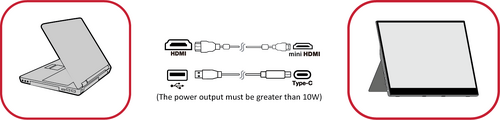
- NOTE: The USB Type A to Type C connection will also supply power to the monitor from the notebook. The power output must be greater than 10W.

Power Delivery
Powering a Notebook or Mobile Phone
If the included power adapter is connected to the monitor, then the monitor can charge a connected notebook or mobile phone.

Power Supply Detection
This product will detect if the power supply device is an adapter, laptop or mobile phone.
- If the power source is an adapter or notebook, the default brightness value will be 100.
- If the power source is a mobile phone, the default brightness value will be 15.
- When using a mobile phone to power the monitor, the default brightness level will be 15.
- NOTE: Due to the limited power output of the mobile phone, do not adjust the brightness level higher as this may cause the display to flash or shut down.
Power Delivery - Further Information
Due to the design please note:
- The first connected device will be the main input signal.
- When a Type C port recognizes an external device as a power adapter, it will only distribute the power. It will NOT display the input signal.
- Only when one of the Type C ports is recognized as a power adapter can the other one deliver two-way power.
If a laptop is connected first to the VG1655, then a mobile phone is connected second, the mobile phone’s battery will not be charged as neither Type C port recognizes the connection as being connected to a power adapter.
- NOTE: If you want to display the mobile phone’s screen, you must unplug the Type C cable connected to the laptop.
If a mobile phone is connected first to the VG1655, then a laptop is connected second, the mobile phone’s battery will be charged as one of the Type C ports is recognized as being connected to a power adapter.
- NOTE: If you want to display the laptop screen, you must unplug the Type C cable connected to the mobile phone.
Second Display Setup
Connecting to Android Smartphones
Connecting to a Windows Device
Connecting to iPhones and iPads