
VX2418-PC-mhd Initial Setup: Difference between revisions
From ViewSonic Documentation
| Line 39: | Line 39: | ||
:<div class="res-img">[[File:VX2418-PC-mhd_Wall_Mounting.png|700px]]</div> | :<div class="res-img">[[File:VX2418-PC-mhd_Wall_Mounting.png|700px]]</div> | ||
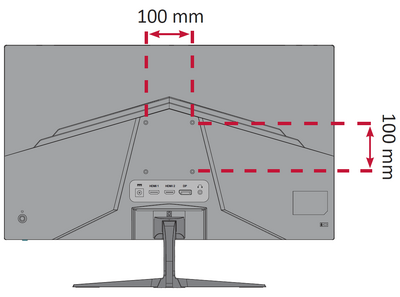
<li>Attach the mounting bracket to the VESA mounting holes at the rear of the monitor. Then secure it with four (4) screws (M4 x 10 mm).</li> | <li>Attach the mounting bracket to the VESA mounting holes at the rear of the monitor. Then secure it with four (4) screws (M4 x 10 mm).</li> | ||
:<div class="res-img">[[File:VX2418-PC-mhd_Wall_Mounting_VESA.png| | :<div class="res-img">[[File:VX2418-PC-mhd_Wall_Mounting_VESA.png|400px]]</div> | ||
<li>Follow the instructions that come with the wall mounting kit to mount the monitor onto the wall.</li></ol> | <li>Follow the instructions that come with the wall mounting kit to mount the monitor onto the wall.</li></ol> | ||
Latest revision as of 03:35, 5 January 2022
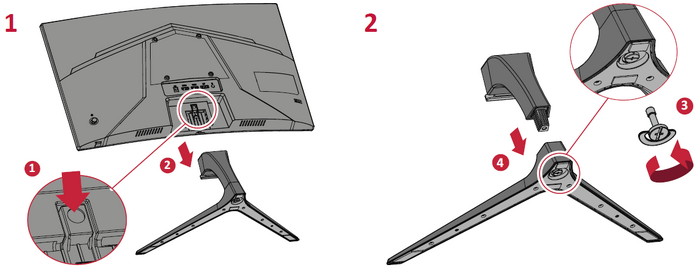
Stand Installation

Always place the device on a flat, stable surface. Failure to do so may cause the device to fall and damage the device and/or result in personal injury.
Wall Mounting
Refer to the table below for the standard dimensions for wall mount kits.
For use only with a UL certified wall mount kit/bracket. To obtain a wall-mounting kit or height adjustment base, contact ViewSonic® or your local dealer.
| Maximum Loading | Hole Pattern (W x H) | Screw Specification & Quantity |
|---|---|---|
| 14 kg | 100 x 100 mm | M4 x 10 mm - 4 pieces |
- Turn off the device and disconnect all cables.
- Place the device on a flat, stable surface with the screen facing down.
- Remove the stand.
- Attach the mounting bracket to the VESA mounting holes at the rear of the monitor. Then secure it with four (4) screws (M4 x 10 mm).
- Follow the instructions that come with the wall mounting kit to mount the monitor onto the wall.

