
ViewSign Desktop Advanced Guide Options Menu
Options Menu
By choosing File' > Options the following window will appear with 14 configuration sections available.
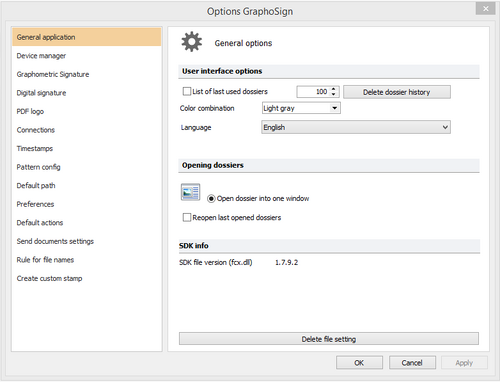
After any change in user options, the "Apply" button is enabled and you will need to click it and then click OK to confirm the changes. Options are saved in an .ini file in the path:
C:\Users\[User]\AppData\Roaming\Namirial\ViewSign Desktop 1\settings.ini
where [USER] represents the current Windows user profile. There isn't a function that allows you to automatically replicate the options for all of the available user profiles on your PC.
Changing one or more options across the various functions available provides a customized software configuration for your specific needs, saved in your user profile on the PC.
General Application
The application’s General section consists of three groups of options:
- User Interface Options
- Opening Dossiers
- SDK Info
User Interface Options

This group allows you to enable the history of saved files, as well as the overall theme and language settings of the application.
Latest dossier used list:
When selected this check box allows you to store a list of the last "N" opened dossiers. The number "N" is a user defined number that is entered in the Next box by the user. In the example it is set to 100.
Clear History dossier:
This button deletes all the items described in the preceding paragraph.
Color scheme:
Allows you to customize the combination of menu color and the initial screen of the program. Three options are available: Light gray, White, Dark gray.
Language:
Sets the language of the menu items, labels, buttons, and user messages.
Opening Dossiers

This group specifies the program's startup options.
Open dossier in the same window:
ViewSign Desktop cannot run more than one session/instance at a time. You must close an existing session in order to start a new instance of the application.
Reopen the last open dossier at program startup:
This checkbox, if checked, allows you to re-open the last file saved in your history list when you start the program.
SDK Info

In this group you can read the SDK version of signature. The differences between the various versions can be read in the "ChangeLog" section of online help.

With this button user can delete any saved user settings and restore the software default values.