


| Sub-menu |
|---|
| Standard |
| Custom 1 |
| Custom 2 |
| FPS |
| MOBA |
| Battle Royale |
| Realistic |
| Vibrant |
| Console Speed |
| Console Color |
XG341C-2K: Difference between revisions
From ViewSonic Documentation
Created page with "{{:XG341C-2K_Introduction}} {{:XG341C-2K_Initial_Setup}} {{:Monitor_Security_Slot}} {{:XG341C-2K_Connecting_Power_and_Devices}} {{:XG341C-2K_Adjusting_the_Viewing_Angle}} {{:XG341C-2K_Quick_Menu}} {{:XG341C-2K_Hot_Keys}} {{:XG341C-2K_On-Screen_Display_Menu}} {{:XG341C-2K_On-Screen_Display_Menu_Tree}} {{:XG341C-2K_On-Screen_Display_Menu_Options}} {{:XG341C-2K_Advanced_Features_and_Settings}} {{:XG341C-2K_Specifications}} {{:XG341C-2K_Regulatory_and_Service_Information}} <..." |
No edit summary |
||
| Line 20: | Line 20: | ||
__TOC__ | __TOC__ | ||
{{#seo: | {{#seo: | ||
|title=ViewSonic Monitor | |title=ViewSonic Monitor | ||
Latest revision as of 08:33, 23 January 2026
Package Contents
|
 |
Front View / Rear View
-
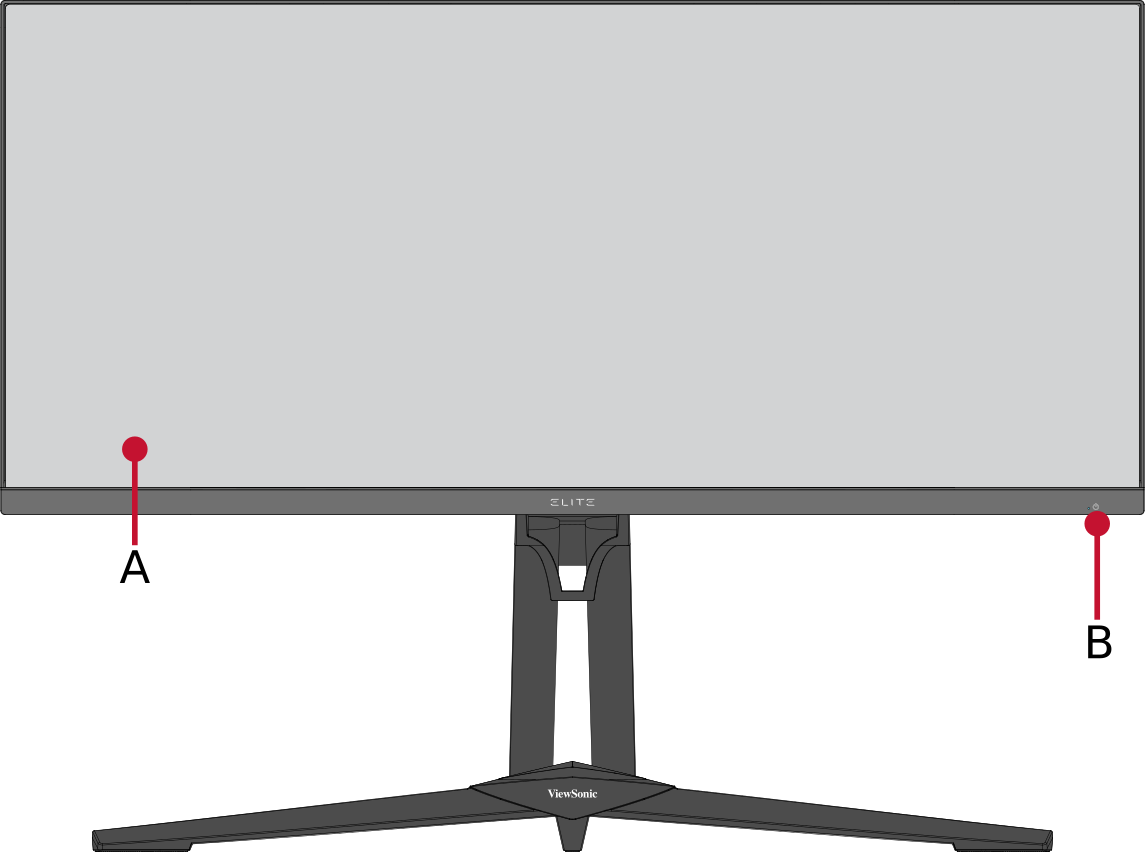 Front View
 -
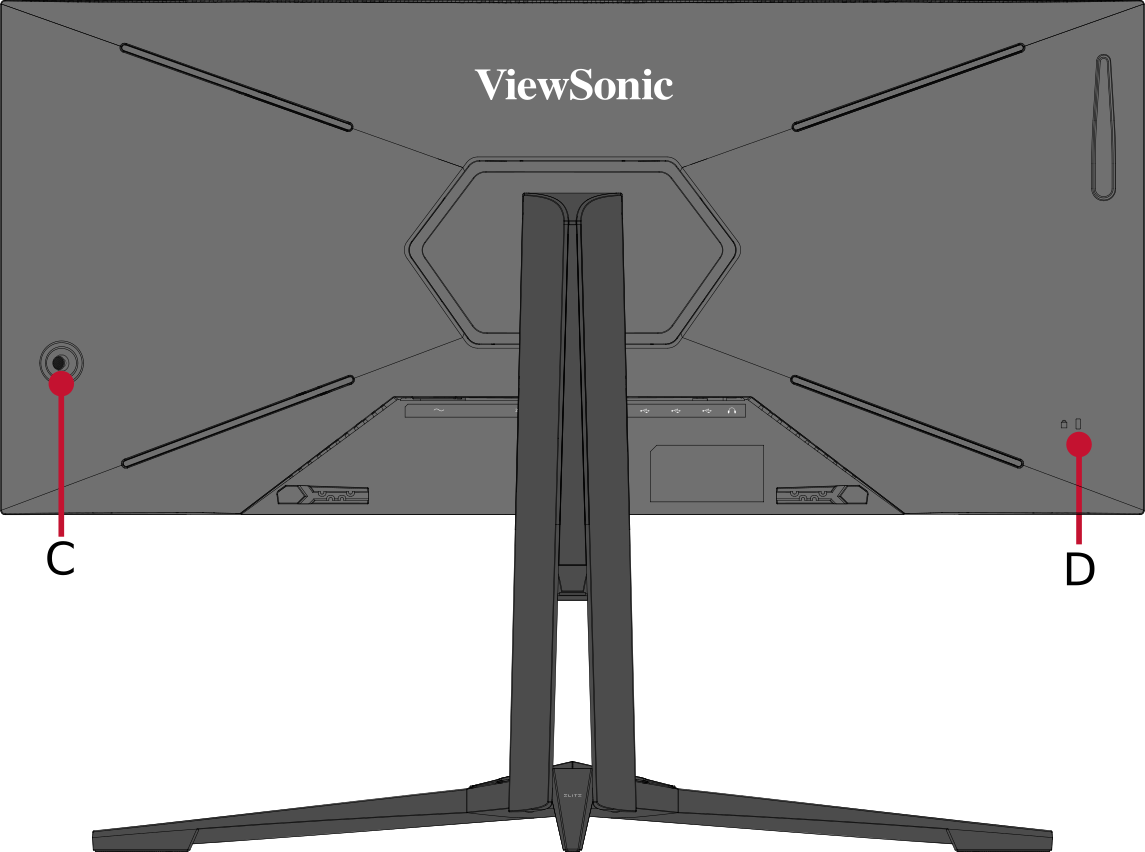 Rear View
| Letter | Item |
|---|---|
| A | Display Screen |
| B | Power Key |
| C | Joy Key |
| D | Security Slot |
I/O Ports

| Number | Item |
|---|---|
| 1 | AC IN |
| 2 | HDMI 2.1 |
| 3 | DisplayPort |
| 4 | USB Type-C |
| 5 | USB Type-B (USB Upstream) |
| 6 | USB Type A (USB Downstream) |
| 7 | Audio Out |
Installing the Stand
- Place the monitor on a flat, stable surface with the screen facing down.
- Align and connect the two (2) points on the monitor stand’s base with the monitor stand’s neck.
- Use the captured screw in the monitor stand’s base and secure it to the monitor stand’s neck.
- Align and slide the upper hooks of the monitor stand into the stand mounting slots as shown in the illustration.
- Lift the device into its upright position on a flat, stable surface.
Always place the device on a flat, stable surface. Failure to do so may cause the device to fall and damage the device and/or result in personal injury.
Using the Mouse Anchor
Included at the rear of the display, under the I/O ports, is a mouse anchor. Use this to prevent mouse cable dragging and personalize your mouse use setup.
Wall Mounting
Refer to the table below for the standard dimensions for wall mount kits.
For use only with a UL certified wall mount kit/bracket. To obtain a wall-mounting kit or height adjustment base, contact ViewSonic® or your local dealer.
| Maximum Loading | Hole Pattern (W x H) | Interface Pad (W x H x D) | Pad Hole | Screw Specification | Quantity |
|---|---|---|---|---|---|
| 14 kg | 100 x 100 mm | 115 x 115 x 2.6 mm | Ø 5 mm | M4 x 10 mm | 4 screws |
- Turn off the device and disconnect all cables.
- Place the device on a flat, stable surface with the screen facing down.
- Press and hold the quick release tab and carefully lift the stand.
- Pull down slightly to disengage the hooks and remove the stand.
- Attach the mounting bracket to the VESA mounting holes at the rear of the monitor. Then secure it with four (4) screws (M4 x 10 mm).
- Follow the instructions that come with the wall mounting kit to mount the monitor onto the wall.
-
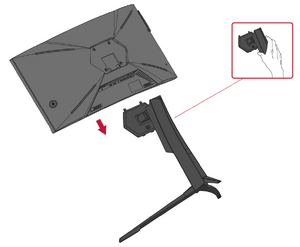 Disengage the hooks
 -
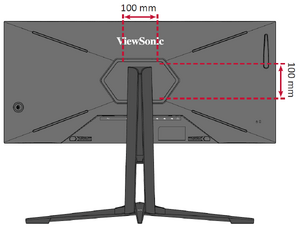 VESA mounting points
Using the Security Slot
To help prevent the device from being stolen, use a security slot locking device to secure the device to a fixed object.
Additionally, fastening the monitor to a wall or fixed object using a security cable can help support the weight of the monitor in order to prevent the monitor from falling over.
Below is an example of setting up a security slot locking device on a table.

Connecting to Power
|
 |
| Connecting to Power |
Connecting External Devices
Note: To connect the monitor to an external device (PC, laptop…etc.), please use one of the included video cables for your application and connect it to both terminals.
-
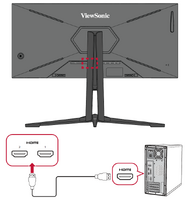 HDMI Connection
 -
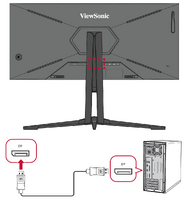 DisplayPort Connection
 -
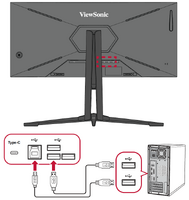 USB Connection
 -
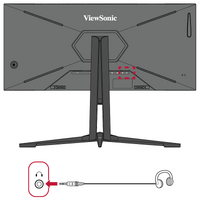 Audio Connection
HDMI
Connect one end of an HDMI cable to the HDMI port of your monitor. Then connect the other end of the cable to the HDMI port of your computer.
- NOTE: The monitor is equipped with two HDMI 2.1 ports.
DisplayPort
Connect one end of a DisplayPort cable to the DisplayPort port. Then connect the other end of the cable to the DisplayPort or mini DP port of your computer.
- NOTE: To connect the monitor to the Thunderbolt port (v. 1&2) on your Mac, connect the mini DP end of the “mini DP to DisplayPort cable” to the Thunderbolt output of your Mac. Then connect the other end of the cable to the DisplayPort port of the monitor.
USB
Connect one end of a USB cable to a USB port of the monitor. Then connect the other end of the cable to a USB port of your computer.
| USB | Number | Description |
|---|---|---|
| Type A | Three (3) | Connection for your Type A peripheral device(s). (e.g., storage device).
|
| Type B | One (1) | Connect the USB Type B male cable (square with 2 cut corners) to this port, and then connect the other end of the cable to the USB downstream port of your computer. |
| Type C | One (1) | Offers Power Delivery of 90W. Supports DC 5V3A, 9V3A, 12V3A, 15V3A, 20V4.5A. |
- NOTE: The USB Type A ports next to the USB Type B port can support 5V0.9A charging. The other USB Type A port can support 5V2.0A charging.
Audio
Plug the audio jack of the ear-/headphones into the Audio Out port of the monitor. Additionally, you can connect the monitor to a sound bar using an audio cable.
- NOTE: The monitor is also equipped with dual speakers.

|

|

|
| Height Adjustment | Swivel Adjustment | Tilt Adjustment |
Height Adjustment
Lower or raise the monitor to the desired height (0 to 120 mm).
- NOTE: When adjusting, press down firmly along the adjustment track holding the monitor with both hands on the side.
Swivel Adjustment
Swivel the monitor to the left or right for the desired viewing angle (25˚).
Tilt Angle Adjustment
Tilt the monitor forwards or backwards to the desired viewing angle (-5˚ to 23˚).
- NOTE: When adjusting, support the stand firmly with one hand while tilting the monitor forwards or backwards with the other hand.
Using the Joy Key
Use the Joy Key to access the Quick Access Menu, activate Hot Keys, navigate the On-Screen Display (OSD) Menu, and change the settings.

Quick Access Menu
Quickly initiate some functions and modes through the Quick Access key and menu. Users can also define which functions or modes they prefer in the Quick Access Menu via the Setup Menu in OSD. The function/mode will be enabled as soon as the light-bar moves on the item, and will disable after removing the light-bar.
In the Quick Access Menu, “Return” means users can “automatically” go back to the mode they chose before entering the Quick Access Menu.

To activate the Quick Access Menu:
- Move the Joy Key [◄] to display the Quick Access Menu.
- Move the Joy Key [▲] or [▼] to select your preference.
- NOTE: The Quick Access Menu will disappear after three (3) seconds automatically.
To change the Quick Access Menu options:
- Press the [●] key or move the Joy Key [◄] or [▲] or [▼] to display the On-Screen Display (OSD) Menu.
- Move the Joy Key [◄] or [►] to select Setup Menu. Then move the joy key [▼] to enter the Setup Menu menu.
- Move the Joy Key [▲] or [▼] to select Quick Access. Then move the joy key [►] to enter its sub-menu.
- Move the Joy Key [▲] or [▼] to select your preference. Then press the [●] key to confirm the selection.
- NOTE: Some sub-menu options may have another sub-menu. To enter the respective sub-menu, move the Joy Key [►].
Hot Keys
When the On-Screen Display (OSD) Menu is off, you can quickly access special functions by using the control panel keys.
| Key | Description |
|---|---|
| [◄] | Press and hold the key for 5 seconds to lock/unlock the OSD Menu.
When the menu appears on the screen, continue holding the key for 10 seconds to lock/unlock the OSD Menu.  |
| [►][1] | Press and hold the key for 5 seconds to lock/unlock the Power button.
When the menu appears on the screen, continue holding the key for 10 seconds to lock/unlock the Power button.  |
| [▲] | Press and hold the key for 5 seconds to display/hide the boot up screen when the device is turned on.
 |
- ↑ Only pressing this key will enable the Input Select function. Under PIP/PBP mode, it will enable KVM switch.
General Operation
- Press the [●] key or move the Joy Key [▲] or [▼] to display the On-Screen Display (OSD) Menu.
- Move the Joy Key [◄] or [►] to select the main menu. Then move the Joy Key [▼] to enter the selected menu.
- Move the Joy Key [▲] or [▼] to select the desired menu option. Then move the Joy Key [►] to enter the sub-menu.
- Move the Joy Key [▲] or [▼] to adjust/select the setting. Then press the [●] key to confirm.
- NOTE: Certain menu option adjustments do not require the user to press the [●] key to confirm the selection.
- Press the [◄] key to return to the previous menu.
- NOTE: To exit the OSD Menu, press the Quick Access Key.
OSD Tree
| Sub-menu | Menu Option | ||
|---|---|---|---|
| FreeSync™ Premium Pro | On | ||
| Off | |||
| HDR | DisplayHDR | ||
| CinematicHDR | |||
| GameplayHDR | |||
| Off | |||
| Overclocking | On | ||
| Off | |||
| PureXP™ | Light | ||
| Normal | |||
| Extreme | |||
| Ultra | |||
| Off | |||
| Local Dimming | Level 1 | ||
| Level 2 | |||
| Level 3 | |||
| Level 4 | |||
| Off | |||
| Hertz Limiter | Native | ||
| 60Hz | |||
| 100Hz | |||
| 144Hz | |||
| 165Hz | |||
| Response Time OD | Standard | ||
| Fast | |||
| Faster | |||
| Ultra Fast | |||
| Fastest | |||
| Explanation (i) | |||
| Blue Light Filter | (-/+, 0~100) | ||
| Color Temperature | Bluish | ||
| Cool | |||
| Native | |||
| Warm | |||
| Full Color Control | Red | (-/+, 0~100) | |
| Green | (-/+, 0~100) | ||
| Blue | (-/+, 0~100) | ||
| Color Adjust | Color Space | Auto | |
| RGB | |||
| YUV | |||
| Color Range | Auto | ||
| Full Range | |||
| Limited Range | |||
| Gamma | 1.8 | ||
| 2.0 | |||
| 2.2 | |||
| 2.4 | |||
| 2.6 | |||
| 2.8 | |||
| Color Saturation | (-/+, 0~100) | ||
| Black Stabilization | (-/+, 0~22) | ||
| Image Adjust | ViewScale | Full | |
| Aspect | |||
| 1:1 | |||
| 19" (4:3) | |||
| 19"W (16:10) | (-/+, 0~100) | ||
| 21.5" (16:9) | (-/+, 0~100) | ||
| 22"W (16:10) | |||
| 23.6"W (16:9) | |||
| 24"W (16:9) | |||
| Contrast | (-/+, 0~100) | ||
| Brightness | (-/+, 0~100) | ||
| Sharpness | (-/+, 0~100) | ||
| Advanced DCR | (-/+, 0~20) | ||
| Overscan | On | ||
| Off | |||
| Sub-menu |
|---|
| HDMI 2.1 1 |
| HDMI 2.1 2 |
| DisplayPort |
| Type-C |
| Sub-menu |
|---|
| Standard |
| Movie |
| Web |
| Text |
| MAC |
| Mono |
| Sub-menu | Menu option |
|---|---|
| Volume | (-/+, 0~100) |
| Mute | On |
| Off |
| Sub-menu | Menu Option | ||
|---|---|---|---|
| Language Select | English | ||
| Français | |||
| Deutsch | |||
| Español | |||
| Italiano | |||
| Suomi | |||
| Русский | |||
| Türkçe | |||
| 日本語 | |||
| 한국어 | |||
| 繁體中文 | |||
| 简体中文 | |||
| Česká | |||
| Svenska | |||
| Information | |||
| Quick Access | Blue Light Filter | On/Off | |
| PureXP™ | On/Off | ||
| OverClocking | On/Off | ||
| FPS | On/Off | ||
| MOBA | On/Off | ||
| Battle Royale | On/Off | ||
| Realistic | On/Off | ||
| Vibrant | On/Off | ||
| Console Speed | On/Off | ||
| Console Color | On/Off | ||
| Custom 1 | On/Off | ||
| Custom 2 | On/Off | ||
| Crosshair | Type A | Green | |
| White | |||
| Yellow | |||
| Type B | Green | ||
| White | |||
| Yellow | |||
| Type C | Green | ||
| White | |||
| Yellow | |||
| Off | |||
| Elite RGB | Breathing | ||
| Rainbow | |||
| Stack | |||
| Waterfall | |||
| Off | |||
| Resolution Notice | On | ||
| Off | |||
| Boot Up Screen | On | ||
| Off | |||
| OSD Timeout | 5/15/30/60 | ||
| OSD Background | On | ||
| Off | |||
| Multi-Picture | Off | ||
| PBP Left-Right | Left Source Select | HDMI 1 | |
| HDMI 2 | |||
| DisplayPort | |||
| Type-C | |||
| Right Source Select | HDMI 1 | ||
| HDMI 2 | |||
| DisplayPort | |||
| Type-C | |||
| Swap | |||
| Audio Output | HDMI 1 | ||
| HDMI 2 | |||
| DisplayPort | |||
| Type-C | |||
| PIP | PIP Source Select | HDMI 1 | |
| HDMI 2 | |||
| DisplayPort | |||
| Type-C | |||
| PIP H. Position | |||
| PIP V. Position | |||
| PIP Size | |||
| PIP Swap | |||
| Audio Output | HDMI 1 | ||
| HDMI 2 | |||
| DisplayPort | |||
| Type-C | |||
| Power Indicator | On | ||
| Off | |||
| Auto Power Off | On | ||
| Off | |||
| Sleep | 30 minutes | ||
| 45 minutes | |||
| 60 minutes | |||
| 120 minutes | |||
| Off | |||
| ECO Mode | Standard | ||
| Optimize | |||
| Conserve | |||
| Energy Saving | On | ||
| Off | |||
| Type C: USB 3.2 | On | ||
| Off | |||
| DDC/CI | On | ||
| Off | |||
| DSC | On | ||
| Off | |||
| HDMI 2.0 | On | ||
| Off | |||
| DisplayPort 1.2 | On | ||
| Off | |||
| Standby Charger | On | ||
| Off | |||
| Rename | |||
| Memory Recall | |||
Game Modes
| Menu Option | Description |
|---|---|
| Standard | Select this option for general use. |
| Custom 1/2 | Two customizable “Custom” settings are available to help match individual preferences and adapt to every type of game on the market. |
| FPS | Ideal for First-Person Shooter games. |
| MOBA | Select this option for Multiplayer Online Battle Arena games. |
| Battle Royale | Tuned for Battle Royale games. |
| Realistic | True-to-life color representation. |
| Vibrant | Lush and saturated colors. |
| Console Speed | Speed focused for console use. |
| Console Color | Color accuracy focus for console use. |
Display
| Menu Option | Description |
|---|---|
| FreeSync™ Premium Pro | Eliminates stuttering and tearing during gameplay.
|
| HDR | Reduce the overall contrast of a given scene so that detail in the highlights and shadows can be seen. DisplayHDR CinematicHDR GampelayHDR
|
| Overclocking | When “On” go beyond the monitor’s standard refresh rate.
|
| PureXP™ | Short for “Pure Experience”, this feature can enhance the visual quality of moving objects, making them less vague with a clearer view.
|
| Local Dimming | Control the brightness of individual areas on the screen to maximize contrast automatically. Choose the appropriate level for your content. |
| Hertz Limiter | Allows users to control how many frames the monitor can output. |
| Response Time OD | An advanced tuning function for users that want to adjust their monitor’s response time. |
| Blue Light Filter | Adjustable filter, available in all Game Modes, that blocks high-energy blue light for a more comfortable viewing experience. |
| Color Temperature | Select the color temperature setting.
|
| Color Adjust | Color Space Allows users to choose which color space they would like to use for color output.
Color Range
Gamma Color Saturation Black Stabilization |
| Image Adjust | ViewScale Users have the ability to adjust the display size of the image on the monitor, allowing for a “best fit” scenario. Contrast Brightness Sharpness Advanced DCR Overscan |
Input Select

ViewMode
| Menu Option | Description |
|---|---|
| Standard | Select this option for general use. |
| Movie | Select this option for watching movies. |
| Web | Select this option for surfing the web. |
| Text | Select this option for text-based tasks. |
| MAC | Select this option when connecting to Mac computers. |
| Mono | Select this option for monochrome. |
Audio Adjust
| Menu Option | Description |
|---|---|
| Volume | Adjust the volume level. |
| Mute | Enable to disable the sound. |
Setup Menu
| Menu Option | Description |
|---|---|
| Language | Select an available language for the OSD Menu. |
| Information | Display the monitor information. |
| Quick Access | Select which options to have present in the Quick Access Menu. |
| Crosshair | Aim more clearly and quickly during FPS games with the on-screen overlay. |
| Elite RGB | This setting controls the RGB lighting on the back of the monitor and under the bezel in order to enhance your RGB experience. When switched on, or after being reset, the default ‘Rainbow Wave’ will activate. |
| Resolution Notice | Enable this option to allow the system to inform users that the current viewing resolution is not the correct native resolution. |
| Boot Up Screen | Toggle the start screen On or Off. |
| OSD Timeout | In addition, the RGB lights are also synced with several key partners. Downloading their software will give you the power to manipulate your RGB capabilities even further. |
| OSD Background | If you would like to leverage partnered software see the advanced setup below. |
| Multi-Picture | Off Disable this function. PBP Left-Right
PIP
|
| Power Indicator | Set the Power Indicator On or Off. If the setting is set to On, the power indicator lights blue when the device is turned on. |
| Auto Power Off | Enable this option to allow the monitor to automatically turn off after a certain amount of time. |
| Sleep | Set the amount of idle time before the monitor enters Sleep mode. |
| ECO Mode | Choose between various modes, based on power consumption.
|
| Type C: USB 3.2 | Select USB Type C with USB 2.0 or USB 3.2.
|
| DDC/CI | Enable this option to allow the monitor control via the graphics card. |
| DSC | Display Stream Compression technology supports compressing and decompressing each frame on the fly, with no loss in image quality.
|
| HDMI 2.0 | Enable/Disable HDMI 2.0 support.
|
| DisplayPort 1.2 | Enable/Disable DisplayPort 1.2 support. |
| Standby Charger | When activated, the USB will continue to supply power even when the monitor is in standby mode. |
| Rename | Rename the personalized custom profile. |
| Memory Recall | Resets all settings to their default values. |
FreeSync Premium Pro
Enabling Adaptive Sync will put an end to choppy gameplay and broken games with fluid, artifact-free performance at virtually any frame rate.
To enable the Adaptive Sync function:
- Press the [●] key or move the Joy Key [◄] or [▲] or [▼] to display the On-Screen Display (OSD) Menu.
- Move the Joy Key [◄] or [►] to select Display. Then move the Joy Key [▼] to enter the Display menu.
- Move the Joy Key [▲] or [▼] to select FreeSync™ Premium Pro. Then move the Joy Key [►] to confirm the selection.
- Move the Joy Key [▲] or [▼] to select On or Off. Then press the [●] key to confirm the selection.
- NOTE: When enabled, the OSD information will show “FreeSync™ Premium Pro” and DisplayHDR will turn on automatically.
HDR (High-Dynamic-Range)
Reduces the overall contrast of a given scene so that detail in the highlights and shadows can be seen.
- NOTE: Ensure the HDR setting is turned on on your device first before enabling the HDR on the monitor.
| Mode | Description |
|---|---|
| DisplayHDR | Passes AMD FreeSync Premium Pro certification and VESA DisplayHDR 1400 certification. |
| CinematicHDR | Ideal HDR setting for movies. |
| GameplayHDR | Ideal HDR setting for gaming. |
To enable the HDR function on the monitor:
- Press the [●] key or move the Joy Key [▲] or [▼] to display the On-Screen Display (OSD) Menu.
- Move the Joy Key [◄] or [►] to select Display. Then move the Joy Key [▼] to enter the Display menu.
- Move the Joy Key [▲] or [▼] to select HDR. Then move the Joy Key [►] to enter its sub-menu.
- Move the Joy Key [▲] or [▼] to select the preferred setting. Then press the [●] key to confirm.
To enable HDR on Windows:
- Right-click on the desktop then left-click Display Settings.
- Select the XG340C-2K display and select the appropriate Resolution.
- Toggle HDR On.
- NOTE:
- The screen may slightly dim, indicating HDR has been activated.
- After entering an application, the best HDR effect can be achieved when the resolution is changed to 3440 x 1440 (if available).
- Please select “Off” for the HDR function when you have no need for the automatic activation function.
- NOTE:
Hertz Limiter
A monitor hertz controller allows users to control how many frames the monitor can output. The monitor will put a cap on the maximum amount of frames that can be rendered from the monitor to save power and loading from the monitor’s side.
To adjust the Hertz Limiter:
- Press the [●] key or move the Joy Key [◄] or [▲] or [▼] to display the On-Screen Display (OSD) Menu.
- Move the Joy Key [◄] or [►] to select Display. Then move the Joy Key [▼] to enter the Display menu.
- Move the Joy Key [▲] or [▼] to select Hertz Limiter. Then move the Joy Key [►] to confirm the selection.
- Move the Joy Key [▲] or [▼] to select your preferred frame output. Then press the [●] key to confirm the selection.
| Menu Option |
|---|
| Native |
| 60Hz |
| 100Hz |
| 144Hz |
| 165Hz |
- NOTE:
- If FreeSync™ Premium Pro is “On”, Hertz Limiter will be disabled.
- ViewScale may not support all Hz levels.
Response Time OD
Adjusting the Response Time OD setting will allow the user to fine-tune their desired response time. With five (5) settings to choose from, users can precisely select the best fit for each use scenario.
Each setting will increase response time speed, allowing users the ability to match their PC and game type, creating a “best fit” scenario.
To enable the Response Time OD function:
- Press the [●] key or move the Joy Key [◄] or [▲] or [▼] to display the On-Screen Display (OSD) Menu.
- Move the Joy Key [◄] or [►] to select Display. Then move the Joy Key [▼] to enter the Display menu.
- Move the Joy Key [▲] or [▼] to select Response Time OD. Then move the Joy Key [►] to confirm the selection.
- Move the Joy Key [▲] or [▼] to select your preferred response time. Then press the [●] key to confirm the selection.
Blue Light Filter and Eye Health
The Blue Light Filter blocks high-energy blue light for a more comfortable viewing experience.
Quick Access Blue Light Filter Setup
Enabling and disabling the Blue Light Filter can be done on the fly via the Quick Access Menu.

While using and enjoying your monitor please keep the following in mind:
- Viewing computer screens for extended periods of time may cause eye irritation and discomfort. To reduce these effects, it is recommended to take periodic breaks from viewing to allow the eyes to relax.
- Users can customize the Blue Light Filter value through the Game Modes Menu.

- The monitor also supports Flicker-Free, which reduces or eliminates screen flicker, thus easing potential eye strain.
Calculating Breaks
When viewing the monitor for extended periods, it is recommended to take periodic breaks from viewing. Short breaks of at least five (5) minutes are recommended after one (1) to two (2) hours of continuous viewing. Taking shorter, more frequent breaks are generally more beneficial than longer, less frequent breaks.
Looking at Distant Objects
While taking breaks, users can further reduce eye strain and dryness by focusing on objects that are further away from them.
Eye and Neck Exercises
Eye Exercises
Eye exercises can help minimize eye strain. Slowly roll your eyes to the left, right, up, and down. Repeat as many times as needed.
Neck Exercises
Neck exercises can also help minimize eye strain. Relax your arms and let them hang at your sides, bend forward slightly to stretch the neck, turn your head to the right and to the left. Repeat as many times as needed.
ViewScale
Under ViewScale, users can adjust their current aspect ratio to fit their specific usage scenario. Below are the listed aspect ratios.
- NOTE: If users choose a ViewScale aspect mode that is not native, it may impact the user’s experience.
To enable ViewScale:
- Press the [●] key or move the Joy Key [▲] or [▼] to display the On-Screen Display (OSD) Menu.
- Move the Joy Key [◄] or [►] to select Display. Then move the Joy Key [▼] to enter the Display menu.
- Move the Joy Key [▲] or [▼] to select Image Adjust. Then move the Joy Key [►] to enter its sub-menu.
- Move the Joy Key [▲] or [▼] to select ViewScale. Then move the Joy Key [►] to enter its sub-menu.
- Move the Joy Key [▲] or [▼] to select your preferred aspect ratio. Then press the [●] key to confirm the selection.
| Aspect Ratio | Description |
|---|---|
| Full | Scales the inputted image to fill the screen, this is the default input choice and is ideal for 16:9 images. |
| Aspect | The inputted image is allowed to fill the screen as large as it can go without image distortion. |
| 1:1 | The image is directly displayed without scaling. |
| 19" (4:3) | Simulates the inputted image in a 4:3 aspect ratio and 19” display size. |
| 19"W (16:10) | Simulates the inputted image in a 16:10 aspect ratio and 19”W display size. |
| 21.5" (16:9) | Simulates the inputted image in a 16:9 aspect ratio and 21.5” display size. |
| 22”W (16:10) | Simulates the inputted image in a 16:10 aspect ratio and 22”W display size. |
| 23.6”W (16:9) | Simulates the inputted image in a 16:9 aspect ratio and 23.6”W display size. |
| 24”W (16:9) | Simulates the inputted image in a 16:9 aspect ratio and 24”W display size. |
Quick Access
Quickly initiate some functions and modes through the Quick Access key and menu. Users can also define which functions or modes they prefer in the Quick Access Menu via the Setup Menu in OSD. The function/mode will be enabled as soon as the light-bar moves on the item, and will disable after removing the light-bar.
In the Quick Access Menu, “Return” means users can “automatically” go back to the mode they chose before entering the Quick Access Menu.
For example, if users chose “Console Speed” mode before entering the Quick Access Menu and there is an existing FPS option in the Quick Access Menu, according to the Quick Access definition, users will enable FPS mode when the light-bar moves on the item. Then, when moving the light-bar to “Return,” the mode will be changed into “Console Speed” automatically which is same as the mode before user entering the Quick Access Menu.
To activate the Quick Access Menu:
- Move the Joy Key [◄] to display the Quick Access Menu.
- Move the Joy Key [▲] or [▼] to select your preference.
- NOTE:
- To change the Quick Access Menu’s default functions (Blue Light Filter, PureXP™, and OverClocking), remove one or more default functions via the OSD Setup Menu first.
- The Quick Access Menu will disappear after three (3) seconds automatically.
- NOTE:
To change the Quick Access Menu options:
- Press the [●] key or move the Joy Key [▲] or [▼] to display the On-Screen Display (OSD) Menu.
- Move the Joy Key [◄] or [►] to select Setup Menu. Then move the Joy Key [▼] to enter the Setup Menu menu.
- Move the Joy Key [▲] or [▼] to select Quick Access. Then move the Joy Key [►] to enter its sub-menu.
- Move the Joy Key [▲] or [▼] to select your preference. Then press the [●] key to confirm the selection.
- NOTE: Some sub-menu options may have another sub-menu. To enter the respective sub-menu, move the Joy Key [►].
Crosshair
Select from different crosshair styles and colors to overlay on your screen.
To enable the Crosshair function:
- Press the [●] key or move the joy key [◄] or [▲] or [▼] to display the On-Screen Display (OSD) Menu.
- Move the Joy Key [◄] or [►] to select Setup Menu. Then move the Joy Key [▼] to enter the Setup Menu menu.
- Move the Joy Key [▲] or [▼] to select Crosshair. Then move the Joy Key [►] to confirm the selection.
- Move the Joy Key [▲] or [▼] to select your preferred crosshair style and color. Then press the [●] key to confirm the selection.
- NOTE: A preview image of the crosshair (type and color) will be displayed on the right side of the OSD Menu before confirming.
| Crosshair | Description |
|---|---|
| Type A | 
|
| Type B | 
|
| Type C | 
|
 |
NOTE: This message box will appear with the crosshair, and disappear after three (3) seconds automatically. |
KVM
The KVM function allows the user to control two computers connected to the same monitor from a single keyboard and mouse.
- NOTE: Only applicable in PBP (Picture-by-Picture) and PIP (Picture-in-Picture) mode.
To connect the two computers to the monitor:
- Connect one end of the USB Type C cable to the USB Type C port of the monitor. Then connect the other end of the cable to the USB Type C port of the notebook.
- Connect one end of a DisplayPort cable to the DisplayPort of the monitor. Then connect the other end of the cable to the DisplayPort or mini DP of the computer.
- Connect the USB Type B male cable (square with 2 cut corners) to the USB Type B port of the monitor. Then connect the other end of the cable to the USB port of the computer.

- NOTE:
- To have a better online gaming experience, and achieve maximum refresh rates, please use a PC to play.
- Using Type C will have a power charging function, therefore the graphics card will slow down and downscale the refresh rate to have better performance.
To enable PBP mode:
- Press the [●] key or move the Joy Key [▲] or [▼] to display the On-Screen Display (OSD) Menu.
- Move the Joy Key [◄] or [►] to select Setup Menu. Then move the Joy Key [▼] to enter the Setup Menu menu.
- Move the Joy Key [▲] or [▼] to select Multi-Picture. Then move the Joy Key [►] to confirm the selection.
- Move the Joy Key [▲] or [▼] to select PBP Left-Right. Then press the [●] key to enable PBP mode.

To enable PIP mode:
- Press the [●] key or move the Joy Key [▲] or [▼] to display the On-Screen Display (OSD) Menu.
- Move the Joy Key [◄] or [►] to select Setup Menu. Then move the Joy Key [▼] to enter the Setup Menu menu.
- Move the Joy Key [▲] or [▼] to select Multi-Picture. Then move the Joy Key [►] to confirm the selection.
- Move the Joy Key [▲] or [▼] to select PIP. Then press the [●] key to enable PBP mode.
To activate the KVM function:
- Move the Joy Key [►] to activate the KVM function.
- Then you will be able to switch the cursor between the two screens (left/right window).

- NOTE: Under PBP and PIP when the monitor auto detects that the USB B and USB C ports are in use, a reminder message will pop up that the monitor supports KVM.
Technical Specifications
| Item | Category | Specifications |
|---|---|---|
| Model | P/N. | XG341C-2K |
| No. | VS19002 | |
| LCD | Type | TFT, Active Matrix 3840 x 1440 LCD,
0.07725 mm x 0.23175 mm pixel pitch |
| Display Size | 86.425 cm, 34" | |
| Color Filter | RGB vertical stripe | |
| Glass Surface | Anti-Glare (Haze 25%), Hard Coating (3H) | |
| Input Signal | Video Sync | TMDS digital (100 Ω)
|
| Compatibility | PC | up to 3840 x 1440 |
| Macintosh | up to 3840 x 1440 | |
| Recommended | 3840 x 1440 @ 165Hz | |
| Resolution[1] | Supported |
|
| Power Adapter[2] | Input Voltage | AC 100-240V, 50/60Hz (auto switch) |
| Display Area | Full Scan (H x V) | 797.22 x 333.72 mm (31.39” x 13.14”) |
| Operating Conditons | Temperature | 0° C to 40° C (32° F to 104° F) |
| Humidity | 20% to 90% (non-condensing) | |
| Altitude | 10,000 feet (3.048 km) | |
| Storage Conditions | Temperature | -20° C to 60° C (-4° F to 140° F) |
| Humidity | 5% to 90% (non-condensing) | |
| Altitude | 40,000 feet (12.1 km) | |
| Dimensions | Physical
(W x H x D) |
807.3 x 601.11 x 383.92 mm
(31.78” x 23.67” x 15.11”) |
| Wall Mount | Dimensions | 100 x 100 mm |
| Weight | Physical | 11.35 kg (25.0lbs) |
| Power Saving Modes | On[3] | 57W (Typical)[4] |
| Off | < 0.5W (Max) |
Compliance Information
This section addresses all connected requirements and statements regarding regulations. Confirmed corresponding applications shall refer to nameplate labels and relevant markings on the unit.
FCC Compliance Statement
This device complies with part 15 of FCC Rules. Operation is subject to the following two conditions: (1) this device may not cause harmful interference, and (2) this device must accept any interference received, including interference that may cause undesired operation. This equipment has been tested and found to comply with the limits for a Class B digital device, pursuant to part 15 of the FCC Rules.
These limits are designed to provide reasonable protection against harmful interference in a residential installation. This equipment generates, uses, and can radiate radio frequency energy, and if not installed and used in accordance with the instructions, may cause harmful interference to radio communications. However, there is no guarantee that interference will not occur in a particular installation. If this equipment does cause harmful interference to radio or television reception, which can be determined by turning the equipment off and on, the user is encouraged to try to correct the interference by one or more of the following measures:
- Reorient or relocate the receiving antenna.
- Increase the separation between the equipment and receiver.
- Connect the equipment into an outlet on a circuit different from that to which the receiver is connected.
- Consult the dealer or an experienced radio/TV technician for help.
Warning: You are cautioned that changes or modifications not expressly approved by the party responsible for compliance could void your authority to operate the equipment.
Industry Canada Statement
CAN ICES-003(B) / NMB-003(B)
CE Conformity for European Countries

The device complies with the EMC Directive 2014/30/EU and Low Voltage Directive 2014/35/EU.
The following information is only for EU-member states:
The mark shown to the right is in compliance with the Waste Electrical and Electronic Equipment Directive 2012/19/EU (WEEE). The mark indicates the requirement NOT to dispose of the equipment as unsorted municipal waste, but use the return and collection systems according to local law.
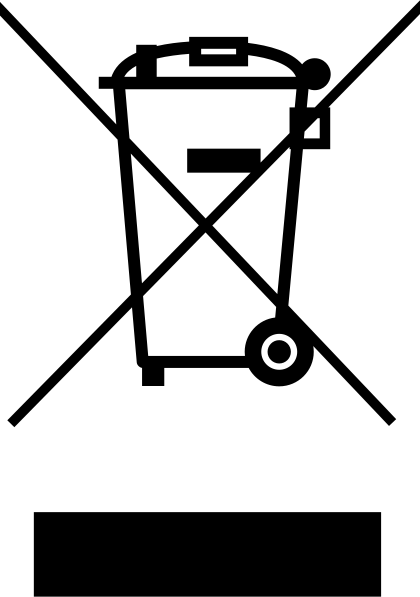
Declaration of RoHS2 Compliance
This product has been designed and manufactured in compliance with Directive 2011/65/EU of the European Parliament and the Council on restriction of the use of certain hazardous substances in electrical and electronic equipment (RoHS2 Directive) and is deemed to comply with the maximum concentration values issued by the European Technical Adaptation Committee (TAC) as shown below.
| Substance | Proposed Maximum Concentration | Actual Concentration |
|---|---|---|
| Lead (Pb) | 0.1% | < 0.1% |
| Mercury (Hg) | 0.1% | < 0.1% |
| Cadmium (Cd) | 0.01% | < 0.01% |
| Hexavalent Chromium (Cr6⁺) | 0.1% | < 0.1% |
| Polybrominated biphenyls (PBB) | 0.1% | < 0.1% |
| Polybrominated diphenyl ethers (PBDE) | 0.1% | < 0.1% |
| Bis (2-ethylhexyl) phthalate (DEHP) | 0.1% | < 0.1% |
| Butyl benzyl phthalate (BBP) | 0.1% | < 0.1% |
| Dibutyl phthalate (DBP) | 0.1% | < 0.1% |
| Diisobutyl phthalate (DIBP) | 0.1% | < 0.1% |
Certain components of products as stated above are exempted under the Annex III of the RoHS2 Directives as noted below. Examples of exempted components are:
- Copper alloy containing up to 4% lead by weight.
- Lead in high melting temperature type solders (i.e. lead-based alloys containing 85% by weight or more lead).
- Electrical and electronic components containing lead in a glass or ceramic other than dielectric ceramic in capacitors, e.g. piezoelectronic devices, or in a glass or ceramic matrix compound.
- Lead in dielectric ceramic in capacitors for a rated voltage of 125 V AC or 250 V DC or higher.
Indian Restriction of Hazardous Substances
Restriction on Hazardous Substances statement (India). This product complies with the “India E-waste Rule 2011” and prohibits use of lead, mercury, hexavalent chromium, polybrominated biphenyls or polybrominated diphenyl ethers in concentrations exceeding 0.1 weight % and 0.01 weight % for cadmium, except for the exemptions set in Schedule 2 of the Rule.
Indian Restriction of Hazardous Substances
Restriction on Hazardous Substances statement (India). This product complies with the “India E-waste Rule 2011” and prohibits use of lead, mercury, hexavalent chromium, polybrominated biphenyls or polybrominated diphenyl ethers in concentrations exceeding 0.1 weight % and 0.01 weight % for cadmium, except for the exemptions set in Schedule 2 of the Rule.
Product Disposal at End of Product Life
ViewSonic® respects the environment and is committed to working and living green. Thank you for being part of Smarter, Greener Computing. Please visit the ViewSonic® website to learn more.
USA & Canada:
https://www.viewsonic.com/us/go-green-with-viewsonic
Europe:
https://www.viewsonic.com/eu/environmental-social-governance/recycle
Taiwan:
https://recycle.moenv.gov.tw/
For EU users, please contact us for any safety/accident issue experienced with this product:
 |
ViewSonic Europe Limited Haaksbergweg 75 1101 BR Amsterdam Netherlands |
 |
+31 (0) 650608655 |
 |
EPREL@viewsoniceurope.com |
 |
https://www.viewsonic.com/eu/ |
Copyright Information
Copyright© ViewSonic® Corporation, 2022. All rights reserved.
Macintosh and Power Macintosh are registered trademarks of Apple Inc.
Microsoft, Windows, and the Windows logo are registered trademarks of Microsoft Corporation in the United States and other countries.
ViewSonic®, the three birds logo, OnView, ViewMatch, and ViewMeter are registered trademarks of ViewSonic® Corporation.
VESA is a registered trademark of the Video Electronics Standards Association. DPMS, DisplayPort, and DDC are trademarks of VESA.
ENERGY STAR® is a registered trademark of the U.S. Environmental Protection Agency (EPA).
As an ENERGY STAR® partner, ViewSonic® Corporation has determined that this product meets the ENERGY STAR® guidelines for energy efficiency.
Disclaimer: ViewSonic® Corporation shall not be liable for technical or editorial errors or omissions contained herein; nor for incidental or consequential damages resulting from furnishing this material, or the performance or use of this product.
In the interest of continuing product improvement, ViewSonic® Corporation reserves the right to change product specifications without notice. Information in this document may change without notice.
No part of this document may be copied, reproduced, or transmitted by any means, for any purpose without prior written permission from ViewSonic® Corporation.
XG341C-2K_UG_ENG_1a_20220412