
ViewSign Desktop Advanced Guide Options Menu: Difference between revisions
From ViewSonic Documentation
Created page with "=Options Menu= By choosing '''File''' > '''Options'' the following window will appear with 14 configuration sections available. <div class="res-img">File:ViewSign_Desktop_Ad..." |
|||
| Line 3: | Line 3: | ||
<div class="res-img">[[File:ViewSign_Desktop_Advanced_Section_5.png|border|500px|link=ViewSign_Desktop_Advanced_Guide_Options_Menu]]</div> | <div class="res-img">[[File:ViewSign_Desktop_Advanced_Section_5.png|border|500px|link=ViewSign_Desktop_Advanced_Guide_Options_Menu]]</div> | ||
After any change in user options, the "Apply" button is enabled and you will need to click it and then click OK to confirm the changes. Options are saved in an .ini file in the path | After any change in user options, the "Apply" button is enabled and you will need to click it and then click OK to confirm the changes. Options are saved in an .ini file in the path: | ||
C:\Users\[User]\AppData\Roaming\Namirial\ViewSign Desktop 1\settings.ini | |||
where [USER] represents the current Windows user profile. There isn't a function that allows you to automatically replicate the options for all of the available user profiles on your PC. | |||
Changing one or more options across the various functions available provides a customized software configuration for your specific needs, saved in your user profile on the PC. | Changing one or more options across the various functions available provides a customized software configuration for your specific needs, saved in your user profile on the PC. | ||
Revision as of 10:35, 21 August 2020
Options Menu
By choosing File' > Options the following window will appear with 14 configuration sections available.
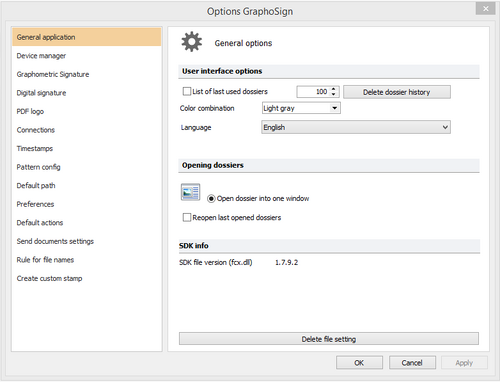
After any change in user options, the "Apply" button is enabled and you will need to click it and then click OK to confirm the changes. Options are saved in an .ini file in the path:
C:\Users\[User]\AppData\Roaming\Namirial\ViewSign Desktop 1\settings.ini
where [USER] represents the current Windows user profile. There isn't a function that allows you to automatically replicate the options for all of the available user profiles on your PC.
Changing one or more options across the various functions available provides a customized software configuration for your specific needs, saved in your user profile on the PC.
General Application
The application’s General section consists of three groups of options:
- User Interface Options
- Dossier Opening
- Info SDK