
PD0511 Making Connections: Difference between revisions
From ViewSonic Documentation
| Line 12: | Line 12: | ||
=Installing Drivers and Software= | =Installing Drivers and Software= | ||
'''System Requirements:'''<br /> | '''System Requirements:'''<br /> | ||
Operating system: Windows | Operating system: Windows 10, 11, or later.<br /> | ||
PC I/O: USB 2.0/above | PC I/O: USB 2.0/above | ||
Before connecting and using the pen display, it is necessary to install the below | Before connecting and using the pen display, it is necessary to install the below software. The software can be downloaded at: <br/> | ||
[https://www.viewsonic.com/global/products/pendisplay/PD0511#downloads '''PD0511 – Driver and Software Download''']<br /> | |||
==DisplayLink Driver== | ==DisplayLink Driver== | ||
Open the DisplayLink installation file and install the driver. | Open the '''DisplayLink''' installation file and install the driver. | ||
<div class="res-img">[[File: | <div class="res-img">[[File:DisplayLink_Update.png]]</div> | ||
:'''NOTE:''' DisplayLink Driver can be installed through Windows Update when connected to the Internet. | |||
==Pen Display Driver== | ==Pen Display Driver== | ||
Pen | ViewSonic Pen Manager can be used to map the active area and adjust the feel of the pen. | ||
# Open the ViewSign Console installation file and install the driver. | # Open the '''ViewSign Console''' installation file and install the driver ('''ViewSonic Pen Manager'''). | ||
# | # Restart the computer after the installation completes. | ||
::<div class="res-img">[[File: | ::<div class="res-img">[[File:MA_Series_Pen_Display_Driver.png|400px]]</div> | ||
::: | :::'''NOTE:''' For further ViewSign Console information, please visit: [[Pen_Display_Software|Pen Display Software - ViewSonic Pen Display Software]] | ||
=Connecting the Signature Pad= | =Connecting the Signature Pad= | ||
Revision as of 05:59, 24 May 2024
Installing Drivers and Software
System Requirements:
Operating system: Windows 10, 11, or later.
PC I/O: USB 2.0/above
Before connecting and using the pen display, it is necessary to install the below software. The software can be downloaded at:
PD0511 – Driver and Software Download
DisplayLink Driver
Open the DisplayLink installation file and install the driver.

- NOTE: DisplayLink Driver can be installed through Windows Update when connected to the Internet.
Pen Display Driver
ViewSonic Pen Manager can be used to map the active area and adjust the feel of the pen.
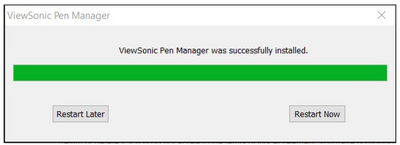
- Open the ViewSign Console installation file and install the driver (ViewSonic Pen Manager).
- Restart the computer after the installation completes.
- NOTE: For further ViewSign Console information, please visit: Pen Display Software - ViewSonic Pen Display Software

Connecting the Signature Pad
- Turn the device over so the bottom side is facing up.
- Connect the Micro USB end of the USB cable to the Micro USB Port on the device.
- Connect the other end of the USB cable to a computer.


