
VA2708-HDJ On-Screen Display Menu: Difference between revisions
From ViewSonic Documentation
No edit summary |
|||
| Line 30: | Line 30: | ||
|title=ViewSonic Monitor | |title=ViewSonic Monitor | ||
|title_mode=append | |title_mode=append | ||
|keywords=VA2708-HDJ, OSD Menu, On-Screen Menu, input select, ViewMode, Color | |keywords=VA2708-HDJ, OSD Menu, On-Screen Menu, input select, Audio adjust, ViewMode, Color adjust, Manual image adjust, Setup Menu | ||
|description=Learn how to use the VA2708-HDJ On-Screen Display menu. | |description=Learn how to use the VA2708-HDJ On-Screen Display menu. | ||
}} | }} | ||
[[Category:VA2708-HDJ]] | [[Category:VA2708-HDJ]] | ||
Revision as of 06:54, 21 December 2023
General Operation
- Press the 2/3/4 key to display the On-Screen Display (OSD) Menu.
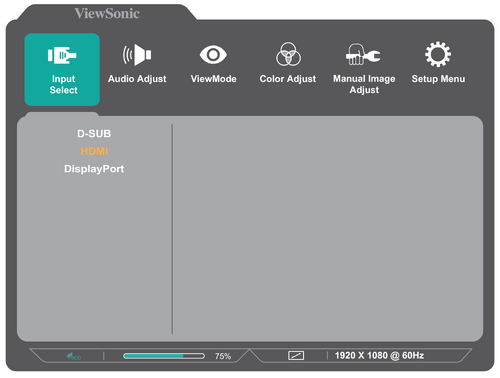
- Press the 1(★) or 2 key to select the main menu. Then press the 3 key to enter the selected menu.

- Press the 1(★) or 2 key to select the desired menu option. Then press the 3 key to enter the sub-menu.

- Press the 1(★) or 2 key to adjust/select the setting. Then press the 3 key to confirm.

- Press the 4 key to return to the previous menu. NOTE: To exit the OSD Menu, press the 5 key.


