
VA2708-HDJ On-Screen Display Menu: Difference between revisions
From ViewSonic Documentation
| Line 15: | Line 15: | ||
=General Operation= | =General Operation= | ||
<ol><li>Press the '''2'''/'''3'''/'''4''' key to display the On-Screen Display (OSD) Menu.</li> | <ol><li>Press the '''2'''/'''3'''/'''4''' key to display the On-Screen Display (OSD) Menu.</li> | ||
<div class="res-img">[[File:VA2708-HDJ OSD Input Select.png|500px|On-Screen Display (OSD) Menu]]</div> | :<div class="res-img">[[File:VA2708-HDJ OSD Input Select.png|500px|On-Screen Display (OSD) Menu]]</div> | ||
<li>Press the '''1(★)''' or '''2''' key to select the main menu. Then press the '''3''' key to enter the selected menu.</li> | <li>Press the '''1(★)''' or '''2''' key to select the main menu. Then press the '''3''' key to enter the selected menu.</li> | ||
<div class="res-img">[[File:VA2432-MHD_OSD_Menu_Color_Adjust_1.png|500px|On-Screen Display (OSD) Menu]]</div> | :<div class="res-img">[[File:VA2432-MHD_OSD_Menu_Color_Adjust_1.png|500px|On-Screen Display (OSD) Menu]]</div> | ||
<li>Press the '''1(★)''' or '''2''' key to select the desired menu option. Then press the '''3''' key to enter the sub-menu.</li> | <li>Press the '''1(★)''' or '''2''' key to select the desired menu option. Then press the '''3''' key to enter the sub-menu.</li> | ||
<div class="res-img">[[File:VA2432-MHD_OSD_Menu_Color_Adjust_2.png|500px|On-Screen Display (OSD) Menu]]</div> | :<div class="res-img">[[File:VA2432-MHD_OSD_Menu_Color_Adjust_2.png|500px|On-Screen Display (OSD) Menu]]</div> | ||
<li>Press the '''1(★)''' or '''2''' key to adjust/select the setting. Then press the '''3''' key to confirm.</li> | <li>Press the '''1(★)''' or '''2''' key to adjust/select the setting. Then press the '''3''' key to confirm.</li> | ||
<div class="res-img">[[File:VA2432-MHD_OSD_Menu_Color_Adjust_3.png|500px|On-Screen Display (OSD) Menu]]</div> | :<div class="res-img">[[File:VA2432-MHD_OSD_Menu_Color_Adjust_3.png|500px|On-Screen Display (OSD) Menu]]</div> | ||
'''NOTE:''' Certain menu option adjustments do not require the user to press the '''3''' key to confirm the selection. Follow the key guide that appears on the bottom of the screen to select the option or make adjustments. | '''NOTE:''' Certain menu option adjustments do not require the user to press the '''3''' key to confirm the selection. Follow the key guide that appears on the bottom of the screen to select the option or make adjustments. | ||
<li>Press the '''4''' key to return to the previous menu.</li> | <li>Press the '''4''' key to return to the previous menu.</li> | ||
Revision as of 06:50, 21 December 2023
General Operation
- Press the 2/3/4 key to display the On-Screen Display (OSD) Menu.
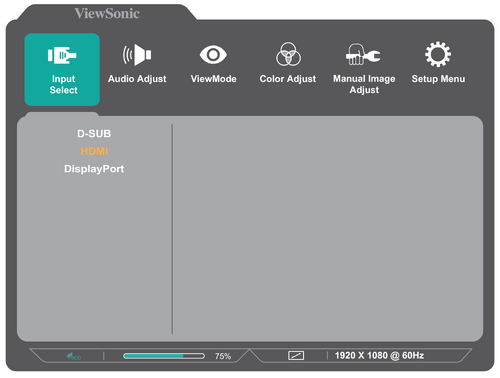
- Press the 1(★) or 2 key to select the main menu. Then press the 3 key to enter the selected menu.

- Press the 1(★) or 2 key to select the desired menu option. Then press the 3 key to enter the sub-menu.

- Press the 1(★) or 2 key to adjust/select the setting. Then press the 3 key to confirm.

- Press the 4 key to return to the previous menu. NOTE: To exit the OSD Menu, press the 5 key.


