
IFP6552-2 Using the ViewBoard: Difference between revisions
From ViewSonic Documentation
| Line 58: | Line 58: | ||
=Toolbar= | =Toolbar= | ||
The Toolbar is where applications and tools can be found. Trigger icons are on the edge of the screen for quick access. | The Toolbar is where applications and tools can be found. Trigger icons are on the edge of the screen for quick access. | ||
<div class="res-img">[[File:IFP52-2_Home_Toolbar.png|600px]]</div> | <div class="res-img">[[File:IFP52-2_Home_Toolbar.png|600px|Home Toolbar]]</div> | ||
To launch an application or tool: | To launch an application or tool: | ||
<ol><li>Tap a Toolbar trigger icon.</li> | <ol><li>Tap a Toolbar trigger icon.</li> | ||
<li>Tap on your desired application or tool.</li> | <li>Tap on your desired application or tool.</li> | ||
<div class="res-img">[[File:IFP52-2_Home_Toolbar_Closeup.png|600px]]</div></ol> | <div class="res-img">[[File:IFP52-2_Home_Toolbar_Closeup.png|600px|Toolbar Closeup]]</div></ol> | ||
==Toolbar Icons== | ==Toolbar Icons== | ||
Revision as of 08:01, 26 October 2023
Powering ON/OFF your ViewBoard
- Ensure the power cord is connected, plugged into a power outlet, and the power switch is in the “ON” position.
- Press the Power button to turn on the ViewBoard.
- To turn the ViewBoard OFF, press and hold the Power button.

Initial Launch Setup
When you first turn ON your ViewBoard, an initial setup wizard will launch.
- Choose your preferred Language.
- Adjust accessibility features as needed.
- Setup and connect to a network.
- Set and adjust the Date and Time as needed.
- Copy your apps and data from another device to the ViewBoard or tap Don’t copy to continue without copying anything.
- Sign in with a Google account, or tap Skip to continue without signing in.
- Accept or decline the Google services.
- Set a PIN to setup a Screen lock, or tap Skip to continue without setting one.
- Go to: Settings > System > Launcher Scheme
- Select either Scheme A or Scheme B.
- Tap a Toolbar trigger icon.
- Tap on your desired application or tool.


Home Screen (Launcher Scheme)
The IFP52-2 series’ Home Screen layout can be customized by selecting from Scheme A and Scheme B.
 |
 |
| Scheme A | Scheme B |
To change the scheme:

Toolbar
The Toolbar is where applications and tools can be found. Trigger icons are on the edge of the screen for quick access.

To launch an application or tool:

Toolbar Icons
| Icon | Description |
|---|---|
 |
Return to the previous operation screen. |
 |
Return to the Home Screen of the Embedded Player. |
 |
Display all embedded applications that are currently open. |
 |
View all installed applications.
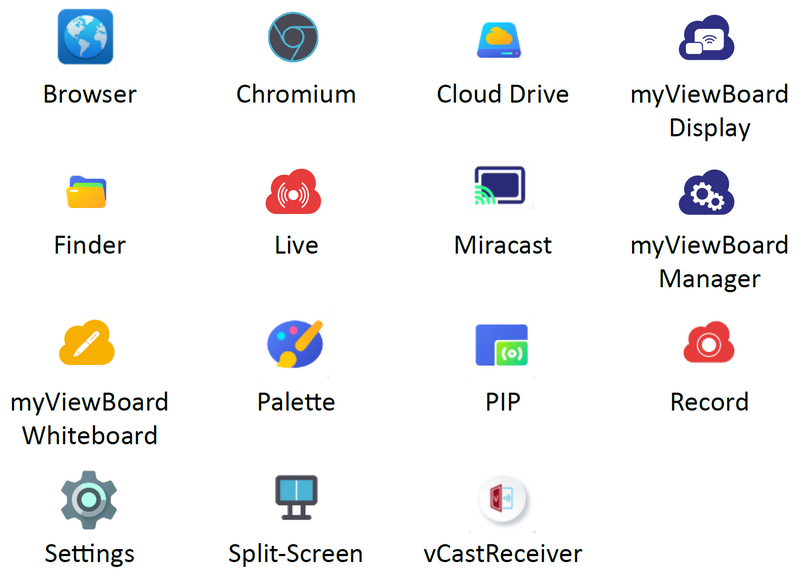 |
| Browser Web browser for surfing the Internet. | |
| Chromium Web browser for surfing the Internet. | |
| Cloud Drive Store and retrieve files from your cloud storage service. | |
| myViewBoard Display Wirelessly mirror screens to a larger display. | |
| Finder Manage files and folders. | |
| Live Stream whiteboarding sessions. | |
| Miracast Miracast wirelessly streams content from Windows and Android devices to a ViewBoard. | |
| myViewBoard Manager Remotely manage multiple installations of ViewSonic devices. | |
| myViewBoard Whiteboard A digital whiteboarding application. | |
| Palette Select a color and adjust the saturation levels. | |
| PIP Picture-in-Picture. Split the screen into two parts, a main window and an inset window. Users can specify the input source for each screen. | |
| Record Record, view, and save on-screen content. | |
| Settings Access the System Settings. | |
| Split-Screen Split the screen to display two different applications on the display. | |
| vCastReceiver Working with ViewBoard Cast software, receive vCastSender laptop screens (Windows/Mac/Chrome) and mobile (iOS/Android) users’ screens, photos, videos, annotations, and camera(s). | |
 |
Access the General Settings. |
 |
Annotate the overlay of any input source with a pen or brush. |
 |
Take a screenshot of the current screen and resize. |
 |
View more applications within the toolbar.
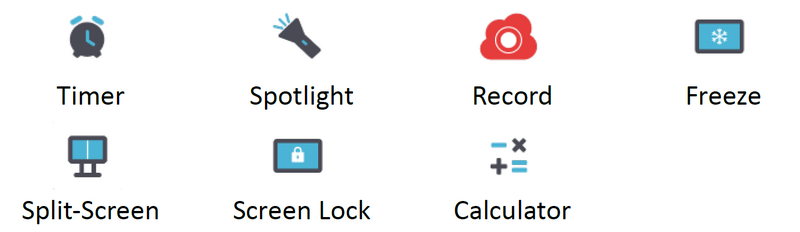 |
| Timer A countdown timer with an optional alarm setting. Touch and swipe to adjust the numeric values, then click Start. At any time, the countdown timer can be paused, resumed, or reset.  | |
| Spotlight Highlight the focus content zone. Tap the setting icon to adjust the spotlight size and alpha blending effect. | |
| Record Record, view, and save on-screen content. | |
| Freeze Convert the currently displayed content into a still image; then you can zoom in, zoom out, go back to full screen, and exit.  | |
| Split-Screen Split the screen to display two different applications on the display.  | |
| Screen Lock Lock the display’s screen for added security. | |
| Calculator Use for mathematical calculations. |
Control Bar
Frequently used settings and tools can be accessed quickly through the Control Bar.

| Item | Description | |
|---|---|---|
| 1 | Input Source | Select the input source.
 |
| 2 | Brightness | Adjust the brightness level of the display.
 |
| 3 | Sound | Adjust the volume level of the display.
 |
| 4 | USB | If a USB storage device is connected, the USB icon will be visible. Clicking the icon will open the USB storage device’s folder.
 |
| 5 | Hotspot | Shortcut to Wireless Hotspot settings. Enable or disable the hotspot function.
 |
| 6 | Ethernet | Shortcut to Wireless & Network LAN settings. Enable or disable LAN connection.
 |
| 7 | Wireless | Shortcut to Wireless & Network Wi-Fi settings. Enable or disable Wi-Fi and connect to a wireless network.
 |
| 8 | Date & Time | Shortcut to Date & Time settings. Set the date and time of the display.
 |