
PD1631 PD1631T Making Connections: Difference between revisions
No edit summary |
|||
| Line 65: | Line 65: | ||
|- | |- | ||
|} | |} | ||
Revision as of 09:09, 5 January 2022
Installing Drivers and Software
System Requirements:
Operating system: Windows XP/7/8/10 (32/64 bit)
PC I/O: USB 2.0/above
Video Input: HDMI/VGA
Before connecting and using the pen display, it is necessary to install the below
drivers and software. The drivers and software can be downloaded at:
http://www.viewsonicglobal.com/q/PD1631

Pen Display Driver
Pen Display Manager can be used to map the active area and adjust the feel of the pen.
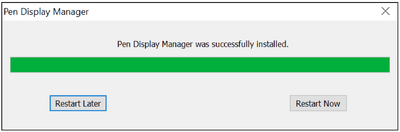
- Open the ViewSign Console installation file and install the driver.
- After the installation completes, you will need to restart the computer.
- NOTE: For further ViewSign Console information, please visit: https://manuals.viewsonic.com/ViewSign_Software

Connecting to Power

- Connect the power cord to the power adapter.
- Connect the power adapter to the DC IN jack at the rear of the display.
- Connect the power cord to a power outlet.
Connecting External Devices
-
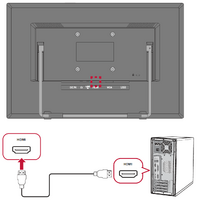 HDMI Connection
 -
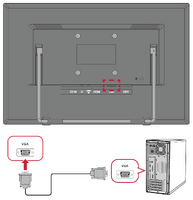 VGA Connection
 -
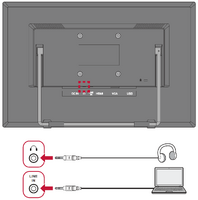 Audio Connection
 -
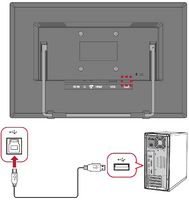 USB Connection


HDMI
Connect one end of an HDMI cable to the HDMI port of the display. Then connect the other end of the cable to the HDMI port of your computer.
VGA
Connect one end of a VGA cable to the VGA port of the display. Then connect the other end of the cable to the VGA port of your computer.
Audio
Plug an audio cable into the Audio In/Audio Out port of the display. Plug the other end into your computer (Audio In) or ear-/headphones (Audio Out).
- NOTE: The display is also equipped with dual speakers.
USB
Connect one end of a USB cable to a USB port of the monitor. Then connect the other end of the cable to a USB port of your computer.
USB Number Description Type B One (1) Connect the USB Type B male cable (square with 2 cut corners) to this port, and then connect the other end of the cable to the USB downstream port of your computer.