
PD1631 PD1631T Making Connections: Difference between revisions
From ViewSonic Documentation
| Line 36: | Line 36: | ||
=Connecting External Devices= | =Connecting External Devices= | ||
===HDMI Connection=== | <gallery mode="nolines" widths=200px heights=200px> | ||
PD1631_PD1631T_Connect_HDMI.png| HDMI Connection | |||
PD1631_PD1631T_Connect_VGA.png| VGA Connection | |||
PD1631_PD1631T_Connect_Audio.png| Audio Connection | |||
PD1631_PD1631T_Connect_USB.png| USB Connection | |||
</gallery> | |||
===HDMI=== | |||
===VGA | ===VGA=== | ||
===Audio | ===Audio=== | ||
===USB | ===USB=== | ||
=Touch Function Control (PD1631T only)= | =Touch Function Control (PD1631T only)= | ||
Revision as of 09:03, 5 January 2022
Installing Drivers and Software
System Requirements:
Operating system: Windows XP/7/8/10 (32/64 bit)
PC I/O: USB 2.0/above
Video Input: HDMI/VGA
Before connecting and using the pen display, it is necessary to install the below
drivers and software. The drivers and software can be downloaded at:
http://www.viewsonicglobal.com/q/PD1631

Pen Display Driver
Pen Display Manager can be used to map the active area and adjust the feel of the pen.
- Open the ViewSign Console installation file and install the driver.
- After the installation completes, you will need to restart the computer.
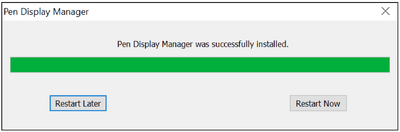
- NOTE: For further ViewSign Console information, please visit: https://manuals.viewsonic.com/ViewSign_Software

Connecting to Power

- Connect the power cord to the power adapter.
- Connect the power adapter to the DC IN jack at the rear of the display.
- Connect the power cord to a power outlet.
Connecting External Devices
-
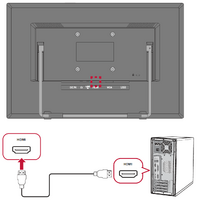 HDMI Connection
 -
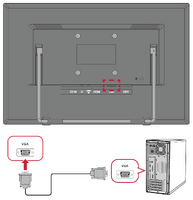 VGA Connection
 -
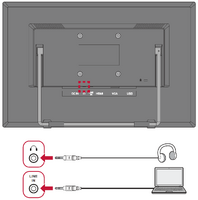 Audio Connection
 -
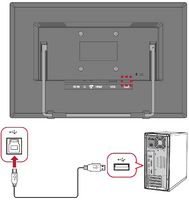 USB Connection


