
PD0511 Making Connections: Difference between revisions
From ViewSonic Documentation
| Line 27: | Line 27: | ||
==Pen Display Driver== | ==Pen Display Driver== | ||
Pen Display Manager can be used to map the active area and adjust the feel of the pen. | |||
# Open the ViewSign Console installation file and install the driver. | # Open the ViewSign Console installation file and install the driver. | ||
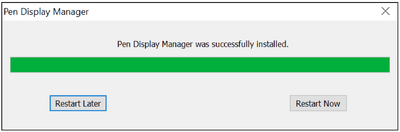
# After the installation completes, you will need to restart the computer. | # After the installation completes, you will need to restart the computer. | ||
Revision as of 07:26, 5 November 2021
Installing Drivers and Software
System Requirements:
Operating system: Windows XP/7/8/10 (32/64 bit)
PC I/O: USB 2.0/above
Before connecting and using the pen display, it is necessary to install the below
drivers and software. The drivers and software can be downloaded at:
http://www.viewsonicglobal.com/q/PD0511

DisplayLink Driver
Open the DisplayLink installation file and install the driver.


- NOTE: DisplayLink Driver can be installed through Windows Update.
Pen Display Driver
Pen Display Manager can be used to map the active area and adjust the feel of the pen.
- Open the ViewSign Console installation file and install the driver.
- After the installation completes, you will need to restart the computer.
- NOTE: For further ViewSign Console information, please visit: https://manuals.viewsonic.com/ViewSign_Software

Connecting the Signature Pad
- Turn the device over so the bottom side is facing up.
- Connect the Micro USB end of the USB cable to the Micro USB Port on the device.
- Connect the other end of the USB cable to a computer.


