
VController Start Up: Difference between revisions
From ViewSonic Documentation
No edit summary |
No edit summary |
||
| Line 1: | Line 1: | ||
<noinclude> {{DISPLAYTITLE:vController | <noinclude> {{DISPLAYTITLE:vController Start Up}} | ||
{{Sticky_Menu_Projector_Software | {{Sticky_Menu_Projector_Software | ||
|1=vController_Initial_Setup | |1=vController_Initial_Setup | ||
Revision as of 09:14, 12 July 2022
Start Up
Display or Projector selection provides RS-232 or LAN communication connection, display identity code, switching the machine on and off, and the input signal settings.
Select Device
Press the Display Icon  to control a display or the Projector Icon
  to control a projector.
to control a display or the Projector Icon to control a projector.

RS-232 Settings
- Press the Return Button
 to search for the RS-232 connection ports and then select a corresponding hardware connection port.
- Default baud rate is 9600.
- Press the Share Button
 to connect to the RS-232. When the RS-232 has been successfully connected, the button will turn green.

Network Settings
- Enter the IP address of the monitor in the IP address field.
- When the network settings interface is opened, press the Ping Button
 to check if the connection is successful.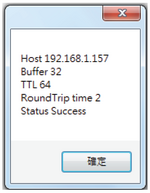
- Default port number is 5000.
- Press the Share Button to connect to the network. When the network connection has been successful, the button will turn green.


Start
 |
 |
| Display Start Interface | Projector Start Interface |
Display Identification Number (ID)
Create ID numbers when connecting to displays via RS-232C. A unique ID should be created for each display. Check All when connecting to multiple displays.
- NOTE: Only displays support ID numbers. Projectors do not support ID numbers.
ID Group
- Check Group.
- Enter ID numbers in the text field.
On/Off Buttons
- Press the On Button
 to turn on the display.
 - Press the Off Button
 to turn off the display.


Icon Description
Display has turned on successfully. 
Display has failed to turn on / display's status is unknown.
Display has turned off successfully. 
Display has failed to turn off / display's status is unknown.


Source Menu
- Select video source with the pull-down menu
- Press the Source Button
 to switch the input signal.

IP Group
- Press the IP Button
 to set the IP group.
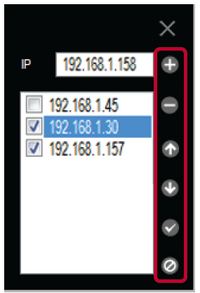
- Enter the IP address of the display or projector in the IP address field.


Icon Description 
Add IP address into group. 
Remove IP address from group. 
Move up the focus IP address. 
Move down the focus IP address. 
Enable all IP address. 
Disable all IP address. 
Close IP group windows.


