
VG1656-2K Using the Monitor: Difference between revisions
From ViewSonic Documentation
Created page with "<noinclude> <div class="noprint"> <div style="top:1px;width:auto;" class="nomobile"> <div class="grid-container"> <div class="item1" style="text-align:center; font-size:16; background-color:#DB0025; font-weight:bold; color:#ffffff;">{{PAGENAME}}</div> <div class="grid-item">Introduction </div> <div class="grid-item">Initial Setup </div> <div class="grid-item">VG1656-2K_Connecting_Power_and_Devices|Connectin..." |
|||
| Line 22: | Line 22: | ||
<ol> | <ol> | ||
<li>Press the '''Power <i class='fas fa-power-off' style="font-size:18px"></i> Button''' to turn on the monitor.</li> | <li>Press the '''Power <i class='fas fa-power-off' style="font-size:18px"></i> Button''' to turn on the monitor.</li> | ||
<li>To turn the monitor off, press the '''Power <i class='fas fa-power-off' style="font-size:18px"></i> Button''' | <li>To turn the monitor off, press and hold the '''Power <i class='fas fa-power-off' style="font-size:18px"></i> Button''' for five seconds. | ||
<div class="res-img">[[File:TD1656-2K_Power_On.png|500px|alt=Turning the Monitor On/Off]]</div> | <div class="res-img">[[File:TD1656-2K_Power_On.png|500px|alt=Turning the Monitor On/Off]]</div> | ||
{{Note|The monitor will still consume some power as long as the power cord is connected to the power outlet. If the monitor is not being used for a long period of time, please disconnect the power plug from the power outlet.}} | {{Note|The monitor will still consume some power as long as the power cord is connected to the power outlet. If the monitor is not being used for a long period of time, please disconnect the power plug from the power outlet.}} | ||
Latest revision as of 03:41, 13 September 2024
Turning the Monitor On/Off
- Press the Power Button to turn on the monitor.
- To turn the monitor off, press and hold the Power Button for five seconds.
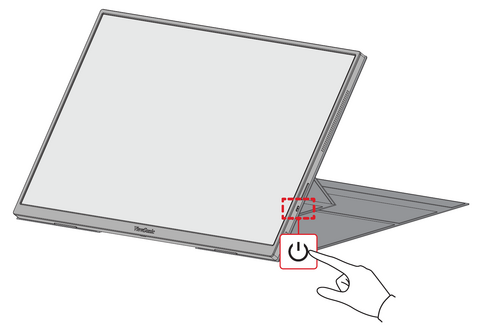 Note: The monitor will still consume some power as long as the power cord is connected to the power outlet. If the monitor is not being used for a long period of time, please disconnect the power plug from the power outlet.

Using the Control Panel Keys
Use the Control Panel Keys to access the Quick Menu and navigate the On-Screen Display (OSD) Menu.

Quick Menu
Press Up [▲] to adjust the Brightness level, and Down [▼] to adjust the Volume level.
-
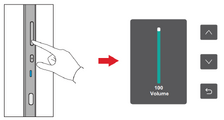 Volume Adjustments
 -
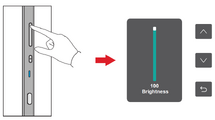 Brightness Adjustments


Note: Follow the key guide that appears on the screen to select the option or make adjustments.
On-Screen Display (OSD) Menu
General Operation
- Press the Power Button to open the On-Screen Display (OSD) Menu.
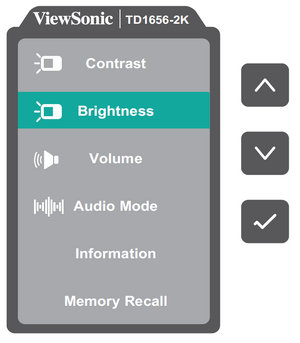
- Press Up [▲] or Down [▼] to select a menu option. Then press the Power Button to enter the selected menu
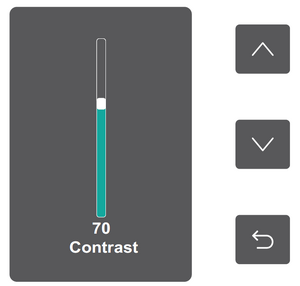
- Follow the on-screen key guide to return to the previous screen.
Note: The OSD Menu will automatically close if there is no action after five seconds.


On-Screen Display (OSD) Menu Tree
| Sub-menu | Menu Option |
|---|---|
| Contrast | (-/+, 0~100)/1 |
| Brightness | (-/+, 0~100)/1 |
| Volume | (-/+, 0~100)/1 |
| Audio Mode | Standard |
| Voice | |
| Movie | |
| Music | |
| Information | |
| Memory Recall |
Menu Options
| Sub-menu | Menu Option | ||||||||||
|---|---|---|---|---|---|---|---|---|---|---|---|
| Contrast | Adjust the degree of difference between the lightest and darkest parts of the picture and change the amount of black and white in the image. | ||||||||||
| Brightness | Adjust the background black levels of the screen image. | ||||||||||
| Volume | Adjust the volume level. | ||||||||||
| Audio Mode |
| ||||||||||
| Information | Display the monitor information. | ||||||||||
| Memory Recall | Reset all settings to their default values. |