
VA2708-HDJ On-Screen Display Menu: Difference between revisions
From ViewSonic Documentation
| Line 32: | Line 32: | ||
width:auto; | width:auto; | ||
max-width:70%; | max-width:70%; | ||
">To exit the OSD Menu, press the '''5 <i class='fas fa-power-off'></i> ''' key.</div> | ">'''NOTE: '''To exit the OSD Menu, press the '''5 <i class='fas fa-power-off'></i> ''' key.</div> | ||
</ol> | </ol> | ||
Latest revision as of 06:49, 4 January 2024
General Operation
- Press the 2/3/4 key to display the On-Screen Display (OSD) Menu.
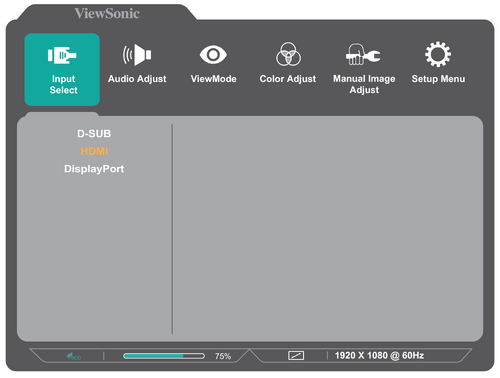
- Press the 1(★) or 2 key to select the main menu. Then press the 3 key to enter the selected menu.

- Press the 1(★) or 2 key to select the desired menu option. Then press the 3 key to enter the sub-menu.

- Press the 1(★) or 2 key to adjust/select the setting. Then press the 3 key to confirm.

- Press the 4 key to return to the previous menu.
- NOTE: To exit the OSD Menu, press the 5 key.


Note: Certain menu option adjustments do not require the user to press the 3 key to confirm the selection. Follow the key guide that appears on the bottom of the screen to select the option or make adjustments.