
VP2768a-4K Quick Menu: Difference between revisions
From ViewSonic Documentation
Created page with "<noinclude> {{Sticky_Menu_Monitor_3.0_SUF |1=VP2768a-4K_Introduction |2=VP2768a-4K_Initial_Setup |3=VP2768a-4K_Connecting_Power_and_Devices |4=VP2768a-4K_Adjusting_the_Viewin..." |
|||
| Line 30: | Line 30: | ||
File:VP2468a_Contrast_Brightness.png| Contrast / Brightness | File:VP2468a_Contrast_Brightness.png| Contrast / Brightness | ||
File:VP2468a_Input_Select.png| Input Select | File:VP2468a_Input_Select.png| Input Select | ||
File: | File:VP2768a-4K_Main_Menu.png| Main Menu | ||
</gallery> | </gallery> | ||
{| class="wikitable" | {| class="wikitable" | ||
Latest revision as of 03:27, 12 August 2021
Using the Control Panel Keys
Use the control panel keys to access the Quick Access Menu, navigate the On-Screen Display (OSD) Menu, and change the settings.

Quick Menu
Touch the 1/2/3/4 key to activate the Quick menu. Follow the key guide that appears on the screen to select options or make adjustments.

-
 Standard Color
 -
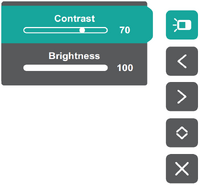 Contrast / Brightness
 -
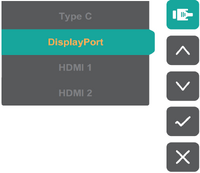 Input Select
 -
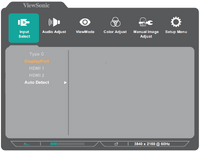 Main Menu


| Icon | Name | Description |
|---|---|---|

|
Standard Color | Select one of the preset standard color settings. |

|
Contrast / Brightness | Adjust the contrast or brightness. |

|
Input Select | Select the input source. |

|
Main Menu | Enter the On-Screen Display (OSD) Menu. |

|
Exit | Exit the Quick Menu. |