PD2211
Package Contents

Front View / Rear View
 |
 |
| Number | Item |
|---|---|
| 1 | Display Screen/Touch Screen[1] |
| 2 | Pen |
| 3 | Adjustable Stand |
| 4 | I/O Panel |
| 5 | Security Lock Slot |
| 6 | Control Panel |
| 7 | Pen Tether Anchor Point |
- ↑ Touch screen only available on PD2211T
I/O Ports

| Number | Item |
|---|---|
| 1 | DC IN |
| 2 | Audio In |
| 3 | Audio Out |
| 4 | VGA |
| 5 | DVI |
| 6 | HDMI |
| 7 | USB Upstream |
| 8 | USB Downstream |
Wall Mounting
Refer to the table below for the standard dimensions for wall mount kits.
- Note: For use only with a UL certified wall mount kit/bracket. To obtain a wall-mounting kit or height adjustment base, contact ViewSonic® or your local dealer.
| Maximum Loading | Hole Pattern (W x H) | Interface Pad (W x H x D) | Pad Hole | Screw Specification & Quantity |
|---|---|---|---|---|
| 14 kg | 100 x 100 mm | 115 x 115 x 2.6 mm | Ø 5 mm | M4 x 10 mm - 4 pieces |
- Turn off the device and disconnect all cables.
- Turn off the device and disconnect all cables.
- Place the device on a flat, stable surface with the screen facing down.
- Attach the mounting bracket to the VESA mounting holes at the rear of the monitor. Then secure it with four (4) screws (M4 x 10 mm).
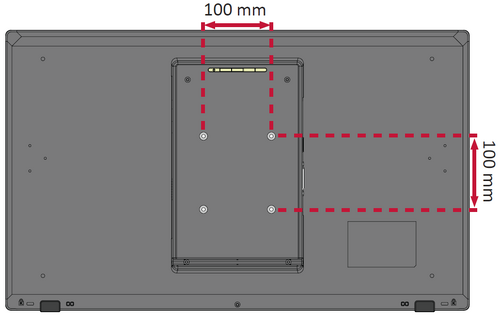
- Follow the instructions that come with the wall mounting kit to mount the monitor onto the wall.

Turning the Device On/Off

- Plug the power cord into a power outlet.
- Press the Power key to turn on the display.
- To turn the display off, press the Power key again.
Installing Drivers and Software
System Requirements:
Operating system: Windows 7, 10, 11, or later; Linux Ubuntu; Chrome OS by request.
PC I/O: USB 2.0/above
Before connecting and using the pen display, it is necessary to install the below software. The software can be downloaded at:
PD2211 – Driver and Software Download
DisplayLink Driver
Open the DisplayLink installation file and install the driver.

- NOTE: DisplayLink Driver can be installed through Windows Update when connected to the Internet.
Pen Display Driver
ViewSonic Pen Manager can be used to map the active area and adjust the feel of the pen.
- Open the ViewSign Console installation file and install the driver (ViewSonic Pen Manager).
- Restart the computer after the installation completes.
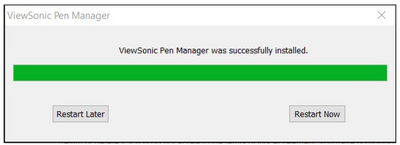
- NOTE: For further ViewSign Console information, please visit: Pen Display Software - ViewSonic Pen Display Software

Connecting to Power

- Connect the power cord to the power adapter.
- Connect the power adapter to the DC IN jack at the rear of the display.
- Connect the power cord to a power outlet.
Connecting External Devices
-
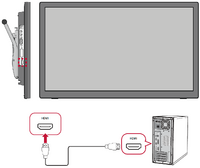 HDMI Connection
 -
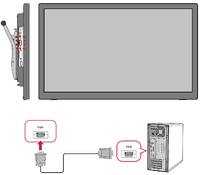 VGA Connection
 -
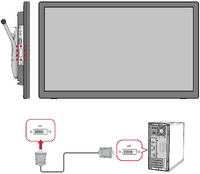 DVI Connection
 -
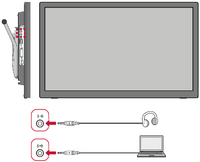 Audio Connection
 -
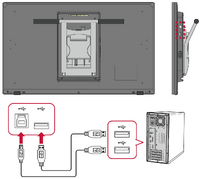 USB Connection


HDMI
Connect one end of an HDMI cable to the HDMI port of the display. Then connect the other end of the cable to the HDMI port of your computer.
VGA
Connect one end of a VGA cable to the VGA port of the display. Then connect the other end of the cable to the VGA port of your computer.
DVI
Connect one end of a DVI cable to the DVI port of the display. Then connect the other end of the cable to your computer.
Audio
Plug an audio cable into the Audio In/Audio Out port of the display. Plug the other end into your computer (Audio In) or ear-/headphones (Audio Out).
- NOTE: The display is also equipped with dual speakers.
USB
Connect one end of a USB cable to a USB port of the monitor. Then connect the other end of the cable to a USB port of your computer.
USB Number Description Type B One (1) Connect the USB Type B male cable (square with 2 cut corners) to this port, and then connect the other end of the cable to the USB downstream port of your computer. Type A One (1) Connection for your Type A peripheral device(s). (e.g. storage device). - NOTE: To activate the USB Type A port, ensure your computer is also connected to the monitor’s USB Type B port.
Touch Function Control (PD2211T only)
Before using the touch function, ensure the USB Type B to Type A cable is connected to your computer and the Windows operating system is running.

When using the touch function, please note:
- The touch function may need about five (5) seconds to resume if the USB cable is removed and plugged in again, or the computer resumes from Sleep Mode.
- The touchscreen can only detect up to ten (10) fingers simultaneously.
- If the Windows’ cursor does not accurately follow your finger when you touch the screen, do the following:
- Open: Control Panel > Hardware and Sound > Tablet PC Settings.
- Select Calibration.
- Follow the instructions to recalibrate your screen.
Tilt Angle Adjustment

Tilt the monitor backwards to the desired viewing angle via the attached stand (13.5˚ to 84˚).
Quick Menu
Press the Menu key to activate the Quick Menu.

| Name | Description |
|---|---|
| Brightness | Adjust the contrast or brightness level. |
| Image | Manually set a variety of image quality adjustments. |
| Color Temperature | Select one of the preset color settings, or manually set a preferred setting. |
| OSD Setting | Adjust On-Screen Display (OSD) settings. |
| Reset | Returns the adjustments back to factory settings. |
| Miscellaneous | Adjust the level, or mute the volume. Select the input source. |
General Operation
- Press the Menu key to display the On-Screen Display (OSD) Menu.
- Press the [▲] or [▼] key to select the main menu. Then press the Menu key to enter the selected menu.
- Press the [▲] or [▼] key to select the desired menu option. Then press the Menu key to enter the sub-menu.
- Press the [▲] or [▼] to adjust/select the setting. Then press the Menu key to confirm.
- NOTE: Certain menu option adjustments do not require the user to press the Menu key to confirm the selection. Follow the key guide to select the option or make adjustments.
On-Screen Display (OSD) Menu Tree
| Main Menu | Sub-menu | Menu Option | ||
|---|---|---|---|---|
| Brightness | ||||
| Contrast | (-/+, 0~100) | |||
| ECO Mode | Standard | |||
| Text | ||||
| Game | ||||
| Movie | ||||
| EyeSaver | ||||
| DCR | On | |||
| Off | ||||
| Image | H. Position | (-/+, 0~100) | ||
| V. Position | (-/+, 0~100) | |||
| Clock | (-/+, 0~100) | |||
| Phase | (-/+, 0~100) | |||
| Aspect | Auto | |||
| Wide | ||||
| 4:3 | ||||
| Color Temperature | Color Temperature | Warm | ||
| Normal | ||||
| Cool | ||||
| User | Red | (-/+, 0~100) | ||
| Green | (-/+, 0~100) | |||
| Blue | (-/+, 0~100) | |||
| Low Blue Light Mode | On | |||
| Off | ||||
| OSD Setting | Language | English | ||
| Français | ||||
| Deutsch | ||||
| 简体中文 | ||||
| Italiano | ||||
| Español | ||||
| Portuguese | ||||
| Türkçe | ||||
| Polish | ||||
| Dutch | ||||
| Русский | ||||
| 한국어 | ||||
| OSD H. Position | (-/+, 0~100) | |||
| OSD V. Position | (-/+, 0~100) | |||
| OSD Timeout | (-/+, 5~120) | |||
| Transparency | (-/+, 0/25/50/75/100) | |||
| Reset | Image Auto Adjust | |||
| Color Auto Adjust | ||||
| Reset | ||||
| Auto Power Down | ||||
| Misc | Hot Key Type | ECO+DCR | ||
| BRI+CON | ||||
| ASP+ECO | ||||
| SOU+VOL | ||||
| Signal Source | VGA | |||
| DVI | ||||
| HDMI | ||||
| Mute | On | |||
| Off | ||||
| Volume | (-/+, 0~100) | |||
Pen Input Area Mapping
To set the proper pen input area:
- Open ViewSonic Pen Manager either from the Start menu, by going to: Start > ViewSonic Pen Manager, or by selecting the ViewSonic Pen Manager icon from the System Tray.
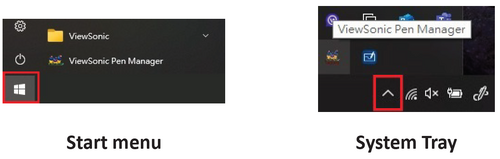
- Select the Mapping tab.

- Select the correct Orientation (Landscape), and Monitor.

- Further adjustments can be made by selecting the Pen tab.


Technical Specifications

| Model No. | P/N |
|---|---|
| VS16288 | PD2211 / PD2211T |
Display
| Item | Category | Specifications |
|---|---|---|
| LCD | Type | FHD 1920 x 1080, a-SI TFT Active Matrix 0.08275 mm x 0.24825 mm pixel pitch |
| Display Size | 54.61 cm, 21.5" | |
| Surface Treatment | Hard-Coating (8H) | |
| Resolution | Supported |
|
| Touch (PD2211T only) |
Type Supported | Capacitive touch, 10 point |
| Power Adapter | Input Voltage | AC 100-240V, 50/60Hz (auto switch) |
| Display Area | Full Scan (H x V) | 476.64 x 268.11 mm (18.77” x 10.56”) |
| Operating Conditions | Temperature | 0° C to 50° C (32° F to 122° F) |
| Humidity | 20% to 80% (non-condensing) | |
| Storage Conditions | Temperature | -20° C to 60° C (-4° F to 140° F) |
| Humidity | 10% to 90% (non-condensing) | |
| Dimensions | Physical (W x D x H) |
512.8 x 310.2 x 38.7 mm (20.19” x 12.21” x 1.52”) |
| Wall Mount | Dimensions | 100 x 100 mm |
| Weight | Physical | 5.636 kg (12.43 lbs) |
| Power Consumption | On | 23.07W (Typical) |
| Off | ≤1W |
Pen
| Item | Specifications |
|---|---|
| Model | EMP-002 |
| Type | Electromagnetic resonance |
| Power Supply | Battery-less |
| Resolution | 5080 LPI (lines per inch) |
| Pressure Levels | 2048 |
| Report Rate | Average 250 PPS (points per second) |
| Pen Tilt Angle | +/- 45° |
| OS Supported | Windows 10, 11, or later.
(Win 7, Linux Ubuntu, Chrome OS by request) |
Compliance Information
This section addresses all connected requirements and statements regarding regulations. Confirmed corresponding applications shall refer to nameplate labels and relevant markings on the unit.
FCC Compliance Statement
This device complies with part 15 of FCC Rules. Operation is subject to the following two conditions: (1) this device may not cause harmful interference, and (2) this device must accept any interference received, including interference that may cause undesired operation. This equipment has been tested and found to comply with the limits for a Class B digital device, pursuant to part 15 of the FCC Rules.
These limits are designed to provide reasonable protection against harmful interference in a residential installation. This equipment generates, uses, and can radiate radio frequency energy, and if not installed and used in accordance with the instructions, may cause harmful interference to radio communications. However, there is no guarantee that interference will not occur in a particular installation. If this equipment does cause harmful interference to radio or television reception, which can be determined by turning the equipment off and on, the user is encouraged to try to correct the interference by one or more of the following measures:
- Reorient or relocate the receiving antenna.
- Increase the separation between the equipment and receiver.
- Connect the equipment into an outlet on a circuit different from that to which the receiver is connected.
- Consult the dealer or an experienced radio/TV technician for help.
Industry Canada Statement
CAN ICES-003(B) / NMB-003(B)
CE Conformity for European Countries

The device complies with the EMC Directive 2014/30/EU and Low Voltage Directive 2014/35/EU.
The following information is only for EU-member states:

The mark shown to the right is in compliance with the Waste Electrical and Electronic Equipment Directive 2012/19/EU (WEEE). The mark indicates the requirement NOT to dispose of the equipment as unsorted municipal waste, but use the return and collection systems according to local law.
Declaration of RoHS2 Compliance
This product has been designed and manufactured in compliance with Directive 2011/65/EU of the European Parliament and the Council on restriction of the use of certain hazardous substances in electrical and electronic equipment (RoHS2 Directive) and is deemed to comply with the maximum concentration values issued by the European Technical Adaptation Committee (TAC) as shown below:
| Substance | Proposed Maximum Concentration | Actual Concentration |
|---|---|---|
| Lead (Pb) | 0.1% | < 0.1% |
| Mercury (Hg) | 0.1% | < 0.1% |
| Cadmium (Cd) | 0.01% | < 0.01% |
| Hexavalent Chromium (Cr6⁺) | 0.1% | < 0.1% |
| Polybrominated biphenyls (PBB) | 0.1% | < 0.1% |
| Polybrominated diphenyl ethers (PBDE) | 0.1% | < 0.1% |
| Bis (2-ethylhexyl) phthalate (DEHP) | 0.1% | < 0.1% |
| Butyl benzyl phthalate (BBP) | 0.1% | < 0.1% |
| Dibutyl phthalate (DBP) | 0.1% | < 0.1% |
| Diisobutyl phthalate (DIBP) | 0.1% | < 0.1% |
Certain components of products as stated above are exempted under the Annex III of the RoHS2 Directives as noted below. Examples of exempted components are:
- Mercury in cold cathode fluorescent lamps and external electrode fluorescent lamps (CCFL and EEFL) for special purposes not exceeding (per lamp):
- Short length (500 mm): maximum 3.5 mg per lamp.
- Medium length (> 500 mm and 1,500 mm): maximum 5 mg per lamp.
- Long length (> 1,500 mm): maximum 13 mg per lamp.
- Lead in glass of cathode ray tubes.
- Lead in glass of fluorescent tubes not exceeding 0.2% by weight.
- Lead as an alloying element in aluminum containing up to 0.4% lead by weight.
- Copper alloy containing up to 4% lead by weight.
- Lead in high melting temperature type solders (i.e. lead-based alloys containing 85% by weight or more lead).
- Electrical and electronic components containing lead in a glass or ceramic other than dielectric ceramic in capacitors, e.g. piezoelectronic devices, or in a glass or ceramic matrix compound.
Indian Restriction of Hazardous Substances
Restriction on Hazardous Substances statement (India). This product complies with the “India E-waste Rule 2011” and prohibits use of lead, mercury, hexavalent chromium, polybrominated biphenyls or polybrominated diphenyl ethers in concentrations exceeding 0.1 weight % and 0.01 weight % for cadmium, except for the exemptions set in Schedule 2 of the Rule.
Product Disposal at End of Product Life
ViewSonic® respects the environment and is committed to working and living green. Thank you for being part of Smarter, Greener Computing. Please visit the ViewSonic® website to learn more.
USA & Canada
https://www.viewsonic.com/us/company/green/go-green-with-viewsonic/#recycle-program
Europe
https://www.viewsoniceurope.com/eu/support/call-desk/
Taiwan
https://recycle.epa.gov.tw/
Copyright Information
Copyright© ViewSonic® Corporation, 2021. All rights reserved.
Macintosh and Power Macintosh are registered trademarks of Apple Inc.
Microsoft, Windows, and the Windows logo are registered trademarks of Microsoft Corporation in the United States and other countries.
ViewSonic®, the three birds logo, OnView, ViewMatch, and ViewMeter are registered trademarks of ViewSonic® Corporation.
VESA is a registered trademark of the Video Electronics Standards Association. DPMS, DisplayPort, and DDC are trademarks of VESA.
ENERGY STAR® is a registered trademark of the U.S. Environmental Protection Agency (EPA).
Disclaimer: ViewSonic® Corporation shall not be liable for technical or editorial errors or omissions contained herein; nor for incidental or consequential damages resulting from furnishing this material, or the performance or use of this product.
In the interest of continuing product improvement, ViewSonic® Corporation reserves the right to change product specifications without notice. Information in this document may change without notice.
No part of this document may be copied, reproduced, or transmitted by any means, for any purpose without prior written permission from ViewSonic® Corporation.
PD2211_PD2211T_UG_ENG_Rev. 1A_2021-11-25