IFP6533
Package Contents
- NOTE: The power cord and video cables included in your package may vary depending on your country. Please contact your local reseller for more information.
|
 |
Wall Mount Kit Specifications (VESA)
Please follow the instructions in the wall mount installation guide to install your wall mount or mobile mount bracket. If attaching to other building materials, please contact your nearest dealer.

| Model | VESA Spec. (A x B) |
Standard Screw (C x D) |
Quantity |
|---|---|---|---|
| IFP6533 - 65” | 600 x 400 mm | M8 x 25 mm | 4 |
- Do not use screws that are longer than the standard dimension, as they may cause damage to the inside of the display.
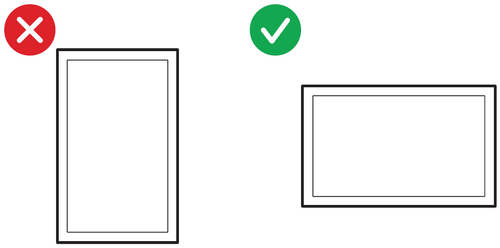
- Only mount the display in landscape orientation. Never mount in a portrait orientation.
Product Overview
Front Panel

Rear Panel

Control Panel and Front I/O

| Number | Description |
|---|---|
| 1 |
|
| 2 | Remote control receiver |
| 3 | Ambient Light Sensor |
| 4 |
|
| 5 |
|
| 6 | Touch signal output to external PC
|
| 7 |
|
I/O Panel

| Number | Port | Description |
|---|---|---|
| 1 | RS-232 |
|
| 2 | LAN |
|
| 3 | USB Type A |
|
| 4 | TOUCH 2 | Touch signal output to external PC
|
| 5 | HDMI 2/3 |
|
| 6 | HDMI OUT | Extend content out to another display device |
| 7 | SPDIF | SPDIF output |
| 8 | AUDIO OUT | Audio out to an external speaker |
| 9 | AUDIO IN | External PC audio input |
| 10 | VGA | External PC image input |
| 11 | Power Switch | Turn ON/OFF AC power supply |
| 12 | AC IN | AC power input |
Remote Control Overview

| Number | Description |
|---|---|
| 1 | Power ON/OFF |
| 2 | Mute/Unmute |
| 3 | Sleep Mode |
| 4 | For Non-Android sources; display current input source information |
| 5 | Blank screen |
| 6 | Freeze screen |
| 7 | Numeric input buttons |
| 8 | Slot-in computer, space bar Alt+Tab |
| 9 | Slot-in computer, close program window |
| 10 | Input source selection |
| 11 | Back to slot-in system main interface |
| 12 | For Android, access Settings; for other sources, access Touch Menu settings |
| 13 | Screen capture |
| 14 | PC[1] [Tab] button |
| 15 | Switch to slot-in PC desktop |
| 16 | PC[1] [Backspace] button |
| 17 | PC[1] [Windows] button |
| 18 | PC[1] [Menu] button |
| 19 | Writing software setup |
| 20 | Return button |
| 21 | Scroll up, down, left, and right |
| 22 | Confirm selection/state |
| 23 | Shortcut button to exit dialogue boxes |
| 24 | CH+: PC previous page
CH-: PC next page |
| 25 | Increase/Decrease volume |
| 26 | PC[1] [Space] button |
| 27 | Built-in computer F1~F12 function button |
Remote Control Effective Range
The working range of the remote control is shown here. It has an effective range of 8 meters, 30° degrees left and right. Ensure there is nothing obstructing the remote control’s signal to the receiver.

Replacing the Batteries of the Remote Control
- Remove the cover on the rear of the remote control.
- Insert two “AAA” batteries, ensuring the “+” symbol on the battery matches the “+” on the battery post.
- Replace the cover by aligning it with the slot on the remote control and snapping the latch shut.

- WARNING: There is a risk of combustion if the batteries are replaced with the incorrect type.
- NOTE:
- It is recommended that you do not mix battery types.
- Always dispose of old batteries in an environmentally friendly way. Contact your local government for more information on how to dispose of batteries safely.
- NOTE:
Using Gestures
Touch gestures allow the user to use pre-determined commands without using a keyboard or mouse. Using gestures on the ViewBoard, the user can select/deselect objects, change the location of an object, access settings, erase digital ink, and much more.
- NOTE: Gesture availability will vary based on the application.
| Select and Deselect an Object (Clicking) Press and release the ViewBoard to select/deselect options or objects. This is like a single, standard left mouse click. |
 |
| Display Menu Options (Right-Clicking) Press and hold the ViewBoard with your finger. This is like a single, standard right mouse click. |
 |
| Double-Clicking Quickly press and release twice in the same location on the ViewBoard. This is like a double, standard left mouse click. |
 |
| Moving an Object Press and hold the object on the ViewBoard and slowly drag it with your finger to your desired location. |
 |
| Erasing Digital Ink Use your flattened hand, palm, or fist on the ViewBoard and move your hand across the area which you wish to erase. |
 |
| Swipe Up for General Settings Swipe up from the bottom of the ViewBoard to launch the General Settings. |
 |
Connecting External Devices and Touch Connection

USB Type C Connection
To connect via USB Type C:
- Connect a USB Type C cable from your external device to the Type C port on the ViewBoard.
HDMI Connection
To connect via HDMI:
- Connect an HDMI cable from your external device to the HDMI 1/2/3 port on the ViewBoard.
- Connect a USB cable to the external device from the appropriate TOUCH port of the ViewBoard.
- NOTE: The TOUCH 1 port is for the HDMI 1 port. The TOUCH 2 port is for the HDMI 2, HDMI 3, and VGA ports.
VGA Connection
To connect via VGA:
- Connect a VGA cable from your external device to the VGA port on the ViewBoard.
- Connect a USB cable to the external device from the TOUCH 2 port of the ViewBoard.
- NOTE: The TOUCH 1 port is for the HDMI 1 port. The TOUCH 2 port is for the HDMI 2, HDMI 3, and VGA ports.
RS-232 Connection

When you use a RS-232 serial port cable to connect your display to an external computer certain functions can be controlled remotely by the PC, including Power ON/OFF, Volume adjustment, Input select, Brightness, and more.
USB and Networking Connections
Just like any PC, it is easy to connect various USB devices and other peripherals to your ViewBoard.
USB Peripherals

Plug the USB device cable into the USB port.
Networking and Modem cables

Plug the network cable into a LAN port.
Media Player Connection

To connect a media player:
- Connect the HDMI cable to the HDMI IN port on your ViewBoard and peripheral device.
- Plug in the power cord of your ViewBoard, and turn on the power supply switch.
- Press the Power button on the right-hand side of the ViewBoard to turn the screen on.
- Press the INPUT button on the remote control and switch to the “HDMI” input source.
Audio Connection
The ViewBoard supports Audio In, Audio Out, and SPDIF.
Audio In
To play audio from your external device through the ViewBoard’s speakers, connect one end of an audio cable to your external device, and the other end to the ViewBoard’s AUDIO IN port.

Audio Out
To play audio from the ViewBoard through an external speaker, connect one end of an audio cable to the external speaker, and the other end to the ViewBoard’s AUDIO OUT port.

SPDIF Connection

To connect to an external sound system:
- Connect an optical cable from the SPDIF port to your sound system’s optical connector.
- Plug in the power cord of your ViewBoard, and turn on the rear-panel power supply switch.
- Press the Power button on the right-hand side of the ViewBoard to turn the screen on.
Video Output Connection

To output video via a display device:
- Connect an HDMI cable to the HDMI IN port of your display device, and the other end to the HDMI OUT port of your ViewBoard.
- Plug in the power cord of your ViewBoard, and turn on the power supply switch.
- Press the Power button on the right-hand side of the ViewBoard to turn the screen on.
Powering ON/OFF your ViewBoard
- Ensure the power cord is connected, plugged into a power outlet, and the power switch is in the “ON” position.
- Press the Power button to turn on the ViewBoard.
- To turn the ViewBoard OFF, press and hold the Power button.

Initial Launch Setup
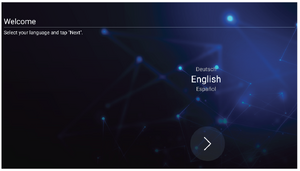
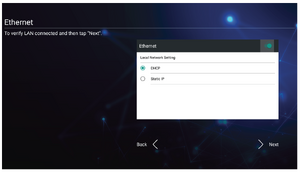
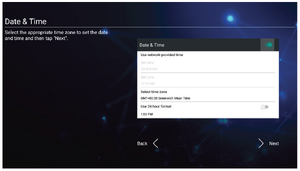
When you first turn on your ViewBoard, an initial setup wizard will launch.
-
 Language Select
 -
 Network Connection
 -
 Date and Time
 -
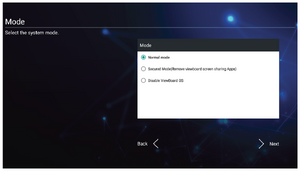 System Mode
 -
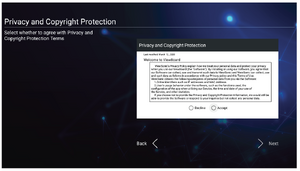 Privacy and Copyright Protection


- Select your Language.
- Setup and verify your LAN connection.
- Select your Time Zone to set the Date and Time.
- Select your preferred System Mode.
- Accept or Decline the Privacy and Copyright Protection Terms.
Toolbar
The Toolbar is where your applications and tools can be found. Trigger icons are on the edge of the launcher for quick access.

To launch an application or tool:
- Tap a Toolbar trigger icon.
- Tap on your desired application or tool icon.

Toolbar Icons
| Icon | Description |
|---|---|
 |
Return to the previous operation screen. |
 |
Return to the Home Screen of the Embedded Player. |
 |
Display all embedded applications that are currently open. |
 |
View all installed applications.
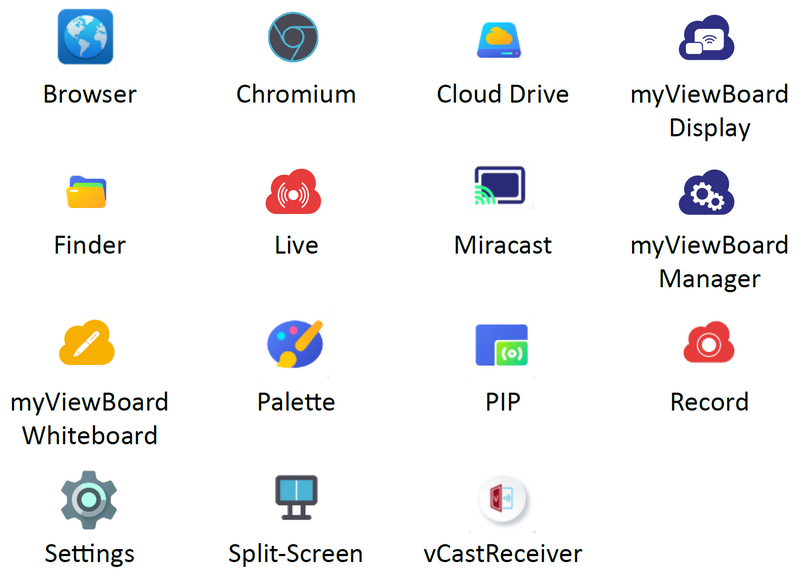 |
| Browser Web browser for surfing the Internet. | |
| Chromium Web browser for surfing the Internet. | |
| Cloud Drive Store and retrieve files from your cloud storage service. | |
| myViewBoard Display Wirelessly mirror screens to a larger display. | |
| Finder Manage files and folders. | |
| Live Stream whiteboarding sessions. | |
| Miracast Miracast wirelessly streams content from Windows and Android devices to a ViewBoard. | |
| myViewBoard Manager Remotely manage multiple installations of ViewSonic devices. | |
| myViewBoard Whiteboard A digital whiteboarding application. | |
| Palette Select a color and adjust the saturation levels. | |
| PIP Picture-in-Picture. Split the screen into two parts, a main window and an inset window. Users can specify the input source for each screen. | |
| Record Record, view, and save on-screen content. | |
| Settings Access the System Settings. | |
| Split-Screen Split the screen to display two different applications on the display. | |
| vCastReceiver Working with ViewBoard Cast software, receive vCastSender laptop screens (Windows/Mac/Chrome) and mobile (iOS/Android) users’ screens, photos, videos, annotations, and camera(s). | |
 |
Access the General Settings. |
 |
Annotate the overlay of any input source with a pen or brush. |
 |
Take a screenshot of the current screen and resize. |
 |
View more applications within the toolbar.
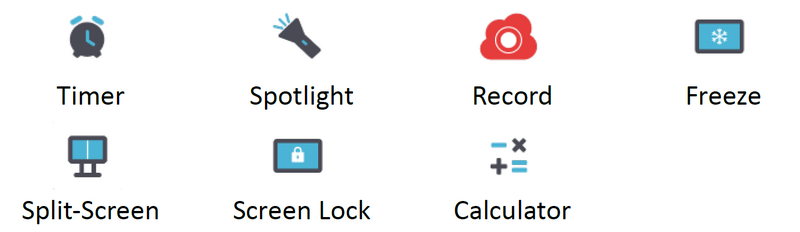 |
| Timer A countdown timer with an optional alarm setting. Touch and swipe to adjust the numeric values, then click Start. At any time, the countdown timer can be paused, resumed, or reset.  | |
| Spotlight Highlight the focus content zone. Tap the setting icon to adjust the spotlight size and alpha blending effect. | |
| Record Record, view, and save on-screen content. | |
| Freeze Convert the currently displayed content into a still image; then you can zoom in, zoom out, go back to full screen, and exit.  | |
| Split-Screen Split the screen to display two different applications on the display.  | |
| Screen Lock Lock the display’s screen for added security. | |
| Calculator Use for mathematical calculations. |
Control Bar
Frequently used settings and tools can be accessed quickly through the Control Bar.

| Item | Description | |
|---|---|---|
| 1 | Input Source | Select the input source.
 |
| 2 | Brightness | Adjust the brightness level of the display.
 |
| 3 | Sound | Adjust the volume level of the display.
 |
| 4 | USB | If a USB storage device is connected, the USB icon will be visible. Clicking the icon will open the USB storage device’s folder.
 |
| 5 | Hotspot | Shortcut to Wireless Hotspot settings. Enable or disable the hotspot function.
 |
| 6 | Ethernet | Shortcut to Wireless & Network LAN settings. Enable or disable LAN connection.
 |
| 7 | Wireless | Shortcut to Wireless & Network Wi-Fi settings. Enable or disable Wi-Fi and connect to a wireless network.
 |
| 8 | Date & Time | Shortcut to Date & Time settings. Set the date and time of the display.
 |
On-Screen Display (OSD) Menu - General Settings
Access Input, Display, Audio and other general settings through the OSD Menu.
 |
 |
 | |
Open the OSD Menu by touching the Menu icon () in the Toolbar or the Input Source icon ( ) of the Control Bar.

Input Settings
To select an Input Source:
- Press INPUT on the remote control or touch the Menu icon () from the Toolbar or the Input Source icon () of the Control Bar to display the Input Settings menu.
- Press ▼/▲/◄/► on the remote control to select the input source you want.
- Press ENTER on the remote control, or touch the input source.
- Press BACK on the remote control, or touch a blank area outside of the menu to exit.
To adjust the brightness:

- Press INPUT on the remote control or touch the Menu icon () from the Toolbar or the Input Source icon () of the Control Bar to display the Input Settings menu.
- Touch and drag the brightness slider directly to adjust the backlight value.
- Press BACK on the remote control, or touch a blank area outside of the menu to exit.
To adjust the volume:

- Press INPUT on the remote control or touch the Menu icon () from the Toolbar or the Input Source icon () of the Control Bar to display the Input Settings menu.
- Touch and drag the volume slider directly to adjust the value, or press VOL +/VOL - on the remote control to adjust. Additionally, pressing Mute (
 ) on the remote control will mute/unmute the volume.
 - Press BACK on the remote control, or touch a blank area outside of the menu to exit.
Display Settings
|
 |
 | |
To adjust the display settings:
- Press INPUT on the remote control or touch the Menu icon () from the Toolbar or the Input Source icon () of the Control Bar to display the Input Settings menu. Then select the Display tab.
- Press ▼/▲/◄/► on the remote control to select the menu option you want.
- Press ENTER on the remote control to confirm or press ◄/► to adjust the menu option. Additionally, touch/adjust the menu option directly.
- Press BACK on the remote control, or touch a blank area outside of the menu to exit.
Display Settings - Menu Options
| Item | Description | ||||||||||||||||||||||
|---|---|---|---|---|---|---|---|---|---|---|---|---|---|---|---|---|---|---|---|---|---|---|---|
| Auto Brightness | Automatic brightness adjustment. Adjusts maximum brightness according to ambient light levels. | ||||||||||||||||||||||
| Energy Saving | Enable to reduce power consumption. | ||||||||||||||||||||||
| Eye Care | Adjusts the filter that blocks high-energy blue light for a more comfortable viewing experience. | ||||||||||||||||||||||
| Paper Eye Care | When “Low Blue Light” is enabled, adjust the Transparency to lower the brightness and warm the color temperature. | ||||||||||||||||||||||
| Picture Mode | Select a predefined picture setting.
| ||||||||||||||||||||||
| Brightness | Adjusts background black levels of the screen image. The higher the value, the brighter the image. Lower values will result in a darker image. | ||||||||||||||||||||||
| Contrast | Adjusts the difference between the image background (black level) and the foreground (white level). Use this to set the peak white level after you have previously adjusted the Brightness setting to suit your selected input and viewing environment. | ||||||||||||||||||||||
| Saturation | The amount of color in a picture. Lower settings produce less saturated colors; in fact, a setting of “0” removes that color from the image entirely. If the saturation is too high though, that color will be overpowering and unrealistic. | ||||||||||||||||||||||
| Sharpness | A high value results in a sharper picture; a low value softens the picture. | ||||||||||||||||||||||
| Color Temperature | Adjust the color temperature value. | ||||||||||||||||||||||
| Advanced Settings |
Color Space
HDMI Range
Pixel Shift AI PQ Dynamic Backlight (DCR) |
Audio Settings
To adjust the audio settings:
- Press INPUT on the remote control or touch the Menu icon () from the Toolbar or the Input Source icon () of the Control Bar to display the Input Settings menu. Then select the Audio tab.
- Press ▼/▲/◄/► on the remote control to select the menu option you want.
- Press ENTER on the remote control to confirm or press ◄/► to adjust the menu option. Additionally, touch/adjust the menu option directly.
- Press BACK on the remote control, or touch a blank area outside of the menu to exit.
Audio Settings - Menu Options
| Item | Description | ||||||||||
|---|---|---|---|---|---|---|---|---|---|---|---|
| Audio Mode | Select a predefined audio setting.
| ||||||||||
| Volume | Increase or decrease the display’s volume level. | ||||||||||
| Bass | Increase or decrease the bass level (lower-pitched sounds). | ||||||||||
| Treble | Increase or decrease the treble level (higher-pitched sounds). | ||||||||||
| Balance | Adjust the left/right speaker balance. | ||||||||||
| Mute | Toggle mute ON or OFF. |
Low Blue Light Filter and Eye Health
The Blue Light Filter blocks high-energy blue light for a more comfortable viewing experience.

Calculating Breaks
When viewing screens for extended periods, it is recommended to take periodic breaks from viewing. Short breaks of at least 10 minutes are recommended after one (1) hour of continuous viewing.
Taking shorter, more frequent breaks are generally more beneficial than longer, less frequent breaks.
Focus Fatigue (20-20-20 Rule)
To reduce the risk of eye fatigue by constantly looking at the screen, look away from the screen at least every 20 minutes and gaze at a distant object (at least 20 feet away) for at least 20 seconds.
Looking at Distant Objects
While taking breaks, users can further reduce eye strain and dryness by focusing on objects that are further away from them for 10-15 seconds, then gaze at something up close for 10-15 seconds. Repeat this up to 10 times. This exercise reduces the risk of your eyes’ focusing ability to “lock up” after prolonged computer work.
Eye and Neck Exercises
Eye Exercises
Eye exercises can help minimize eye strain. Slowly roll your eyes to the left, right, up, and down. Repeat as many times as needed.

Neck Exercises
Neck exercises can also help minimize eye strain. Relax your arms and let them hang at your sides, bend forward slightly to stretch the neck, turn your head to the right and to the left. Repeat as many times as needed.
ViewBoard Input Source Settings
The ViewBoard input source is the default source that is active when turning on your ViewBoard. Press MENU on the remote control or tap the setting icon next to the input source in the On-Screen Display (OSD) Menu’s Input Settings to enter the Settings menu.
Network & Internet
Check current network connection status, set up and manage Wi-Fi, Ethernet, Bluetooth, and VPN, and establish a Wireless hotspot.

- NOTE:
- Wi-Fi, Wireless hotspot and Bluetooth settings will appear when VB-WIFI-004(optional) has been installed.
- Ethernet will disable automatically when Wi-Fi is enabled. Wi-Fi will disable automatically when Ethernet is enabled. Wi-Fi will disable when Wireless hotspot is enabled.
- The device cannot connect to the Internet when Wireless hotspot is enabled.
Wi-Fi
Setup and manage wireless access points.
- Tap the toggle button to turn Wi-Fi On or Off.
- Once On, you can: Add a Network, view Saved Networks, Refresh the network list, or view Advanced settings.
- In Advanced settings, you can toggle Network notifications On or Off and view Network card info.
Ethernet
Set the local network and proxy.

- Tap the drop down menu to connect/disconnect the Ethernet.
- You can adjust Local network and Proxy settings as well.
Wireless Hotspot
Set and share your internet connection with other devices.
- Tap the toggle button to turn Wireless hotspot On or Off.
- Tap Set up to set the Network name, Security, and Password.
Bluetooth
Manage connections, set the device name and discoverability.
- Tap the toggle button to turn Bluetooth On or Off. Once On, users can select a listed device to pair and connect to, rename their device, remove a device, or receive files.
- Tap Received files to show all received files.
VPN
Setup and manage Virtual Private Networks.
To create a VPN profile:
- Go to: Settings > Network & Internet > VPN and tap Add VPN.
- Key in the Name.
- Select the VPN Type.
- Choose to enable/disable PPP encryption (MPPE) and/or show Advanced options.
Miracast
Enable/disable Miracast. Miracast allows for wireless sharing of multimedia and screens of connected devices.

File Sharing
SAMBA
The SAMBA Service provides file sharing via LAN. When the SAMBA Service is enabled, the user can explore the ViewBoard file system with a PC or mobile equipment.
- Go to: Settings > File Sharing > SAMBA.
- Tap the toggle button to enable the SAMBA Service, then set a password if needed.
- Ensure the ViewBoard and client equipment are connected to the same network.
- Log in to the ViewBoard with the client equipment. Input the ViewBoard’s IP address.
- Key in the user name and password, then select OK (if necessary).
- After a successful log in, the ViewBoard files will be available.
Display
Adjust the Wallpaper, Theme, Display ID, Protection, and HDMI Out settings.

Wallpaper
Users can change their wallpaper with default images (both still and live), or use their own by tapping My Photo and selecting the image file.
Protection
Toggle HDCP & Copyright On/Off, and set a Password for Screen Lock.

- To set up a password for screen lock, tap Set Password and enter the desired password.
HDMI Out
Adjust the HDMI Out Resolution setting, enable video output, and mute/unmute the display speaker when connected via HDMI Out.
- NOTE: The disable ViewBoard speakers option box is unchecked by default.

Preferences
View and adjust Touch, Language, Keyboard & Input, Date & Time, Boot Mode & Advanced, Start up & Shut down, and Toolbar settings.

Touch
Adjust Touch Settings and toggle Touch Sounds and Windows Ink On/Off.

Language
Adjust and choose the preferred language from the available languages.

Keyboard & Input Method
Enable/disable the visual keyboard and/or change the default input method.

- Tap on Settings to adjust the advanced keyboard settings.
Date & Time
Set the system time and format.

| Item | Description |
|---|---|
| Automatic Date & Time | When enabled, the ViewBoard will automatically synchronize the date and time via the Internet. |
| Time Zone | Select the appropriate time zone. |
| Time Format | Choose from 12-hour or 24-hour time format. Simply toggle 24-hour format On/Off. |
| Date Format | Select from the available date formats. |
Boot Mode
Adjust the preferred boot up mode and set/reset a password.

| Item | Description |
|---|---|
| Normal Mode | The embedded screen sharing Apps will run normally. |
| Secured Mode | The embedded screen sharing Apps will be removed. |
| Disable Embedded OS | The system will automatically reboot, and then the Embedded/ViewBoard OS will not appear. |
| ViewBoard Settings Access Password | Toggle to lock/unlock the ViewBoard Settings. |
| Password for Protection | Modify the Boot mode and ViewBoard Settings entry password. |
| Local File Protection Policy | Choose how long to keep local storage files in the Folder application. |
| Color Correction | Color correct the ViewBoard display screen. |
| Non-ViewBoard OS Mode Side Toolbar Setting | Enable the side toolbar for non-ViewBoard OS. |
| Reset ViewBoard | Reset the ViewBoard to its factory default settings. |
Startup & Shutdown
Set the Startup Input, Standby Mode, EnergyStar Mode, Black Screen After Startup, Power off Reminder timer and Schedule settings.

| Item | Description |
|---|---|
| Startup Input | Adjust the Startup Input preference. |
| Display Setting when No Signal | Decide what happens to the display when there is no signal for HDMI, PC, or VGA sources. |
| Standby Mode | Decide what happens when you press the Power button while the ViewBoard is ON. |
| Energy Star | Enable to automatically initiate Sleep Mode when the screen is idle for one hour. |
| Body Detection | If no body is detected, the display will enter sleep mode based on the minutes set. |
| Black Screen After Startup | When enabled, the ViewBoard will turn off the backlight automatically after booting up. |
| Time Switch Power Off Reminder | When enabled, the ViewBoard will turn off without any reminder after the scheduled off time. |
| Schedule | Schedule a Boot and Shut off time. |
Toolbar Setting
Adjust the Side toolbar setting.

Input Source
Adjust the input source names and settings, as well as the side tool bar settings.

Label Input Source
Set labels for each input source that will be easily recognized when displayed.

Source
Toggle Wake up by active source, Signal auto search, and HDMI CEC and select Input port auto switch.

| Item | Description |
|---|---|
| Wake up by Active Source | The screen will turn on automatically after plugging in an HDMI cable when the screen is off. |
| Signal Auto Search | When enabled, if the current source does not have a signal, the ViewBoard will automatically search for an input source. |
| Input Port Auto Switch | The original signal will automatically switch to a new cable after it’s plugged in. |
| Energy Saving | Set a time period to power off if no signal is detected. |
| HDMI CEC | Enable/disable HDMI CEC functions. |
Apps
The user can view application information and force stop, uninstall, move to USB storage, clear data, clear cache, and clear defaults.

- NOTE:
- Pre-loaded apps cannot be uninstalled.
- Not all apps support the move to USB storage feature.
- Not all apps support Clear Defaults.
Apps
View any running or installed applications. Tap on them for more detailed information and options.
- By tapping on a running application, you can see more information, stop, or report the application.
- Selecting All, Download, or USB Storage will list all installed applications.
- Tapping on any application will display further information and options.
System
View and adjust Storage, Clone to USB, Display ID, Security, System Update, and About device settings.

Storage
Users can check the storage status of their ViewBoard.
Clone to USB
Copy settings to an external USB drive.

Display ID
Assign a number to remote control the display by RS-232/LAN.
- To assign or change the Display ID, tap Change and input a number.
- NOTE: The Display ID is for RS-232 users, and the range is 01~99.
Security
Review Certificate, Trusted Credential storage, and Unknown sources install settings.
- Tap on Install certificate from storage to add additional certificates.
- Selecting Clear Credentials will remove all manually installed credentials.
- NOTE: Pre-loaded credentials cannot be cleared.
- Under Trusted Credentials view and edit all trusted and installed CA certificates.
- Tapping on a credential will provide more detailed information.
- Allow the installation of applications from unknown sources by selecting the box under Unknown source security.
- NOTE: Apps from unknown sources may not be compatible or work properly.
System Update
The ViewBoard automatically searches for software updates whenever connected to the Internet (OTA). With just one click, users can update their version of ViewBoard software.

| Item | Description |
|---|---|
| Auto Update | When the display is off, the system will automatically check for a new version. If a new version is found, the system will automatically update. After the update is complete, the system will turn off. |
| Schedule | Set the update time. |
| Manual Update | Update the software manually. |
About Device
Display Embedded Player information, Legal information, and Asset Tagging.
- By selecting Edit, the asset information can be adjusted.
- Tap on Legal information to check open source licenses.
Pre-installed Applications
myViewBoard Display
Wirelessly mirror screens to a larger display.

To share a screen to a ViewBoard with myViewBoard Display:
- Open myViewBoard Display on the ViewBoard you want to share your screen to.
- On the device you want to share the screen from, go to: https://myviewboard.com/display.
- Enter the Display Code and One Time Password for the ViewBoard you wish to share to.
- NOTE: Note that the password refreshes every 30 seconds.
myViewBoard Live
Stream whiteboarding sessions.

A Stream URL and a Stream Key are needed to begin live streaming. The Stream URL is automatically shown after selecting the streaming service in myViewBoard Live.
- NOTE: The Stream Key will come from the streaming service chosen.
On myViewBoard Live:
- Launch myViewBoard Live.
- Input the required information.
- Select the Record the stream checkbox to record a copy of the stream to the ViewBoard (if applicable).
- Tap the arrow icon to start the stream.
On the dashboard of the chosen streaming service:
- Verify that it is able to successfully receive the stream.
- To stop the stream, locate and click the ‘End Stream’ button on the chosen service’s dashboard.
- NOTE: To learn more about myViewBoard Live, visit: https://wiki.myviewboard.com/MyViewBoard_Live.
myViewBoard Manager
Remotely manage multiple installations of ViewSonic devices.

Once devices are set up and have myViewBoard Manager installed, they can be added to the entity and managed remotely from the Manager web application.
- NOTE: Only available to Entity Admins from myviewboard.com after signing in.
Add a Device
On the device to manage:
- Download and install myViewBoard Manager.
- Open myViewBoard Manager and note the 6-digit PIN displayed.
In the myViewBoard Manager web application on myviewboard.com:
- Click Add Device.
- Input the 6-digit PIN obtained earlier.
- Name the device (if applicable).
- Click Add.
- NOTE: To learn more about myViewBoard Manager, visit: https://wiki.myviewboard.com/MyViewBoard_Manager.
myViewBoard Record
Capture everything that is displayed on screen in a video format.

To launch the screen recording application:
- Select the myViewBoard Record icon in the application drawer.
- Select the preferred recording configurations.
- Tap the check mark and a three (3) second countdown will begin. Screen recording will begin immediately after the countdown.
- After stopping the recording, you will be able to preview the video, save it, or discard it.
myViewBoard Whiteboard
A digital whiteboarding application.
- NOTE: To learn more about myViewBoard Whiteboard, visit: https://wiki.myviewboard.com/Whiteboard_for_Android.

Floating Toolbar
| Item | Description | |
|---|---|---|
 |
Move | Move the Floating Toolbar. |
 |
Present Mode | Switch between presentation and preparation modes. |
 |
Paste from Clipboard | Insert the current clipboard content onto the canvas. |
 |
Previous Page | Go to the previous page (if the canvas has multiple pages). |
 |
Next Page | Go to the next page (if the canvas has multiple pages). |
 |
New Page | Add a new canvas. |
 |
Pages in Whiteboard | Create, select, rearrange, copy and delete pages. |
Main Toolbar
| Item | Description | |
|---|---|---|
 |
Screen Capture | Screenshot, video, and audio recording. |
 |
Move | Select and hold to move the toolbar to the left side, right side, or bottom of the screen. |
 |
File | Open, save, export, and print whiteboard files. |
 |
Magic Box | Import resources (image, video, audio, etc.) to the whiteboard. |
 |
Embedded Browser | Open the built-in browser to access internet resources, which can be dragged onto the canvas. |
 |
Infinite Canvas | Drag to move the canvas. Use two hands to zoom in/zoom out. Select again for an overview. |
 |
Selection | Select objects, text, and other elements on the canvas. |
 |
Pen | Writing tools and customization options. |
 |
Eraser | Erase objects or clear the page. |
 |
Shapes and Lines | Draw shapes, arrows, and add tables. |
 |
Text and Handwriting | Add a text box. |
 |
Undo | Undo the previous action. |
 |
Redo | Redo the previous action. |
Background Management
| Item | Description | |
|---|---|---|
 |
Sign In | Sign in to a myViewBoard account. |
 |
Background Management | Change the canvas background. |
 |
FollowMe Setting | Display custom images uploaded to a cloud storage account. |
 |
Color Palette | Choose from solid or gradient colors as the background. |
 |
Pre-installed | Choose backgrounds that come pre-installed with Whiteboard. |
 |
myViewBoard Originals | Display original content created by myViewBoard. |
 |
Local Hard Drive | Use images from the local hard drive. |
vCast
Working with ViewBoard® Cast software (vCast, vCast Pro, and vCastSender), the vCast application will allow the ViewBoard to receive laptop screens (Windows/Mac/Chrome) and mobile (iOS/Android) users’ screens, photos, videos, annotations, and camera(s) that are using the vCastSender application.

- NOTE:
- ViewBoard® Cast software, laptops, and mobile devices can connect to both the same subnet and cross subnet by entering the on-screen PIN code.
- Connected devices will show up under Device List on the same subnet connection.
- If the device does not show up under Device List, users will need to key-in the on-screen PIN code.
Network Information
- Ports:
- TCP 56789, 25123, 8121 & 8000 (Controlling message port & client device audio transfer)
- TCP 8600 (BYOM)
- TCP 53000 (Request share screen)
- TCP 52020 (Reverse control)
- TCP 52025 (Reverse control for ViewBoard Cast Button)
- TCP 52030 (Status sync)
- TCP 52040 (Moderator mode)
- UDP 48689, 25123 (Device searching and broadcast & client device audio transfer)
- UDP 5353 (Multicast search device protocol)
- Port and DNS Activation:
- Port: 443
- DNS: https://vcastactivate.viewsonic.com
- OTA Service:
- Server Port: TCP443
- Server FQDN Name: https://vcastupdate.viewsonic.com
Display Group Settings
To adjust the Display Group Settings, select the Display Group icon ( ) located in the lower-right corner of the screen.

- Toggle the "Turn On/Off Display Group" ON to enable the Display Group feature.
- NOTE: Other preinstalled ViewBoard Cast devices in the same network will be listed.
- Select the devices you want to join the display group and select OK to save the settings.
- NOTE:
- If the devices you want to group are not listed, you can enter their respective IP address or connecting PIN code.
- The Display Group maximum device limit is six devices.
- If you frequently connect to the same device, you can select the Star icon (
 ) next to the device to add it to your frequently connected devices list, "My List of Devices in Group", for easier Display Group setup and management.


Synchronized Group Screen All the Time
When the “Synchronized group screen all the time” function is toggled ON, it will display a synchronized group screen continuously. If it is toggled OFF, it will work on vCast mirroring only.

- NOTE: Select the devices to group first, then toggle the "Synchronized group screen all the time” function ON to avoid interruption.
After confirming the above settings, you can share your screen to the main display, then the grouped client devices will be synced up to your screen.

Moderator Mode
Moderator Mode allows the moderator to take control of the devices connected to the ViewBoard. To enter Moderator Mode, select the Moderator Mode icon ( ) located in the lower-right corner of the screen.

When enabled, the moderator can view a list of all connected screens in the left floating window and can preview each participant’s screen and then select any of participant’s screen and cast to the ViewBoard’s main screen for presentation. The moderator can also control each participant’s screen, annotate on the ViewBoard, and remove unwanted participants by selecting the close icon (X).

Broadcast
When enabled, the ViewBoard’s screen will be broadcasted to all of the participant’s connected screens simultaneously. The participants can only view the presentation contents until the moderator disables the Broadcast function.

Multiple Screen Sharing
By default, vCast is set to allow multiple screen sharing, but can also be set to single screen sharing. To do this, the moderator can select the Multiple Screen Sharing icon to switch to single screen sharing.
Preview Screen
By default, vCast is set to let the moderator preview the participant’s screen contents prior to sharing to the ViewBoard. Selecting the Preview Screen icon, the Moderator can switch to see the participant’s name only.
Touch
By default, participants can use touch for collaboration after connecting. The moderator can enable/disable the touch function of a participant by selecting the Touch icon in their window.
NOTE:
- Moderator Mode is supported on all vCastSender and AirPlay devices, but mobile devices are limited to a "preview" function. Additionally, mobile Android devices cannot cast sound out.
- When you cast your Windows/Mac/Chrome screen to a ViewBoard, the selected full screen unit will not be broadcasted back to your device to avoid repetitive screen casting.
- The active presenter can touch each of the participant's screens to remotely control casting devices.
- The number of multi-screen presenters on-screen depends on your Windows CPU processor performance and router specifications.
Casting from Windows, MacBook, and Chrome Devices

- Ensure the client device (e.g., laptop) is connected to the same network as the ViewBoard.
- NOTE: The network name can be found under Room Network.
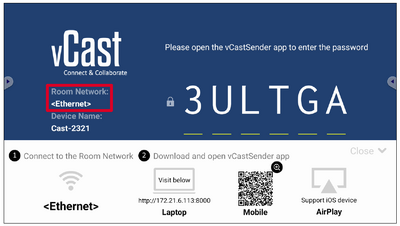
- On the client device, visit the address that is shown on the ViewBoard to download and install the vCastSender application.
- After installing, launch the vCastSender application.
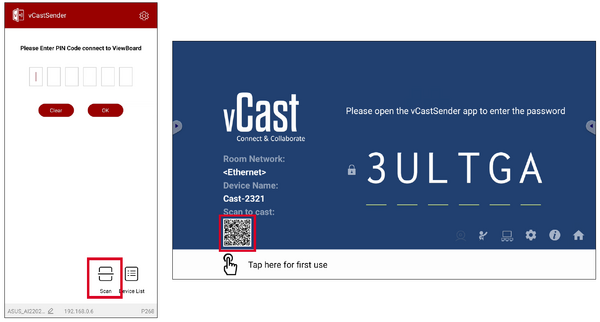
- To connect to the ViewBoard, input the PIN code and click OK.
- NOTE: The PIN code can be found as highlighted below:
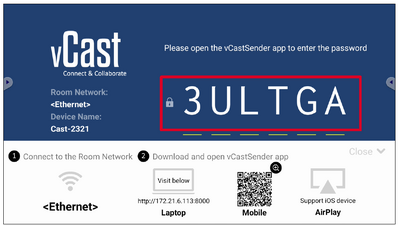
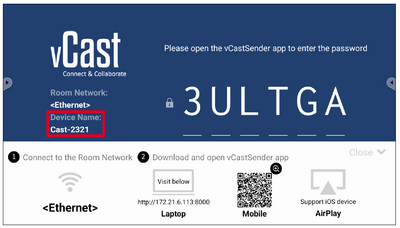
- Additionally, you can connect to the ViewBoard or display by clicking Device List then the Device Name listed.
- NOTE: The Device Name can be found as highlighted below:


Casting from Android Devices

- Ensure the client device (e.g., Android phone or tablet) is connected to the same network as the ViewBoard.
- NOTE: The network name can be found under Room Network.
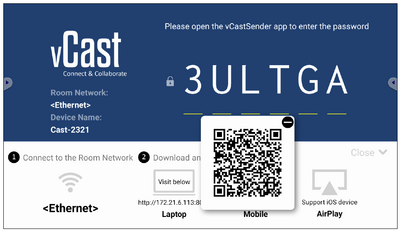
- On the Android client device, scan the QR code shown on the ViewBoard to directly download the vCastSender application, or download the application from the Google Play Store.
- After installing, launch the vCastSender application.
- To connect to the display, input the PIN code and select OK.
- NOTE: The PIN code can be found as highlighted below:
- You can also connect to the ViewBoard by clicking Device List then the Device Name listed.
- NOTE: The Device Name can be found as highlighted below:
- Additionally, you can connect to the ViewBoard by selecting Scan then placing the on-screen QR code into the box to automatically connect.


Casting from Apple iOS Devices
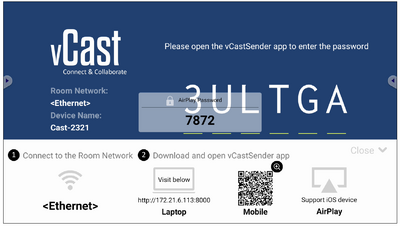
Apple AirPlay® is compatible with vCast for screen mirroring and content streaming under the same subnet environment only. An “AirPlay Password” will be generated on-screen for connection when using AirPlay to cast to a ViewBoard.

- Ensure the client device (e.g., iPhone or iPad) is connected to the same network as the ViewBoard.
- NOTE: The network name can be found under Room Network.
- On the iOS client device, directly open AirPlay and select the Device Name of the ViewBoard to connect.
- NOTE: The Device Name can be found as highlighted below:
- Input the generated on-screen AirPlay Password on the client device to connect.
- NOTE: In a cross subnet environment, please download and connect with the vCastSender iOS application from the Apple App Store.
- You can also connect to the ViewBoard by selecting Scan then placing the on-screen QR code into the box to automatically connect.

Connecting to a Display from a Mobile Device
Once connected, select Receive. The ViewBoard or selected display screen will appear on the mobile device with an on-screen toolbar. Users can interact with the ViewBoard or display with annotations, file sharing, etc.

| Item | Description | |
|---|---|---|
 |
Toggle | Hide or display the toolbar. |
 |
Home | Return to the Home interface. |
 |
Return | Return to the previous operation. |
 |
Folder | View or open the mobile device's files. |
 |
Share | Cast the mobile device's screen to the connected ViewBoard or display. |
 |
Touch | Remotely control the connected ViewBoard or display. |
 |
Annotate | Make annotations, and adjust the pen color. |
 |
Clear | Clear everything on screen. |
 |
Camera | Send camera images to the connected ViewBoard or display. |
Other Default Applications
Chromium
Web browser for surfing the internet.

Folders
-
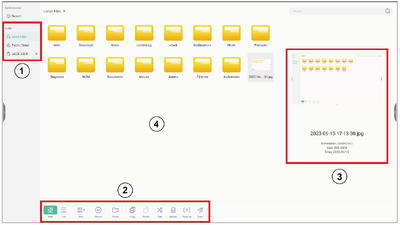 Folders Overview
 -
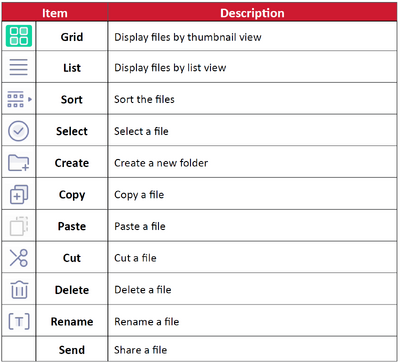 Folder Icons


| Number | Item |
|---|---|
| 1 | Storage Device Display |
| 2 | Icons |
| 3 | File Type Menu |
| 4 | File Information |
OfficeSuite
Create, edit, and view Documents, Spreadsheets, Presentations, and PDFs.


PIP (Picture-in-Picture)
Split the screen into two parts, a main window and an inset window.
- NOTE: PIP only works between an Android application (browser, media player, vCast) and an external source.
- To open PIP, select: All Apps > PIP.
- To change the position of the inset window, select, hold and drag the window to the preferred location.
- To adjust the size of the inset window, select Size.
- To change PIP input source select HDMI 1, HDMI 2, HDMI 3, Type C, or VGA.
- For touch control of the connected external device, select Touch.
- To control the connected external device’s volume, select Sound.
- Select Enter to switch to the PIP input source.


Screen Lock
Set a screen lock password and enable screen lock.
- NOTE: If the user forgets the password, use the remote control and press INPUT-0-2-1-4 to restore the password to default.
To set a screen lock password:
- Go to: Settings > Display > Password for screen lock, or select the Screen Lock icon in the apps list.
- Select Set Password, and input a new four (4) digit password. Then select OK.
- Now when selecting the Screen Lock icon, the screen will be locked.

vSweeper
Clear unnecessary data and unwanted files.

Advanced Settings can also be customized to the user's needs.

Warning: Display title "IFP6533 Pre-installed Applications" overrides earlier display title "IFP6533 ViewBoard OS".
RS-232
This document describes the hardware interface spec and software protocols of RS-232 interface communication between ViewSonic LFD and PC or other control units with RS-232 protocol.
The protocol contains three command sections:
- Set-Function
- Get-Function
- Remote control pass-through mode
- NOTE: Below, “PC” represents all the control units that can send or receive the RS-232 protocol command.
Description
RS-232 Hardware Specification
ViewSonic LFD communication port on the rear side:
- Connector type: DSUB 9-Pin Male (or 3.5 mm barrel connector)
- Use of crossover (null modem) cable for connection
- Pin Assignment:
| Pin # | Signal | Remark | |
|---|---|---|---|
| Male DSUB 9-Pin | 1 | NC | |
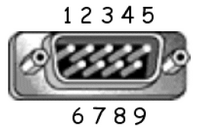 |
2 | RXD | Input to Display |
| 3 | TXD | Output to Display | |
| 4 | NC | ||
| 5 | GND | ||
| Female DSUB 9-Pin | 6 | NC | |
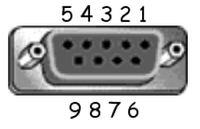 |
7 | NC | |
| 8 | NC | ||
| 9 | NC | Provide +5V/2A power for external specific dongle *3.0 | |
| frame | GND |
| Item | Signal | Remark | |
|---|---|---|---|
| 3.5 mm barrel connector (alternative for limited space) |
Tip | TXD | Output from Display |
 |
Ring | RXD | Input to Display |
| Sleeve | GND |
LAN Hardware Specification
ViewSonic LFD communication port on the rear side:
- Connector type: 8P8C RJ45
- Pin assignment:
| Pin # | Signal | Remark | |
|---|---|---|---|
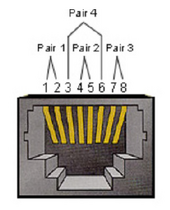 |
1 | TX+ | Output from Display |
| 2 | TX- | Output from Display | |
| 3 | RX+ | Input to Display | |
| 4 | BI_D3+ | For 1G case | |
| 5 | BI_D3- | For 1G case | |
| 6 | RX- | Input to Display | |
| 7 | BI_D4+ | For 1G case | |
| 8 | BI_D4- | For 1G case | |
| frame | GND |
RS-232 Communication Setting
- Baud Rate Select: 9600bps (fixed)
- Data bits: 8 bits (fixed)
- Parity: None (fixed)
- Stop Bits: 1(fixed)
LAN Communication Setting
- Type: Ethernet
- Protocol: TCP/IP
- Port: 5000 (fixed)
- Cross subnet: No
- Logon Credentials: No
Command Message Reference
PC sends to LFD command packet followed by “CR”. Every time PC sends control command to Display, the Display shall respond as follows:
- If the message is received correctly it will send “+” (02Bh) followed by “CR” (00Dh)
- If the message is received incorrectly it will send “-” (02Dh) followed by “CR” (00Dh)
Protocol
Set-Function Listing
The PC can control the Display for specific actions. The Set-Function command allows you to control the Display behavior at a remote site through the RS-232 port. The Set-Function packet format consists of 9 bytes.
Set-Function Description:
| Length | Total Byte of Message excluding “CR” |
| LFD ID | Identification for each of Display (01~98; default is 01) ID “99” means to apply the set command for all connected displays. Under such circumstances, only ID#1 display has to reply. The LFD ID can be set via the OSD menu for each Display. |
| Command Type | Identify command type, "s" (0x73h): Set Command "+" (0x2Bh): Valid Command Reply "-" (0x2Dh): Invalid Command Reply |
| Command | Function command code: One byte ASCII code. |
| Value [1~3] | Three bytes ASCII that defines the value. |
| CR | 0x0D |
Set-Function Format Send: (Command Type="s")
| Name | Length | ID | Command Type | Command | Value1 | Value2 | Value3 | CR |
|---|---|---|---|---|---|---|---|---|
| Byte Count | 1 Byte | 2 Byte | 1 Byte | 1 Byte | 1 Byte | 1 Byte | 1 Byte | 1 Byte |
| Bytes Order | 1 | 2~3 | 4 | 5 | 6 | 7 | 8 | 9 |
Reply: (Command Type="+" or "-")
| Name | Length | ID | Command Type | CR |
|---|---|---|---|---|
| Byte Count | 1 Byte | 2 Byte | 1 Byte | 1 Byte |
| Bytes Order | 1 | 2~3 | 4 | 5 |
- NOTE: When PC applies command to all displays (ID=99), only the #1 set needs to reply by the name of ID=1.
Example 1: Set Brightness as 76 for Display (#02) and this; command is valid.
Send (Hex Format)
| Name | Length | ID | Command Type | Command | Value1 | Value2 | Value3 | CR |
|---|---|---|---|---|---|---|---|---|
| Hex | 0x38 | 0x30 0x32 |
0x73 | 0x24 | 0x30 | 0x37 | 0x36 | 0x0D |
Reply (Hex Format)
| Name | Length | ID | Command Type | CR |
|---|---|---|---|---|
| Hex | 0x34 | 0x30 0x32 |
0x2B | 0x0D |
Example 2: Set Brightness as 75 for Display (#02) and this; command is NOT valid.
Send (Hex Format)
| Name | Length | ID | Command Type | Command | Value1 | Value2 | Value3 | CR |
|---|---|---|---|---|---|---|---|---|
| Hex | 0x38 | 0x30 0x32 |
0x73 | 0x24 | 0x30 | 0x37 | 0x35 | 0x0D |
Reply (Hex Format)
| Name | Length | ID | Command Type | CR |
|---|---|---|---|---|
| Hex | 0x34 | 0x30 0x32 |
0x2D | 0x0D |
Set-Function Table
A. Basic Function
| Set Function | Length | ID | Command | Command | Value Range | Comments | |
|---|---|---|---|---|---|---|---|
| Type (ASCII) | Code (ASCII) |
Code (Hex) |
(Three ASCII bytes) | ||||
| Power On/Off (Standby) |
8 | s | ! | 21 | 000: STBY 001: ON |
1. The Power-on via LAN control may works only under specific mode. To see display UG for details. *3.1.1 2. “WOL by MAC address” may available as alternative.*3.2.1 | |
| Input Select | 8 | s | " | 22 | 004: HDMI 1 014: HDMI 2 024: HDMI 006: VGA 007: Slot-in PC (OPS) 009: DP 019: Type-C 00A: Embedded/Main (Android) |
1. No need for USB 2. For the case of two more same sources, the 2nd digital is used to indicate the extension. 3. The HEX of 00A is 30 30 41. | |
| Brightness | 8 | s | $ | 24 | 000 ~ 100 900: Bright down (-1) 901: Bright up (+1) *3.1.1 |
||
| Backlight*3.2.0 | 8 | A | B | 42 | 000~100 | 1. For Android platform whose main mode is controlled by backlight and the other sources are controlled by brightness. 2. Derived from Color calibration. *3.2.0 | |
| Power Lock | 8 | s | 4 | 34 | 000: Unlock 001: Lock |
*See note in details | |
| Volume | 8 | s | 5 | 35 | 000 ~ 100 900: Volume down(-1) 901:Volume up(+1) |
||
| Mute | 8 | s | 6 | 36 | 000: OFF 001: ON (mute) | ||
| Button Lock | 8; | s | 8 | 38 | 000: Unlock 0001: Lock |
*See note in details | |
| Menu Lock | 8 | s | > | 3E | 000: Unlock 001: Lock |
*See note in details | |
| Number *3.1.1 | 8 | s | @ | 40 | 000~009 | ||
| Key Pad *3.1.1 | 8 | s | A | 41 | 000: UP 001: DOWN 002: LEFT 003: RIGHT 004: ENTER 005: INPUT 006: MENU/(EXIT) 007: EXIT | ||
| Remote Control | 8 | s | B | 42 | 000: Disable 001: Enable 002: Pass through |
Disable: RCU will be no function Enabled: RCU controls normally Pass through: Display will bypass the RC code to connected device via the RS-232 port, but not react itself. | |
| Restore Default | 8 | s | ~ | 7E | 000 | Recover to factory setting | |
B. Optional Function
| Set Function | Length | ID | Command | Command | Value Range | Comments | |
|---|---|---|---|---|---|---|---|
| Type (ASCII) | Code (ASCII) |
Code (Hex) |
(Three ASCII bytes) | ||||
| Contrast | 8 | s | # | 23 | 000~100 | ||
| Sharpness | 8 | s | % | 25 | 000~100 | ||
| Color | 8 | s | & | 26 | 000~100 | ||
| Tint | 8 | s | ' | 27 | 000~100 | ||
| Backlight On_Off | 8 | s | ( | 29 | 000: Off 001: On |
||
| Color Mode | 8 | s | ) | 29 | 000: Normal 001: Warm 002: Cold 003: Personal |
||
| Freeze On_Off | 8 | s | . | 2A | 000: Off 001: On |
||
| Bass | 8 | s | . | 2E | 000~100 | ||
| Treble | 8 | s | / | 2F | 000~100 | ||
| Balance | 8 | s | 0 | 30 | 000~100 | 050 is central | |
| Picture Size | 8 | s | 1 | 31 | 000: FULL (16:9) 001: NORMAL (4:3) 002: REAL (1:1) *3.1.0 |
||
| OSD language | 8 | s | 2 | 32 | 000: English 001: French 002: Spanish |
Could be extended for more supported languages by model | |
| Date: Year | 8 | s | V | 56 | Y17~Y99 | Last 2 digits (20)17~(20)99 | |
| Date: Month | 8 | s | V | 56 | M01~M12 | 2 digits | |
| Date: Day | 8 | s | V | 56 | D01~D31 | 2 digits | |
| Time: Hour | 8 | s | W | 57 | H00~H23 | 24-hr format. 2 digits. | |
| Time: Min | 8 | s | W | 57 | M00~M59 | 2 digits | |
| Time: Sec | 8 | s | W | 57 | S00~S59 | 2 digits | |
| Customized Hot Keys | 8 | s | X | 58 | 001~999 001: Open MVBA app |
||
Specifications
| Item | Category | Specifications |
|---|---|---|
| Model | P/N. | IFP6533
IFP6533-G |
| No. | VS19493 |
Display Modes
VGA Mode
| Resolution | Refresh Rate (@) |
|---|---|
| 640 x 480 | 60Hz, 72Hz, 75Hz |
| 720 x 400 | 70Hz |
| 800 x 600 | 56Hz, 60Hz, 72Hz, 75Hz |
| 832 x 624 | 75Hz |
| 1024 x 768 | 60Hz, 70Hz, 75Hz |
| 1152 x 864 | 60Hz, 75Hz |
| 1152 x 870 | 75Hz |
| 1280 x 768 | 60Hz, 75Hz |
| 1280 x 960 | 60Hz |
| 1280 x 1024 | 60Hz, 75Hz |
| 1360 x 768 | 60Hz |
| 1366 x 768 | 60Hz |
| 1400 x 1050 | 60Hz, 75Hz |
| 1440 x 900 | 60Hz, 75Hz |
| 1600 x 1200 | 60Hz |
| 1680 x 1050 | 60Hz |
| 1920 x 1080 | 60Hz |
| 1920 x 1200 | 60Hz |
HDMI Mode
| Resolution | Refresh Rate (@) |
|---|---|
| 640 x 480 | 60Hz, 72Hz |
| 720 x 400 | 70Hz |
| 800 x 600 | 60Hz, 72Hz |
| 1024 x 768 | 60Hz, 70Hz, 75Hz |
| 1280 x 800 | 60Hz |
| 1280 x 1024 | 60Hz |
| 1360 x 768 | 60Hz |
| 1440 x 900 | 60Hz |
| 1680 x 1050 | 60Hz |
| 1920 x 1080 | 60Hz |
| 3840 x 2160 | 30Hz, 60Hz |
| 480i | 60Hz |
| 480p | 59Hz, 60Hz |
| 576i | 50Hz |
| 720p | 50Hz, 60Hz |
| 576p | 50Hz |
| 1080i | 50Hz, 60Hz |
| 1080p | 50Hz, 60Hz |
Compliance Information
This section addresses all connected requirements and statements regarding regulations. Confirmed corresponding applications shall refer to nameplate labels and relevant markings on the unit.
FCC Compliant Statement
This device complies with part 15 of FCC Rules. Operation is subject to the following two conditions: (1) this device may not cause harmful interference, and (2) this device must accept any interference received, including interference that may cause undesired operation. This equipment has been tested and found to comply with the limits for a Class B digital device, pursuant to part 15 of the FCC Rules.
These limits are designed to provide reasonable protection against harmful interference in a residential installation. This equipment generates, uses, and can radiate radio frequency energy, and if not installed and used in accordance with the instructions, may cause harmful interference to radio communications. However, there is no guarantee that interference will not occur in a particular installation. If this equipment does cause harmful interference to radio or television reception, which can be determined by turning the equipment off and on, the user is encouraged to try to correct the interference by one or more of the following measures:
- Reorient or relocate the receiving antenna.
- Increase the separation between the equipment and receiver.
- Connect the equipment into an outlet on a circuit different from that to which the receiver is connected.
- Consult the dealer or an experienced radio/TV technician for help.
Warning: You are cautioned that changes or modifications not expressly approved by the party responsible for compliance could void your authority to operate the equipment.
Industry Canada Statement
CAN ICES-003(B) / NMB-003(B)
CE Conformity for European Countries

The device complies with the EMC Directive 2014/30/EU and Low Voltage Directive 2014/35/EU.
The following information is only for EU-member states:
The mark shown to the right is in compliance with the Waste Electrical and Electronic Equipment Directive 2012/19/EU (WEEE). The mark indicates the requirement NOT to dispose of the equipment as unsorted municipal waste, but use the return and collection systems according to local law.

Declaration of RoHS2 Compliance
This product has been designed and manufactured in compliance with Directive 2011/65/EU of the European Parliament and the Council on restriction of the use of certain hazardous substances in electrical and electronic equipment (RoHS2 Directive) and is deemed to comply with the maximum concentration values issued by the European Technical Adaptation Committee (TAC) as shown below.
| Substance | Proposed Maximum Concentration | Actual Concentration |
|---|---|---|
| Lead (Pb) | 0.1% | < 0.1% |
| Mercury (Hg) | 0.1% | < 0.1% |
| Cadmium (Cd) | 0.01% | < 0.01% |
| Hexavalent Chromium (Cr6⁺) | 0.1% | < 0.1% |
| Polybrominated biphenyls (PBB) | 0.1% | < 0.1% |
| Polybrominated diphenyl ethers (PBDE) | 0.1% | < 0.1% |
| Bis (2-ethylhexyl) phthalate (DEHP) | 0.1% | < 0.1% |
| Butyl benzyl phthalate (BBP) | 0.1% | < 0.1% |
| Dibutyl phthalate (DBP) | 0.1% | < 0.1% |
| Diisobutyl phthalate (DIBP) | 0.1% | < 0.1% |
Certain components of products as stated above are exempted under the Annex III of the RoHS2 Directives as noted below. Examples of exempted components are:
- Copper alloy containing up to 4% lead by weight.
- Lead in high melting temperature type solders (i.e. lead-based alloys containing 85% by weight or more lead).
- Electrical and electronic components containing lead in a glass or ceramic other than dielectric ceramic in capacitors, e.g. piezoelectronic devices, or in a glass or ceramic matrix compound.
- Lead in dielectric ceramic in capacitors for a rated voltage of 125 V AC or 250 V DC or higher.
ENERGY STAR® Statement
ENERGY STAR® is a U.S. Environmental Protection Agency voluntary program that helps businesses and individuals save money and protect our climate through superior energy efficiency. Products that earn the ENERGY STAR® prevent greenhouse gas emissions by meeting strict energy efficiency criteria or requirements set by the U.S. Environmental Protection Agency.
As an ENERGY STAR® Partner, ViewSonic is determined to meet the ENERGY STAR® Guidelines and mark all certified models with the ENERGY STAR® logo.
The following logo appears on all ENERGY STAR®-certified models:

Indian Restriction of Hazardous Substances
Restriction on Hazardous Substances statement (India). This product complies with the “India E-waste Rule 2011” and prohibits use of lead, mercury, hexavalent chromium, polybrominated biphenyls or polybrominated diphenyl ethers in concentrations exceeding 0.1 weight % and 0.01 weight % for cadmium, except for the exemptions set in Schedule 2 of the Rule.
Indian Restriction of Hazardous Substances
Restriction on Hazardous Substances statement (India). This product complies with the “India E-waste Rule 2011” and prohibits use of lead, mercury, hexavalent chromium, polybrominated biphenyls or polybrominated diphenyl ethers in concentrations exceeding 0.1 weight % and 0.01 weight % for cadmium, except for the exemptions set in Schedule 2 of the Rule.
Product Disposal at End of Product Life
ViewSonic® respects the environment and is committed to working and living green. Thank you for being part of Smarter, Greener Computing. Please visit the ViewSonic® website to learn more.
USA & Canada:
https://www.viewsonic.com/us/go-green-with-viewsonic
Europe:
https://www.viewsonic.com/eu/environmental-social-governance/recycle
Taiwan:
https://recycle.moenv.gov.tw/
For EU users, please contact us for any safety/accident issue experienced with this product:
 |
ViewSonic Europe Limited Flevolaan 38, 1382JZ, Weesp the Netherlands |
 |
+31 08000232999 |
 |
EPREL@viewsoniceurope.com |
 |
https://www.viewsonic.com/eu/ |
Copyright Information
Copyright© ViewSonic® Corporation, 2023. All rights reserved.
Macintosh and Power Macintosh are registered trademarks of Apple Inc.
Microsoft, Windows, and the Windows logo are registered trademarks of Microsoft Corporation in the United States and other countries.
ViewSonic® and the three birds logo are registered trademarks of ViewSonic® Corporation.
VESA is a registered trademark of the Video Electronics Standards Association. DPMS, DisplayPort, and DDC are trademarks of VESA.
ENERGY STAR® is a registered trademark of the U.S. Environmental Protection Agency (EPA).
As an ENERGY STAR® partner, ViewSonic® Corporation has determined that this product meets the ENERGY STAR® guidelines for energy efficiency.
Disclaimer: ViewSonic® Corporation shall not be liable for technical or editorial errors or omissions contained herein; nor for incidental or consequential damages resulting from furnishing this material, or the performance or use of this product.
In the interest of continuing product improvement, ViewSonic® Corporation reserves the right to change product specifications without notice. Information in this document may change without notice.
No part of this document may be copied, reproduced, or transmitted by any means, for any purpose without prior written permission from ViewSonic® Corporation.
IFP33_UG_ENG_1b_20230928
Customer Service
Limited Warranty
Safety Precautions
Troubleshooting
Maintenance
Warning: Display title "IFP6533" overrides earlier display title "IFP6533 Pre-installed Applications".