
XG2409A
From ViewSonic Documentation
Introduction
Package Contents
- Monitor
- Power Adapter
- Video Cable
- Quick Start Guide
Note: The cables included in your package may vary depending on your country. Please contact your local reseller for more information.
Product Overview
-
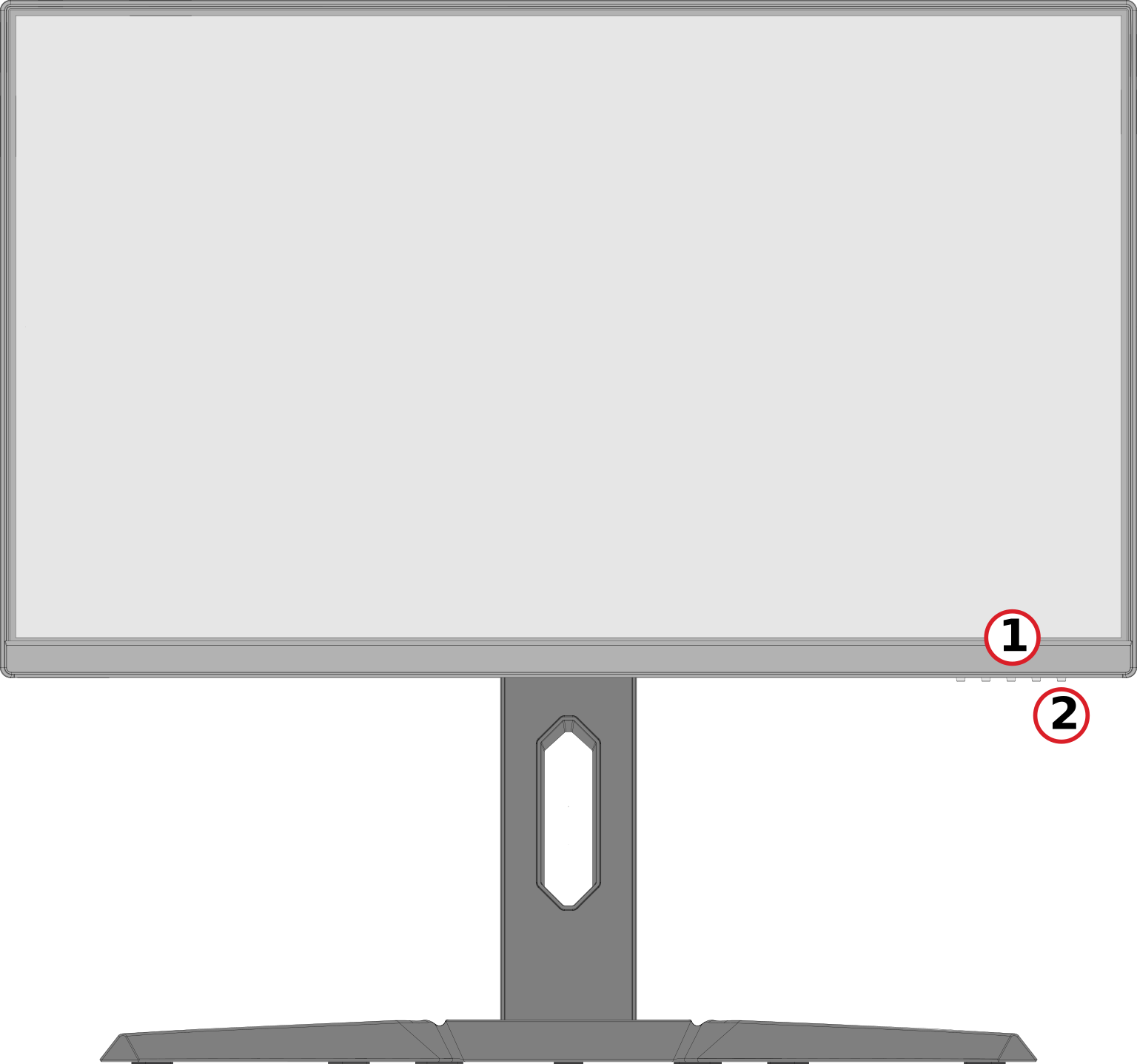 Front View
 -
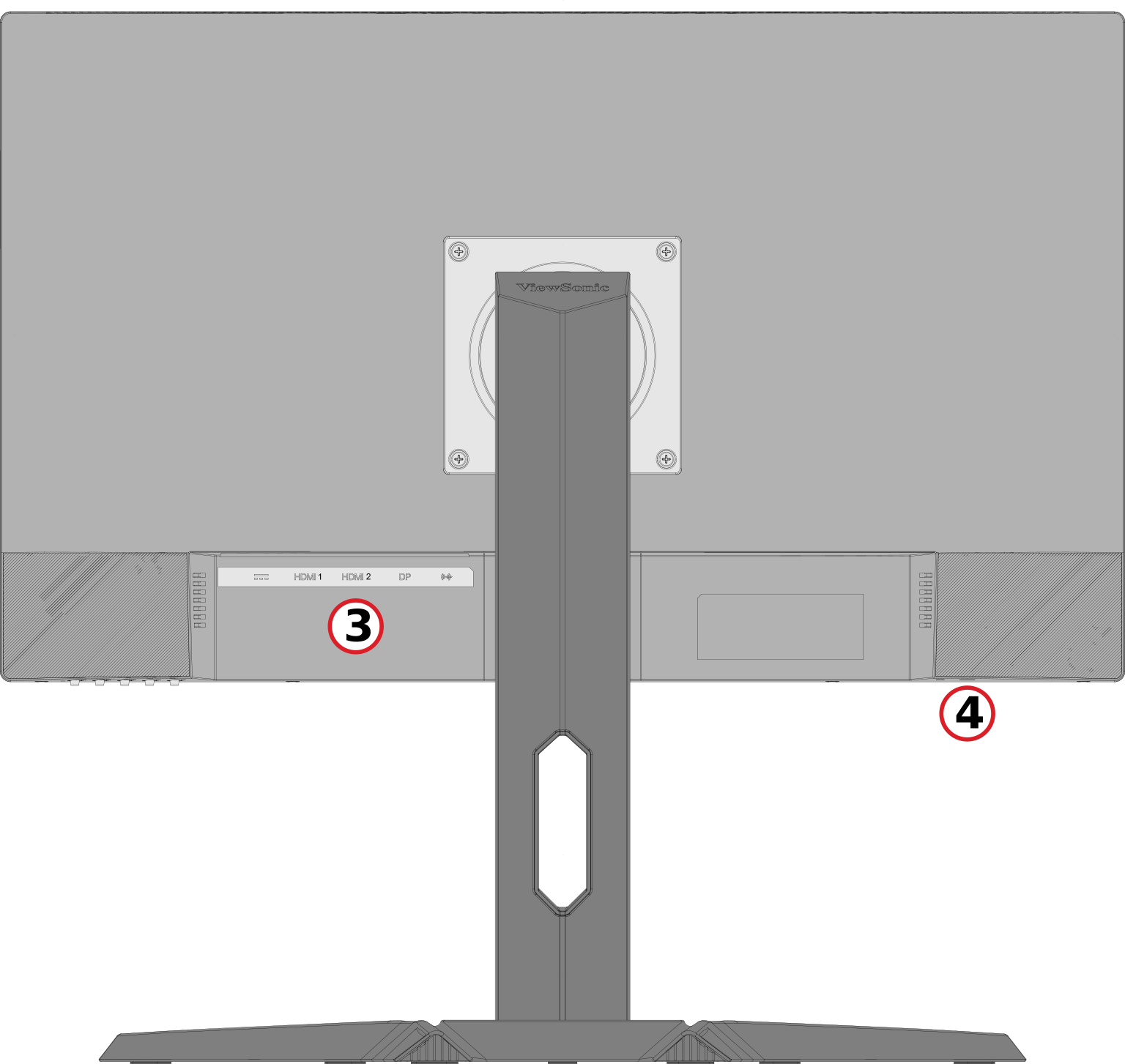 Rear View


| Number | Description |
|---|---|
| 1 | Control Panel Keys |
| 2 | Power Button |
| 3 | I/O Ports |
| 4 | Security Lock Slot |
I/O Ports

| Number | Description |
|---|---|
| 1 | DC IN |
| 2 | HDMI |
| 3 | DisplayPort |
| 4 | Audio Out |
Note: For more information about the Control Panel Keys, refer to Using the Control Panel Keys.
Initial Setup
Installing the Stand
 |
 |
Note: Place the monitor on a flat, stable surface to ensure safety and optimal performance.
Removing the Stand
 |
 |
Important: Before removing the stand, turn off the monitor, disconnect all cables, and place the monitor on a flat, stable surface with the screen facing down.
Mounting the Monitor
After removing the stand, the monitor can be mounted using an optional mounting kit or bracket.
Note: For use only with a UL certified mounting kit. To obtain a mounting kit or height adjustment base, contact ViewSonic® or your local dealer.
Refer to the table below for the standard dimensions for mounting kits.
| Maximum Loading | Pad Hole | Screw Specification | Screw Quantity |
|---|---|---|---|
| 14 kg | 100 x 100 mm | M4 x 10 mm | 4 screws |

- Attach the mounting bracket to the VESA mounting holes at the rear of the monitor, securing it with four M4 x 10 mm screws.
- Follow the mounting kit instructions to mount the monitor.
Using the Security Slot

To help prevent the monitor from being stolen, use a security slot locking device to secure the monitor to a fixed object.
Additionally, fastening the monitor to a wall or fixed object using a security cable can help support the weight of the monitor in order to prevent the monitor from falling over.
Making Connections
Connecting to Power

- Connect the power adapter to the DC IN jack at the rear of the monitor.
- Plug the power adapter into a power outlet.
Connecting to Audio and Video

Using the Monitor
Adjusting the Viewing Angle
Height Adjustment
Lower or raise the monitor (0 to 130 mm).

Note: When adjusting, hold the monitor firmly on both sides and press down along the adjustment track.
Screen Orientation Adjustment (Monitor Pivot)
 |
 |
 |
- Raise the monitor to its maximum height and then tilt it back fully.
- Rotate the monitor 90° clockwise or counterclockwise from landscape to portrait orientation.
- When adjusting, hold the monitor firmly on both sides.
- To rotate the screen image, manually change the system’s display orientation settings.
Note:
Swivel Angle Adjustment
Turn the monitor to the left or right (± 45˚).

Tilt Angle Adjustment
Tilt the monitor forwards or backwards (-5˚ to 22˚).

Note: Adjust the monitor by supporting the stand with one hand and gently tilting the screen with the other.
Turning the Monitor On/Off
Note:

- Plug the connected power adapter into a power outlet.
- Press the Power ( ) button to turn on the monitor.
- To turn the monitor off, press the Power ( ) button again.
Note: {{{1}}}
Using the Control Panel Keys
Activate Hot Keys, navigate the On-Screen Display (OSD) Menu, and change settings.