
VController Using the Application
From ViewSonic Documentation
User Interface
vController 2.0 integrates RS232 and LAN command for monitors and projectors.
- Start Up
- Setting
- Schedule
Start Up
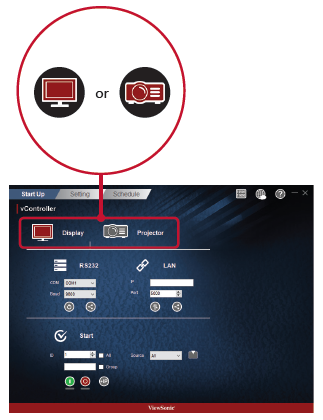
Select Drive
- Press the Monitor Icon
 to control the monitor or the Projector Icon
  to control the projector.


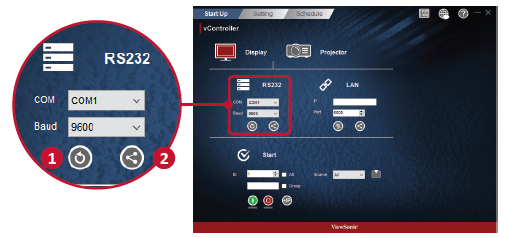
RS232 settings
- Press the Return Button
 to search for the RS232 connection ports and then select a corresponding hardware connection port.
 - Default baud rate is 9600.
- Press the Share Button
 to connect to the RS232. When the RS232 has been successfully connected, the button will turn green.


Network Settings
- Enter the IP address of the monitor in the IP address field.
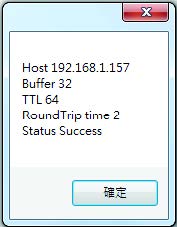
- When the network settings interface is opened, press the Ping Button
 to check if the connection is successful.
 - Default port number is 5000.
- Press the Share Button to connect to the RS232. When the RS232 has been successfully connected, the button will turn green.


Start
Monitor ID
- Create ID numbers when connecting to monitors via RS232C. A unique ID should be created for each monitor. Check All when connecting to multiple monitors.
- NOTE: Only monitors support ID numbers. Projectors don't use ID numbers.
ID Group
- Check Group.
- Enter ID numbers in the text field.
On/Off Buttons
- Press the On Button
 to turn on the monitor.
 - Press the Off Button
 to turn off the monitor.


Icon Description
Monitor has turned on successfully. 
Monitor has failed to turn on / monitor's status is unknown.
Monitor has turned off successfully. 
Monitor has failed to turn off / monitor's status is unknown.


Source Menu
- Select video source with the pull-down menu
- Press the Source Button
 to switch the input signal.

IP Group
- Press the IP Button
 to set the IP group.
- Enter the IP address of the monitor or projector in the IP address field.

Icon Description 
Add IP address into group. 
Remove IP address from group. File:VController Up Iconn.jpg Move up the focus IP address. 
Move down the focus IP address. 
Enable all IP address. 
Disable all IP address. 
Close IP group windows.


