VTouch Using the Applications
This section will describe the general use and operation of the UPDD applications.
UPDD Commander
UPDD Commander can setup touch behavior definitions in all applications.
Setup Touch Behaviors for All Applications
The touch function options are based on the Mac trackpad. The Touch function relates to the processing of the touch events (tap, press, gestures, etc.) performed on the touch device. A common list of touch events and system actions are predefined and can be configured as suits.

Setup Touch Behaviors for Specific Applications
If the touch behaviors under All Applications are not enough for your use case, you can customize touch behaviors for specific applications. To activate, ensure UPDD Commander is open and go to: View > Show Hidden Application Groups.


- NOTE: It is recommended to set behaviors for All Applications only.
Adjusting the Settings
Adjusting the settings here will affect the universal settings of the UPDD Commander application. There are three setting tabs: General, Touch Behavior, and On-Screen Keyboard.

General
Adjust general usage settings, and reset options.

Touch Behavior
Customize touch screen behavior settings.

On-Screen Keyboard
Choose the type of keyboard, and when to use it.

NOTE: Since macOS 10.15 Catalina, Keyboard Viewer has been replaced by the Accessibility Keyboard.
Reset All Touch Gestures to Default
Sets all touch gestures and actions back to default.

UPDD Console
UPDD Console can view, update, and configure the driver and installed devices.
Console
View the Device List, Function Bar, and Settings. The Function Bar consists of Touch, Calibration, Toolbars, Devices, and About.

| Function | Description |
|---|---|
| Touch | Touch settings and test options. |
| Calibration | Calibration settings. |
| Toolbars | Label and calibrate your toolbars. |
| Devices | Installed and supported devices list. |
| About | Release information of the software. |
- NOTE: It is recommended to use the default Console settings.
Touch Settings
| Function | Description |
|---|---|
| Interlock | Indicates the touch priority given to the device. |
| Low Pass Filter | Smooths input and removes jitter from inputs subject to distortion. |
| Interactive Touch | Indicates that a press and hold will generate a right click. For MacOS, gestures need be set for right click processing if required. |
| Assisted Double Click Time | Assists double clicking by generating a second touch at the same location of the previous one. The second click needs to be within a certain time and distance (width) of the first click. |
| Ignore Tip Switch | When enabled the tip switch bit (AKA lift bit) is ignored. Normally used in conjunction with a non-zero value for liftoff_time_ms. Can also be useful if when dragging the device it occasionally generates unwanted pen up packets that you wish to ignore. |
| Enabled | Indicates touch is enabled. Can be used to disable touch for the device. |
Reset Settings
Reset general/device settings back to the default settings. The option can be found under General in the left hand column.

Using the UPDD Application
- Use UPDD Commander to define touch behaviors.
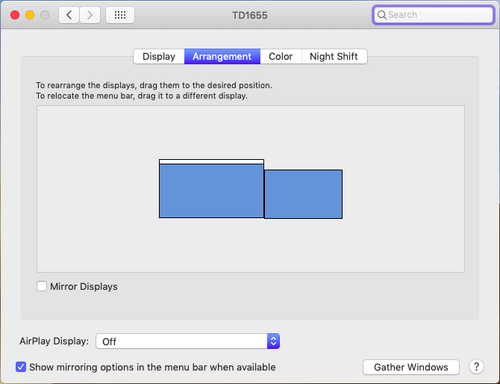
- On the MacBook, open: System Preferences > Displays and choose your preferred display arrangement under the Arrangement tab.
- NOTE: Do not click "Mirror Displays".

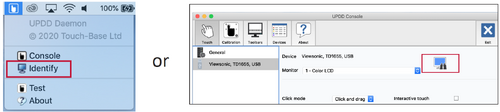
- Use UPDD Console and click “Identify” to calibrate the touch screen.
- The below graphic will appear on the touch screen, please press and hold the cross-anchor point until the circle turns blue.
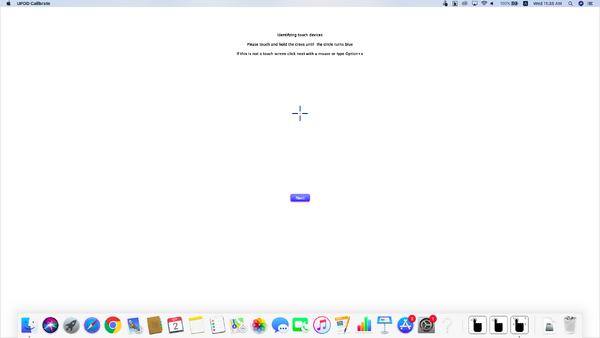
- The MacBook will then also show the above graphic, press the “Enter” key to end the touch configuration.
- The touch screen can now support touch functions with the MacBook in extended mode.

