
X10-4K Operation: Difference between revisions
| Line 80: | Line 80: | ||
===Basic Settings=== | ===Basic Settings=== | ||
<gallery widths=300px heights=300px mode="nolines"> | |||
X10_Basic_Settings.png| Step 1 - Select Basic Settings | |||
X10_Basic_Settings_1.png| Step 2 - Choose an option | |||
</gallery> | |||
# Select: '''Home''' > '''Setting''' > '''Basic Settings'''. | |||
# Use the '''Up''' and '''Down''' buttons to select the desired option and press '''OK'''. Then use the '''Left''' and '''Right''' buttons to make adjustments or selections. | |||
# To return to a previous menu press the '''Return''' button. | |||
===Date & Time=== | ===Date & Time=== | ||
Revision as of 10:25, 4 May 2020
Home Screen
The Home Screen is displayed every time you start the projector. To navigate the Home Screen, simply use the directional buttons on the remote control. You can return to the main Home Screen at any time by pressing the Home button on the remote control, regardless of what page you are on.

Aptoide
The projector is pre-loaded with the Aptoide store, which allows users to download and install different Apps.
-
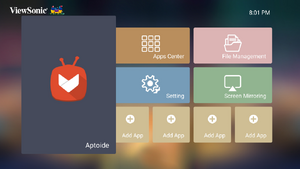 Step 1 - Select Aptoide
 -
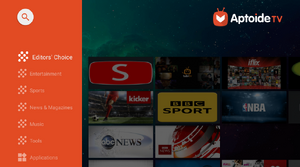 Step 2 - Navigate the store


- Select: Home > Aptoide.
- Use the direction buttons to navigate the menu options. When you find your preferred App, press the OK button to install it.
- NOTE: Users can install third-party Apps by .apk file in File Management. However, some third-party Apps may have compatibility issues.
Apps Center
View, launch, and uninstall Apps.
-
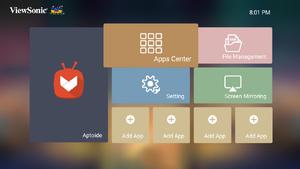 Step 1 - Select Apps Center
 -
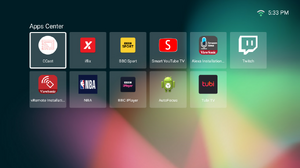 Step 2 - Launch the App


- To view your Apps, select: Home > Apps Center.
- Use the direction buttons to select the desired App. Then press OK on the remote control to launch the App.
- NOTE: Press the Home button on the remote control to return to the Home Screen at anytime.
To Uninstall Apps
- Open the Apps Center by selecting: Home > Apps Center.
- Use the directional buttons to select the desired App.
- Press and hold OK on the remote control for three (3) seconds.
- Select OK to uninstall the App.
- NOTE: Press the Home button on the remote control to return to the Home Screen at anytime.
File Management
Easily manage files and folders.
-
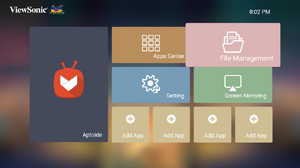 Step 1 - Select File Management
 -
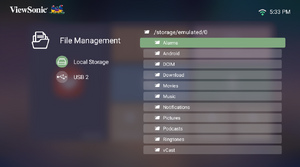 Step 2 - Navigate the files


- Select: Home > File Management.
- Select a device on the source list: USB, Local Storage, MicroSD, etc. Use the direction buttons to select the desired file. Then press OK on the remote control to open the selected file.
- Press the Return button to go to a previous a level.
- NOTE: Press the Home button on the remote control to return to the Home Screen at anytime.
How to Edit a File

- While in File Management, press and hold the OK button for three (3) seconds.
- A check box will appear at the front of each file. Use the direction buttons and press OK to select one or more files.
- By pressing the Right button, Copy, Paste, Cut, Delete, Select All, and Return boxes will be available for use.
- Select your desired action and press OK to execute.
- If you are Copying or Cutting, select your destination folder to complete the process.
How to Use Control Bar Buttons
The Control Bar buttons will appear on screen if a video, music, or photo file are selected to be opened.

Tips for using USB When using USB for reading and/or storage please keep in mind the following:
- Some USB storage devices may not be compatible.
- If you use an USB extension cable, the USB device may not recognize the USB.
- Only use USB storage devices formatted with Windows FAT32 or NTFS file system.
- Larger files will need extra time to load.
- Data on USB storage devices may be damaged or lost. Back up important files.
Supported File Formats
- Supported Office formats:

- Supported Multimedia formats:

Setting
Under Setting you can adjust Network, Basic, and Advanced Settings, Date & Time, Firmware Update, and view Information.
Network Settings
-
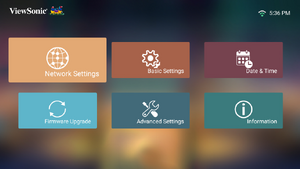 Step 1 - Select Network Settings
 -
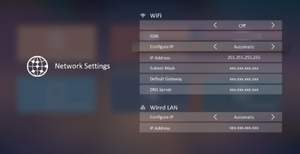 Step 2 - Choose an option


- Select: Home > Setting > Network Settings.
- Choose from one of the available options: Wi-Fi or Wired LAN.
Basic Settings
-
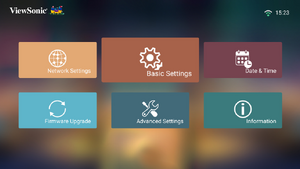 Step 1 - Select Basic Settings
 -
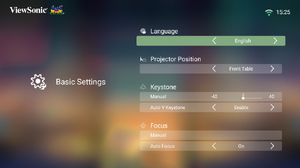 Step 2 - Choose an option


- Select: Home > Setting > Basic Settings.
- Use the Up and Down buttons to select the desired option and press OK. Then use the Left and Right buttons to make adjustments or selections.
- To return to a previous menu press the Return button.