
GD1330 Pen Input Area Mapping: Difference between revisions
From ViewSonic Documentation
No edit summary |
|||
| Line 6: | Line 6: | ||
|4=GD1330_Setting_the_Display_Area | |4=GD1330_Setting_the_Display_Area | ||
|5=GD1330_Pen_Input_Area_Mapping | |5=GD1330_Pen_Input_Area_Mapping | ||
|6= | |6=GD1330_Using_the_Pen_Display | ||
|7=GD1330_Specifications | |7=GD1330_Specifications | ||
|8=GD1330_Regulatory_and_Service_Information | |8=GD1330_Regulatory_and_Service_Information | ||
Revision as of 10:56, 18 April 2023
Pen Input Settings (Windows)
To adjust the pen input settings:
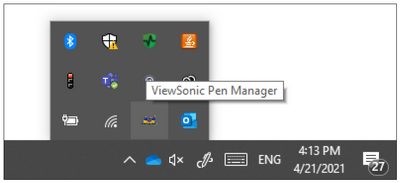
- Open ViewSonic Pen Manager either by going to: Start > ViewSonic Pen Manager or selecting the ViewSonic Pen Manager icon from the System Tray.
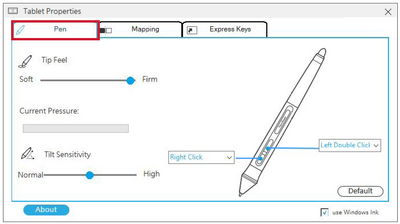
- Adjustments to the pen can be made by selecting the Pen tab.
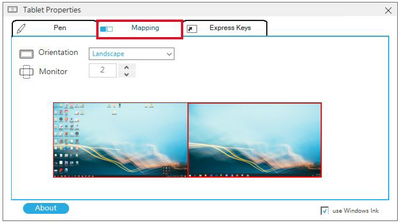
- Select the Mapping tab to adjust screen orientation and display.
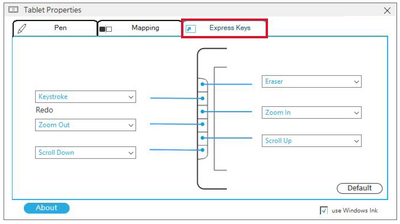
- Select the Express Keys tab to customize the six (6) express keys on the pen display.


Pen Input Settings (macOSX)
To adjust the pen input settings:
- Open ViewSonic Pen Manager either by going to: Start > ViewSonic Pen Manager or selecting the ViewSonic Pen Manager icon from the System Tray.
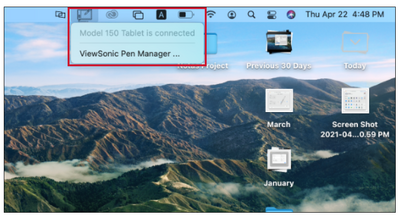
- Adjustments to the pen can be made by selecting the Pen tab.

- Select the Mapping tab to adjust screen orientation and display.

- Select the Express Keys tab to customize the six (6) express keys on the pen display.


