
VP2786-4K Adjusting the Viewing Angle: Difference between revisions
From ViewSonic Documentation
No edit summary |
No edit summary |
||
| Line 15: | Line 15: | ||
}} | }} | ||
</noinclude> __NOTOC__ | </noinclude> __NOTOC__ | ||
< | {| | ||
|<div class="res-img">[[File:VP2776_Adjust_Height.png]]</div> | |||
|<div class="res-img">[[File:VP2776_Adjust_Swivel.png]]</div> | |||
|<div class="res-img">[[File:VP2776_Adjust_Tilt.png]]</div> | |||
|- | |||
|Height Adjustment | |||
|Swivel Adjustment | |||
|Tilt Angle Adjustment | |||
|} | |||
===Height Adjustment=== | ===Height Adjustment=== | ||
Lower or raise the monitor to the desired height (0 to 130 mm). | Lower or raise the monitor to the desired height (0 to 130 mm). | ||
Revision as of 09:19, 29 December 2022
 |
 |
 |
| Height Adjustment | Swivel Adjustment | Tilt Angle Adjustment |
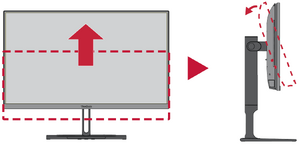
Height Adjustment
Lower or raise the monitor to the desired height (0 to 130 mm).
- NOTE: When adjusting, press down firmly along the adjustment track holding the monitor with both hands on the side.
Screen Orientation Adjustment (Monitor Pivot)
-
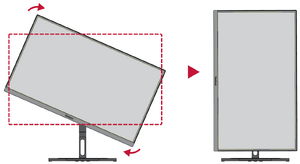
 Screen Orientation Adjustment
 -
 Screen Orientation Adjustment
 -
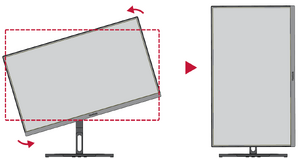 Screen Orientation Adjustment


- Adjust the monitor height to the highest position. Then tilt the monitor backwards to the full tilt position.
- Rotate the monitor 90° clockwise or counter clockwise from landscape to portrait orientation.
- NOTE:
- When adjusting, make sure to hold both sides of your monitor firmly with both hands.
- If using the Auto Pivot function, the system can detect the screen orientation automatically.
Swivel Adjustment
Swivel the monitor to the left or right for the desired viewing angle (60˚).
Tilt Angle Adjustment
Tilt the monitor forwards or backwards to the desired viewing angle (-5˚ to 21˚).
- NOTE: When adjusting, support the stand firmly with one hand while tilting the monitor forwards or backwards with the other hand.