
X10-4K Operation: Difference between revisions
From ViewSonic Documentation
No edit summary |
|||
| Line 26: | Line 26: | ||
# Open the '''Apps Center''' by selecting: '''Home''' > '''Apps Center'''. | # Open the '''Apps Center''' by selecting: '''Home''' > '''Apps Center'''. | ||
# Use the directional buttons to select the desired App. | # Use the directional buttons to select the desired App. | ||
# Press and hold '''OK''' on the remote control for three (3) seconds. | # Press and hold '''OK''' on the remote control for three (3) seconds. | ||
# Select '''OK''' to uninstall the App. | # Select '''OK''' to uninstall the App. | ||
::'''NOTE:''' Press the '''Home''' button on the remote control to return to the '''Home Screen''' at anytime. | ::'''NOTE:''' Press the '''Home''' button on the remote control to return to the '''Home Screen''' at anytime. | ||
==File Management== | ==File Management== | ||
Revision as of 09:20, 4 May 2020
Home Screen
The Home Screen is displayed every time you start the projector. To navigate the Home Screen, simply use the directional buttons on the remote control. You can return to the main Home Screen at any time by pressing the Home button on the remote control, regardless of what page you are on.

Aptoide
The projector is pre-loaded with the Aptoide store, which allows users to download and install different Apps.
-
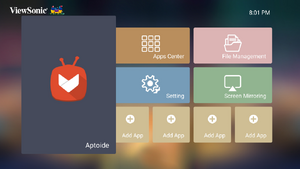 Step 1 - Select Aptoide
 -
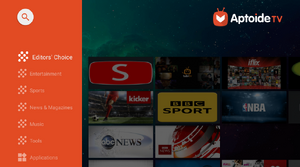 Step 2 - Navigate the store


- Select: Home > Aptoide.
- Use the direction buttons to navigate the menu options. When you find your preferred App, press the OK button to install it.
- NOTE: Users can install third-party Apps by .apk file in File Management. However, some third-party Apps may have compatibility issues.
Apps Center
View, launch, and uninstall Apps.
-
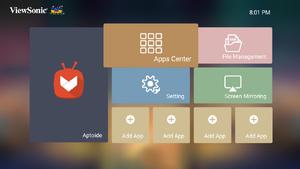 Step 1 - Select Aptoide
 -
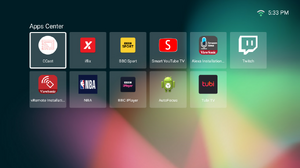 Step 2 - Navigate the store


- To view your Apps, select: Home > Apps Center.
- Use the direction buttons to select the desired App. Then press OK on the remote control to launch the App.
- NOTE: Press the Home button on the remote control to return to the Home Screen at anytime.
To Uninstall Apps
- Open the Apps Center by selecting: Home > Apps Center.
- Use the directional buttons to select the desired App.
- Press and hold OK on the remote control for three (3) seconds.
- Select OK to uninstall the App.
- NOTE: Press the Home button on the remote control to return to the Home Screen at anytime.