Intelligent Sensing
Setting Up for Intelligent Sensing
The built-in intelligent sensors can detect your presence vertically and horizontally. The depth and width of the effective range are around 75 °. Observe the following guideline for a more comfortable viewing experience.
 |
 |
Sitting at Your Desk Within the Effective Range
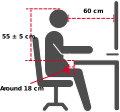
- Adjust the monitor or your chair so that you can look directly into the intelligent sensors. We recommend the distance between the top of your head and the desk is 55 ± 5 cm (21.65 ± 2 in.).
- Position the monitor 60 cm (23.62 in.) from your eyes.
- Keep around 18 cm (7.09 in.) of distance between you and the edge of the desk.

Positioning the Monitor Within the Effective Range
When you use the monitor with a PC, we recommend the distance between the monitor and the edge of the desk is 60 cm (23.62 in.). Additionally, the monitor tilt angle is 0~20°.

When you use the monitor with a laptop as an extended monitor, we recommend the distance between the monitor and the edge of the desk should not exceed 45°. Additionally, the monitor tilt angle is 0~20°.

When using the monitor in portrait mode, observe the following guidelines.
- Before pivoting the monitor, go to OSD Menu > Setup Menu > OSD Pivot to rotate the OSD menu so it is in proper orientation for the sensitivity of the intelligent sensors.
- When the monitor is to be placed on the left side of the desk, we recommend pivoting the monitor 90°clockwise (the I/O ports are on the left).
- When the monitor is to be placed on the right side of the desk, we recommend pivoting the monitor 90° counterclockwise (the I/O ports are on the right).
- The recommended tilt angle is -5~15°.
Configuring the Settings

Auto-Dimmer
The intelligent sensors will automatically dim the backlight when the sensors have detected that you are not looking at the monitor for around 20 seconds.
Similarly, when you are looking at the screen, the intelligent sensors will automatically turn the backlight back on based on what is currently on the screen.
Privacy Alert
The intelligent sensors will alert you when the sensors detect there is someone behind you looking at your screen. The “Multiple Viewers Detected“ window will appear and automatically close after around 10 seconds.
Power Saving Mode
The intelligent sensors will automatically turn off the backlight when you have left the monitor in idle for around 45 seconds. The sensors will automatically turn the backlight back on when you return.
Break Reminder
Break Reminder will remind you to take a break after one or two hours. The “Time for a Break“ window will appear and automatically close after around 10 seconds.
Break Reminder will also remind you when time is up. If you return in the middle of the break, a confirmation window will appear. You can choose to resume or end the break.
Ambient Light Sensor
The intelligent sensors will automatically adjust the screen brightness based on the light conditions around you.
Posture Check
The intelligent sensors will remind you to adjust your posture when you have leaned to the left or right for around one minute. The “Check Your Posture“ window will appear and automatically close after around 10 seconds.
Focused Attention
Focused Attention Mode will move the mouse pointer to the screen you are looking at. This mode supports up to three monitors in total, including the laptop’s built-in screen if connected. Among these three monitors, only one can be a non-VG2748A-2K monitor. This non-VG2748A-2K monitor must either be another ViewSonic model or the laptop’s built-in screen.
Connecting a PC with VG2748A-2K Monitor

Connecting a PC with VG2748A-2K Monitors and ViewSonic Monitor

Connecting a laptop with VG2748A-2K Monitors

- This feature is only applicable when the monitor(s) are positioned on the left or right side of another screen or laptop.
- Make sure the display mode is set to “Extend” when connecting to multiple monitors.
- Before pivoting the monitor, go to OSD Menu > Setup Menu > OSD Pivot to rotate the OSD Menu so it matches the monitor's orientation. Then, restart vDisplay Manger to apply the changes.