Firmware Update Tool
Introduction
What is Firmware Update Tool?
Firmware update tool allows the monitor to receive the latest firmware. These updates improve the monitor’s performance, enhance the user experience, and address any issues that may exist.
System Requirements
Operating System:
- Windows 10 or Higher.
- macOS 14 or Higher.
Hardware:
- A ViewSonic monitor that is connected to the system running one of the supported operating systems listed above.
- A USB cable that supports data transfer.
Initial Setup
Where to Get Firmware Update Tool?
You must download and install Display Portal from the ViewSonic website to access the Firmware Update Tool. For more information, refer to Display Portal User Guide.
Connecting the ViewSonic Monitors
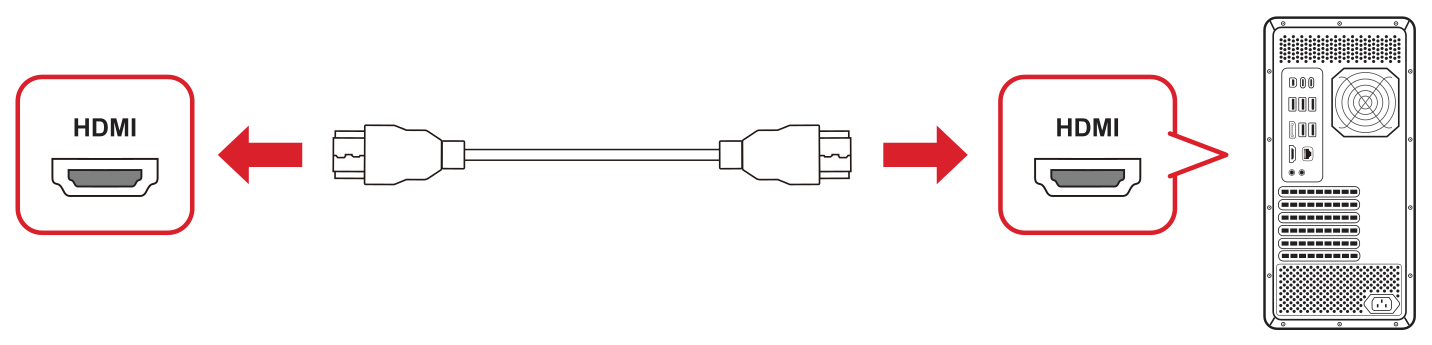
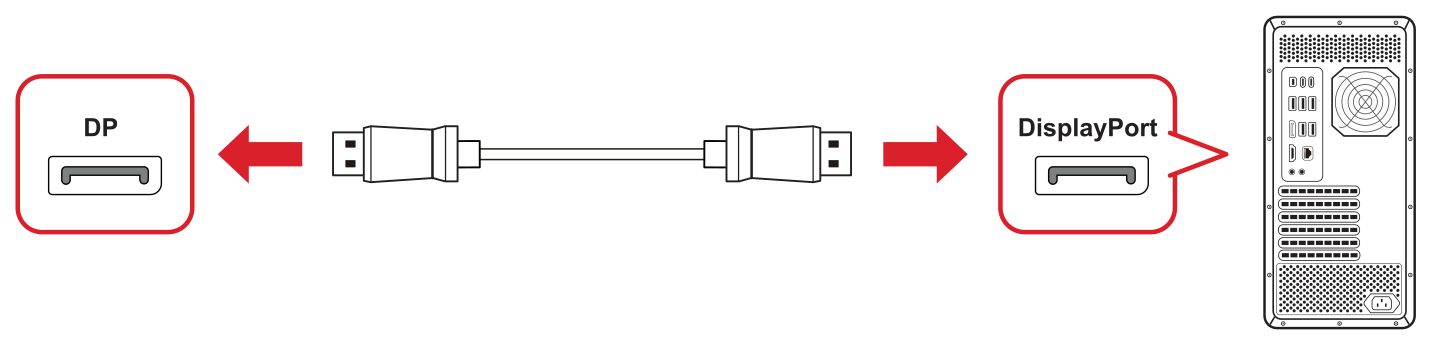
Make sure your monitors are properly connected via one of the following configurations.
- USB Type C

- HDMI
- DisplayPort


Using Firmware Update Tool
Main Menu and Its Features

| Menu | Description | ||
|---|---|---|---|
| 1 | Monitor Selection | Selects a connected monitor for a firmware update. | |
| 2 | Firmware Information | Displays the current firmware version for the selected monitor and internal hub. | |
| 3 | Check for Update | Checks for and installs the latest firmware version. | |
| 4 | Mode Menu | Switches between the User Mode and Service Mode. | |
| User Mode | Detects your monitor automatically and allows you to download updates. | ||
| Service Mode | For maintenance only. If you encounter issues upgrading the firmware, please contact ViewSonic Support for assistance before using this mode. | ||
Upgrading the Firmware
- Connect one end of a USB cable to the USB port of the monitor. Then, connect the other end of the cable to a USB port of the computer.
- Open the Firmware Update Tool.
- Select the monitor you want to upgrade the firmware.
Note: If you have multiple monitors connected, update each monitor separately.
- Select Check for Update to check for any updates to the selected monitor’s firmware.
Important: Any interruptions during the firmware update process may permanently damage your monitor. Do not disconnect the USB cable or turn off your computer and monitor.
Appendix
Troubleshooting
My Monitor is not detected by the Firmware Update Tool
| Troubleshooting Checks | Yes/No | Possible Solutions |
|---|---|---|
| Is the USB cable connected to the monitor? | Yes | Re-plug the cable, ensuring a secure connection. Check that the cable supports data transfer. |
| No | Connect the cable from the monitor to your computer. |
Firmware update appears to freeze
| Troubleshooting Checks | Yes/No | Possible Solutions |
|---|---|---|
| Is the internet connection stable? | Yes | Wait at least 10 minutes. If the screen remains frozen after the update completes, restart the application and check the firmware version. |
| No | Restart your router or network connection. Don’t disconnect the USB cable while the software is trying to reconnect. |
Regulatory and Service Information
Copyright Information
Copyright© ViewSonic® Corporation, 2026. All rights reserved.
ViewSonic® and the three birds logo are registered trademarks of ViewSonic® Corporation.
Disclaimer: ViewSonic® Corporation shall not be liable for technical or editorial errors or omissions contained herein; nor for incidental or consequential damages resulting from furnishing this material, or the performance or use of this product.
In the interest of continuing product improvement, ViewSonic® Corporation reserves the right to change product specifications without notice. Information in this document may change without notice.
No part of this document may be copied, reproduced, or transmitted by any means, for any purpose without prior written permission from ViewSonic® Corporation.
Version
Firmware_Update_Tool_UG_ENG_1a_20260203