ColorPro Display Manager
Introduction
The screenshots and illustrations in this document are for reference only and may differ from the actual design.
What is ColorPro Display Manager?
ColorPro Display Manager streamlines monitor calibration, allowing you to adjust display settings directly with your mouse.
System Requirements
Operating System:
- Windows 10 or Higher.
- macOS 14 or Higher.
Hardware:
- A ViewSonic monitor that is connected to the system running one of the supported operating systems listed above.
Initial Setup
Where to Get ColorPro Display Manager?
You must download and install Display Portal from the ViewSonic website to access ColorPro Display Manager. For more information, refer to Display Portal User Guide.
Connecting the ViewSonic Monitors
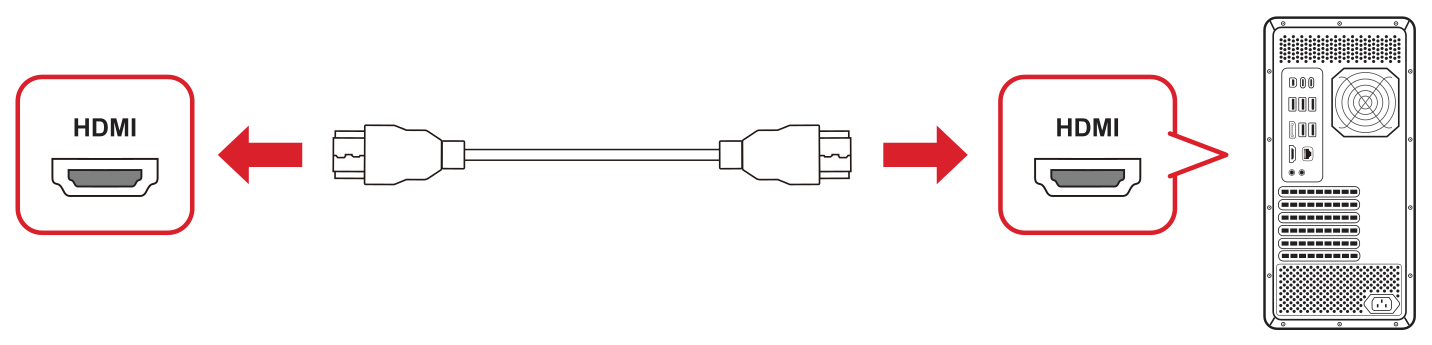
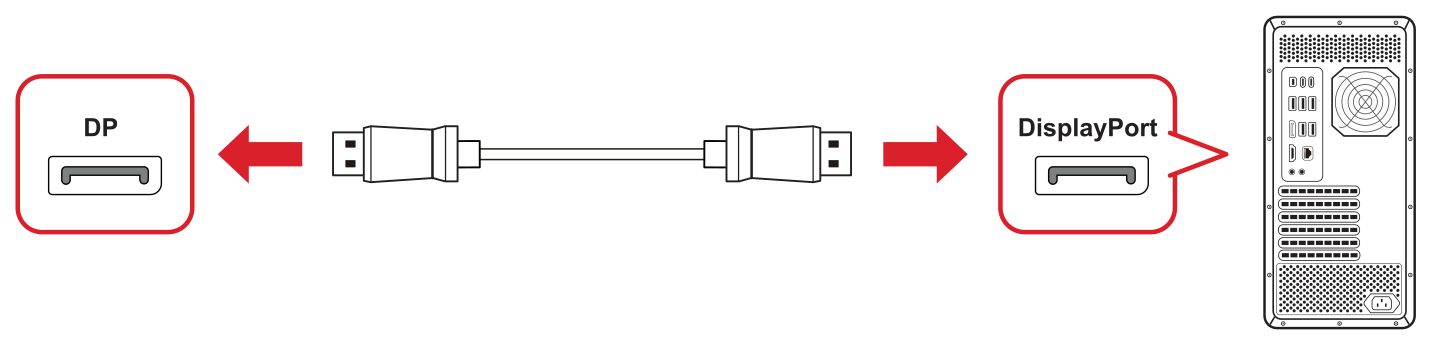
Make sure your monitors are properly connected via one of the following configurations.
- Only use attachments and accessories specifically designed and approved by the manufacturer to ensure compatibility and safety.
- Some Mac devices may not support software control via HDMI.
- USB Type C

- HDMI
- DisplayPort


Using ColorPro Display Manager
Menu Layout and Its Features
When you open ColorPro Display Manager, the software automatically detects connected monitors and displays the default home screen.

| Menu | Description | |
|---|---|---|
| 1 | Sidebar Menu | Selects a tab to access Display Control, Color Mode, Color Blindness, or PIP/PBP settings. |
| 2 | Connected Monitors | Displays a list of all detected monitors. You can select one to adjust its settings. |
| 3 | Settings | Opens the Settings menu. |
| 4 | Main Display Area | Displays and adjusts settings for the selected tab. |
Settings – Windows

| Menu | Description | |
|---|---|---|
| 1 | Language | Sets the interface language from the dropdown menu. |
| 2 | About | Displays the software version and copyright information. |
Settings – macOS

| Menu | Description | |
|---|---|---|
| 1 | Brightness Control | Adjusts how bright or how dark the displayed image will be using the keyboard. You can apply changes to all connected monitors or based on the current mouse position. |
| 2 | Volume Control | Selects an audio output source and adjusts the volume level using the keyboard. |
| 3 | Language | Sets the interface language from the dropdown menu. |
| 4 | About | Displays the software version and copyright information. |
Side Menu
Display Control

| Menu | Description | ||
|---|---|---|---|
| 1 | Monitor Information | Displays the selected monitor’s serial number, model name, firmware version, and recommended resolution. | |
| 2 | Input Source | Selects an input signal, or turn on Auto to search automatically for an available input signal. | |
| 3 | Reset | Returns all settings to their default values. | |
| 4 | Display Controls | Selects an input signal, or turn on Auto to search automatically for an available input signal. | |
| 5 | Screen Pivot | 0° | Adjusts the displayed image’s orientation on the screen, or turn on Auto to adjust automatically. |
| 90° | |||
| −90° | |||
Color Mode

| Menu | Description | |
|---|---|---|
| 1 | Color Mode[1] | Adjusts the default settings (e.g. brightness, saturation, contrast, or color temperature) of a preset color mode. |
| 2 | View Mode | Selects a preset display setting. |
- ↑ Available settings may vary or be limited by model.
Color Blindness

| Menu | Description | |
|---|---|---|
| 1 | Color Filter | Adjusts the screen hue. |
| 2 | Advanced Filter | Adjusts the screen hue with additional sliders for intensity and color boost. |
| 3 | Simulation | Previews how the selected color filter appears on the screen. |
PIP/PBP (Picture-in-Picture/Picture-by-Picture)

| Menu | Description | |
|---|---|---|
| 1 | PBP | Splits the screen into two windows to display content from different input sources at the same time. |
| 2 | PIP | Displays content from a second input source in a sub-window over the main screen. |
Appendix
Troubleshooting
My Monitor is not detected by ColorPro Display Manager
| Troubleshooting Checks | Yes/No | Possible Solutions |
|---|---|---|
| Is the USB cable connected to the monitor? | Yes | Re-plug the cable, ensuring a secure connection. Check that the cable supports data transfer. |
| No | Connect the cable from the monitor to your computer. |
Regulatory and Service Information
Copyright Information
Copyright© ViewSonic® Corporation, 2026. All rights reserved.
ViewSonic® and the three birds logo are registered trademarks of ViewSonic® Corporation.
Disclaimer: ViewSonic® Corporation shall not be liable for technical or editorial errors or omissions contained herein; nor for incidental or consequential damages resulting from furnishing this material, or the performance or use of this product.
In the interest of continuing product improvement, ViewSonic® Corporation reserves the right to change product specifications without notice. Information in this document may change without notice.
No part of this document may be copied, reproduced, or transmitted by any means, for any purpose without prior written permission from ViewSonic® Corporation.
Version
ColorPro_Display_Manager_UG_ENG_1a_20260205